AI Binary Classification
Function
This Step is used to perform front-back orientation and presence judgment of target objects in images. Through image acquisition, ROI selection, and class labeling, the system uses deep learning for training and validation to output stable orientation and presence classification results.
|
Using this Step requires the "Lite AI" feature license. Please contact Mech-Mind sales to obtain it. |
Usage Scenario
This Step is suitable for scenarios requiring "front\back orientation" or "presence" determination rules for objects. This Step typically follows the 2D Smart Camera Step, or Steps such as 2D Matching. The former is suitable for scenarios where the target position is relatively fixed, performing classification judgment after acquiring image data; the latter is suitable for scenarios where the target position may shift, using alignment Steps to obtain the target’s pose transformation parameters, which are input to this Step to synchronously adjust the ROI position for stable classification judgment.
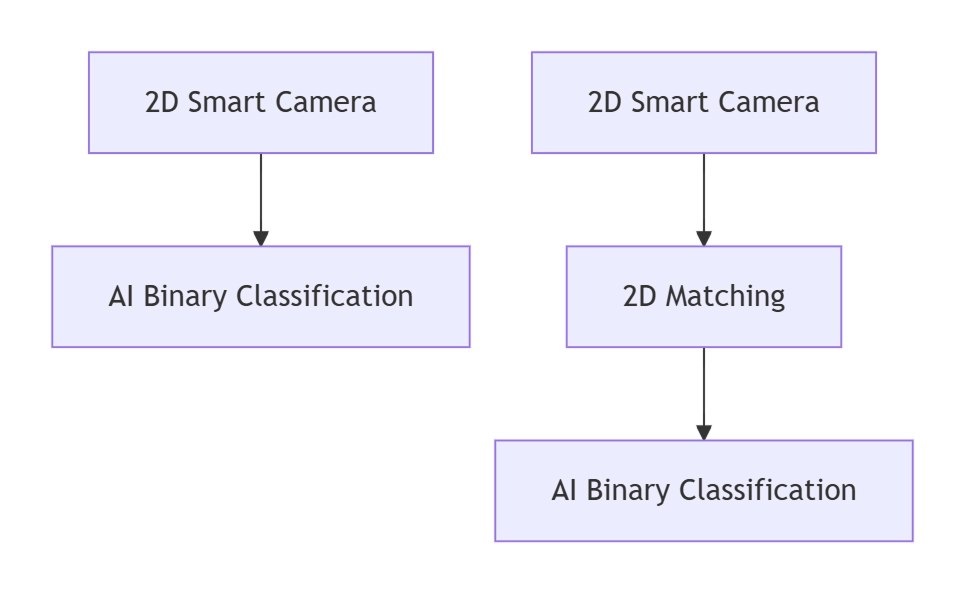
Input and Output
Input
| Input port | Data type | Description |
|---|---|---|
Image |
Image |
Image of the target objects to be classified. |
Object Pose |
Pose2D[] |
The position and orientation of the matched objects in the image. |
Output
| Output port | Data type | Description |
|---|---|---|
Classification Judgment Result |
String[] |
Classification judgment result, that is OK or NG. |
Classification Status |
Bool[] |
Used to indicate whether classification is successful; true for success, false for failure. |
Classification Confidence |
Number[] |
Confidence for each classification result. |
Target Region Info |
Shape2D[][] |
Information about recognized targets, including target type, position, and related geometric parameters. |
Image with Result |
Image[] |
Image with recognition result. |
Parameter Description
| Parameter | Description |
|---|---|
Model Name |
Parameter description: Select a configured model from the drop-down list. The model must be added in the editor in advance.
|
Result Visualization |
Parameter description: When this parameter is checked, the Step outputs an image with recognition results for inspection and result visualization.
|