Get Highest-Layer Poses
Function
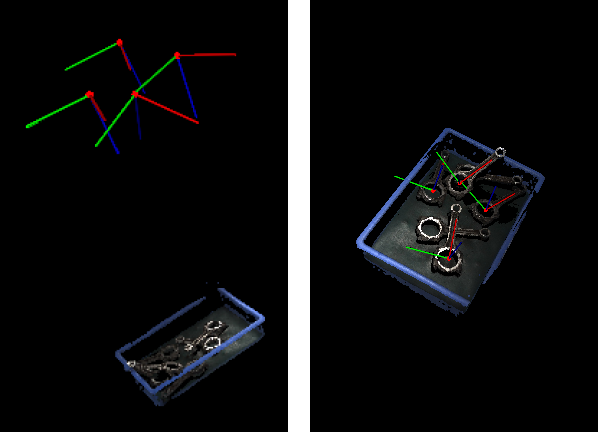
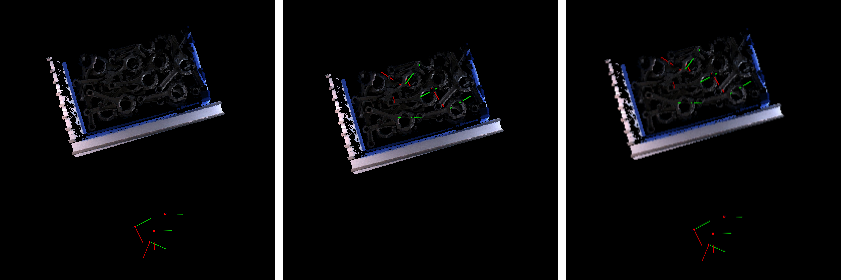
This Step sorts the poses in descending order along the specified direction, and then outputs the highest layer poses.
Usage Scenario
This Step is a general pose filtering Step. It outputs poses that meet the requirements according to the set parameters.
Input and Output
Input
| Input port | Data type | Description |
|---|---|---|
Poses |
Pose[] |
Pose list input to this port will be sorted and filtered. |
Pose Labels |
String[] - |
The labels of input poses. |
Pose Scores |
Number[] - |
The confidences of input poses. |
Output
| Output port | Data type | Description |
|---|---|---|
Poses in Highest Layer |
Pose[] |
List of highest layer poses obtained. |
Pose Labels |
String[] - |
Classification labels corresponding to highest layer poses. |
Pose Scores |
Number[] - |
Pose scores corresponding to the highest layer poses. |
Layer Flags |
Bool[] |
List of layer flags for input poses. True means the pose is in the highest layer; False means it is not. |
Parameter Description
Reference Direction
| Parameter | Description |
|---|---|
X |
Parameter description: This parameter is used to set the X-axis component of the reference direction.
|
Y |
Parameter description: This parameter is used to set the Y-axis component of the reference direction.
|
Z |
Parameter description: This parameter is used to set the Z-axis component of the reference direction.
|
Layer Settings
| Parameter | Description |
|---|---|
Only Get Highest One |
Parameter description: This parameter is used to determine whether to output only one pose from the highest layer. |
Layer Height |
Parameter description: This parameter is used to set the height range of the layer.
|
Layer Tolerance (0.0–1.0) |
Parameter description: This parameter is used to set the tolerance coefficient for determining whether the poses belong to the same layer.
|
Visualization Settings
| Parameter | Description | ||||
|---|---|---|---|---|---|
Show Point Cloud In Selected Frame |
Description: Display point cloud under the robot reference frame or the camera reference frame. Default value: Robot Coordinate Value list: Robot Coordinate, Camera Coordinate Instruction: When this parameter is set to Robot Coordinate, the Debug Output panel will display the visualized output under the camera reference frame; when it is set to Robot Coordinate, the panel will display the visualized output under the robot reference frame. Please refer to the tuning example for the corresponding result.
|
||||
Pose Type to Visualize |
Description: This parameter is used to select the pose type to visualize.
|