Adjust Trajectory
Merge Trajectories
When the robot needs to move continuously along multiple trajectories without leaving the object surface and without switching end tools, you can merge multiple trajectories.
The merge trajectory function can merge multiple end-to-end trajectories into one continuous trajectory, so the robot can move continuously during operation without leaving the object surface.
-
Create trajectories.
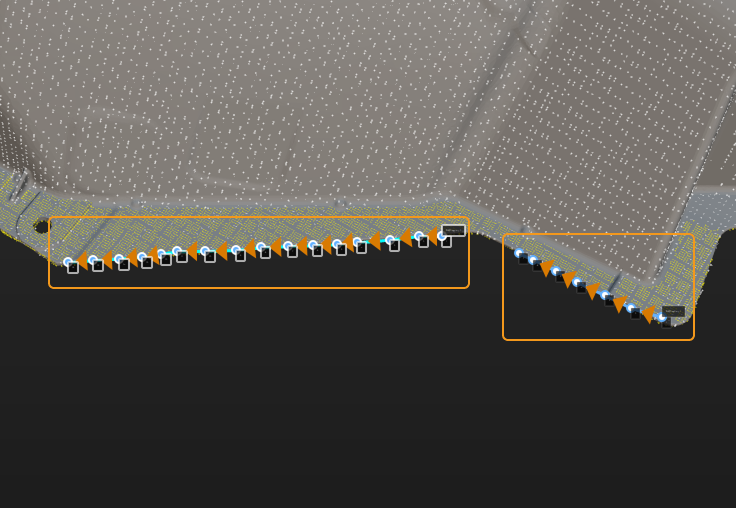
Ensure that there are at least two trajectories on the target object, as shown in the figure below.
-
Merge Trajectories
In the trajectory list, select any trajectory, click Merge, then select the trajectory to merge, and click Apply to merge the two trajectory lines.
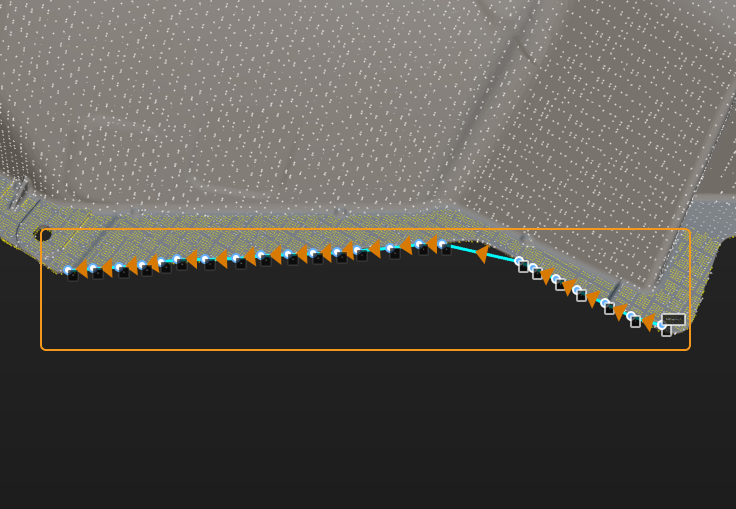
When merging trajectories, each trajectory will be connected end-to-end and merged into one trajectory, as shown in the figure below.
Add Trajectory Point
To add a trajectory point, do as follows.
-
In the trajectory list, select a trajectory point.
-
Click
 on the right side of the trajectory point, and select Add trajectory point in the shortcut menu. Then a new trajectory point will be added after the selected point.
Split Trajectory Line
To split a trajectory line, do as follows.
-
In the trajectory list, select a trajectory point.
-
Click
on the right side of the trajectory point, and select Split trajectory line in the shortcut menu. The trajectory line will be split from the selected point, and the selected point plus the following points will be split into a new trajectory line.
Set a Trajectory Point as Start Point and Reorder
To set a trajectory point as the start point and reorder, do as follows.
-
In the trajectory list, select a trajectory point.
-
Click
on the right side of the trajectory point, and select Set as start point and reorder in the shortcut menu. The selected point will be set as the start point, and points before it will be moved to the end of the trajectory line.
Reverse the Order of Trajectory Points
To reverse the order of trajectory points, do as follows.
-
In the trajectory list, select a trajectory line.
-
Click
 on the right side of the trajectory line to reverse the order of trajectory points in the selected trajectory line.
For example, the trajectory point order changes from 1→2→3→4→5 to 5→4→3→2→1.