Parameter Recipe
This section introduces the application scenarios and configuration of parameter recipes.
Introduction
Parameter recipes are sets of parameter settings that need to be adjusted according to different situations for the same project. With parameter recipes, you do not need to build multiple projects with the same logic and configure their parameters differently to meet different on-site requirements. Instead, you will only need to switch between parameter recipes in one project to make it applicable to various scenarios and therefore the productivity can be increased.
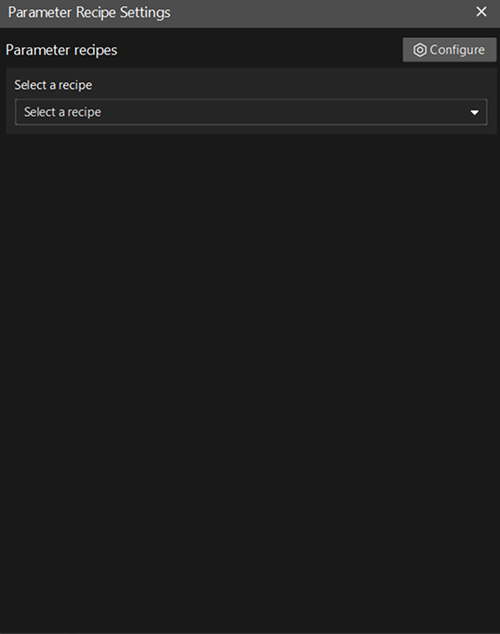
Mech-Vision provides Parameter recipe. Click the "Parameter Recipe" button  below the toolbar to open the "Parameter Recipe Settings" window.
Application Scenarios
Parameter recipes are applicable to scenarios where the parameters need to be set according to different situations. The typical application scenarios are summarized as follows:
-
Use the same Mech-MSR project to measure or inspect different types of target objects. In this scenario, you can configure different parameter recipes and switch measurement-related parameters or decision thresholds for different target objects.
For example, for target objects of different models, you can switch different feature regions, reference lines, etc. via parameter recipes.
-
Use the same Mech-MSR project to process objects of different batches or specifications. n this scenario, you can configure different parameter recipes and switch parameter settings according to the size, shape, or inspection requirements of the objects, thereby adapting to measurement and inspection tasks for products of different specifications.
-
Under different light conditions (e.g., in the daytime or in the evening), the Mech-MSR project may need to use profilers with different parameter settings. In this scenario, you can configure different parameter recipes and quickly switch to the profiler parameter settings suitable for the current light conditions.
Configure Parameter Recipes
Add a Parameter Recipe
-
Open the Parameter Recipe Editor.
After opening a project, click the "Parameter Recipe" button
below the toolbar, and then click the Configure button in the "Parameter Recipe Settings" window to open the Parameter Recipe Editor.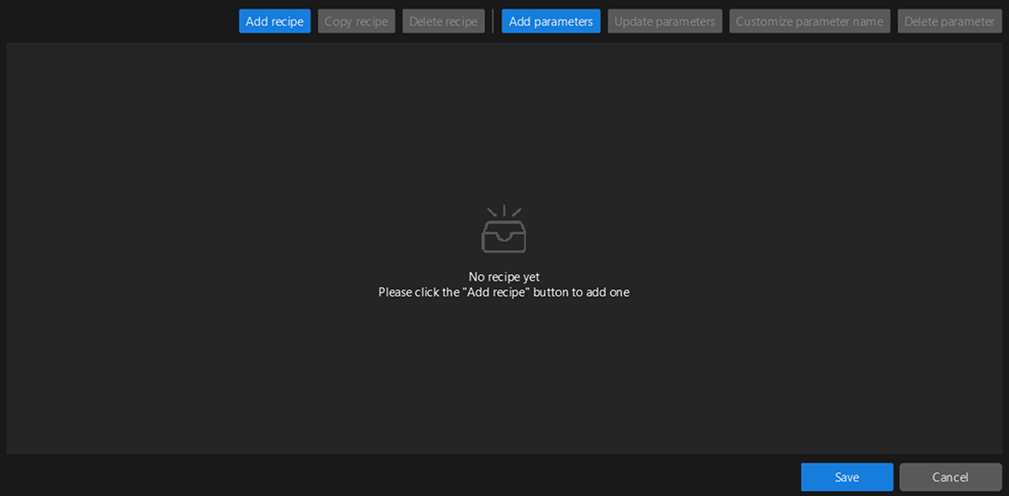
-
Add a parameter recipe.
Click the Add recipe button in the Parameter Recipe Editor, and a new recipe will be added. Double-click the default recipe name to customize the recipe name.
-
Add Step parameters to the parameter recipe.
Select the newly added recipe and click the Add Parameter button. In the pop-up Select Step Parameters window, select the Step on the left panel, and then select the parameters of the Step on the right. After selecting all the parameters you need, click OK.
After the parameters are added, you can customize the parameter names according to actual requirements. Select a parameter and click the Customize parameter name button to modify the name.
-
Set parameter values for the parameter recipe.
In the recipe list, double-click the parameter value of a recipe to modify it.
When configuring parameter recipes, please pay attention to the dependency between parameters. Whether certain parameters take effect depends on the settings of other parameters. For example, only parameter A is displayed in "Basic Mode", while both parameter A and parameter B are displayed in "Advanced Mode". If you set the mode to "Basic Mode" in the parameter recipe, parameter B will not take effect even if it is added.
-
Save the parameter recipe.
After completing the above operations, click the Save button to save the parameter recipe.
If you need multiple parameter recipes, repeat the above operations to add more. The newly added parameter recipe will automatically inherit the Step parameter settings from the first recipe in the Parameter Recipe Editor. After adding, you can double-click the parameter value of the corresponding recipe and modify it according to actual requirements.
Copy Parameter Recipe
When a parameter recipe already exists in the Parameter Recipe Editor, you can copy the existing parameter recipe by using the "Copy recipe" feature.
-
Copy the parameter recipe.
Select the recipe to be copied in the Parameter Recipe Editor, and then click the Copy recipe button.
-
Modify the name of the copied recipe.
After the recipe is copied, a parameter recipe copy will appear in the Parameter Recipe Editor. Double-click the recipe name to modify it.
Apply or Switch the Parameter Recipe
-
Open the "Parameter Recipe Settings" window.
After opening a project, click the "Parameter Recipe" button
below the toolbar to open the "Parameter Recipe Settings" window. -
Select a parameter recipe.
In the "Parameter Recipe Settings" window, select the corresponding parameter recipe from the drop-down list. The selected parameter recipe will take effect when the project runs.
|
After running the project with the selected parameter recipe, if you want to modify the parameter settings in the recipe, please refer to Modify Specific Parameter Setting in the Parameter Recipe. If you modify the parameter settings in the project directly, the parameter recipe will be switched to Customized when you run the project again. |
Add Parameters to the Parameter Recipe
Follow these steps to add parameters to the recipe:
-
In the Parameter Recipe Editor, select the recipe and click the Add Parameter button.
-
In the Select Step Parameters window, select the new Step parameters to add to the recipe, and then click OK.
-
In the recipe list, double-click the new parameter settings to modify.
-
Click the Save button to save the settings.
Delete Parameters from the Parameter Recipe
Follow these steps to delete parameters from the recipe:
-
In the Parameter Recipe Editor, select the parameter you want to delete in the recipe and click the Delete Parameter button.
Once the parameter is deleted, it will be removed from all parameter recipes.
-
Click the Save button to save the settings.
Modify Specific Parameter Setting in the Parameter Recipe
Follow these steps to modify the settings of a specific parameter in the recipe:
-
In the recipe list, double-click the parameter settings you want to adjust to modify.
-
Click the Save button to save the settings.
Update Parameter Settings according to the Current Project Configuration
You can update the settings of specific parameters or all parameters in a recipe according to the configuration of the current project.
-
Follow these steps to update the settings of specific parameters in a recipe according to the current project configuration:
-
In the Parameter Recipe Editor, select the parameter(s) you want to update in the specified recipe.
Press the Ctrl key to select multiple parameters.
-
Click the Update parameter button to synchronize the parameter values from the project to the Parameter Recipe Editor.
-
-
Follow these steps to update the settings of all parameters in a recipe according to the current project configuration:
-
In the Parameter Recipe Editor, click the recipe ID to select the entire recipe.
-
Click the Update parameter button to synchronize the parameter values from the project to the Parameter Recipe Editor.
-
Synchronize Parameter Settings Between Two Parameter Recipes
You can synchronize the settings of specific or all parameters between two recipes.
-
To synchronize the settings of a specific parameter between two recipes, right-click the parameter value of a recipe in the Parameter Recipe Editor, and then select Copy values to recipe "xx" to synchronize the specified parameter setting between the two recipes.
-
To synchronize the settings of all parameters between two recipes, right-click the recipe name in the Parameter Recipe Editor, and then select Copy values to recipe "xx" to synchronize all parameter settings between the two recipes.