Obtain Results
Obtain Thickness Measurement and Inspection Results
Upon the process of Measure the Thickness of the Bent Plate, you can select the Measure Dimensions by Features Step and set an acceptable range for its output item Distance.
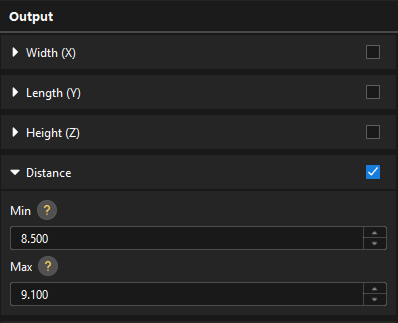
After the Step is run, you can view the thickness measurement and inspection results in the Output Results panel.

Obtain Width Measurement and Inspection Results
Upon the process of Measure the width of the bent plate, you can select the Measure Dimensions by Features Step and set an acceptable range for its output item Distance.
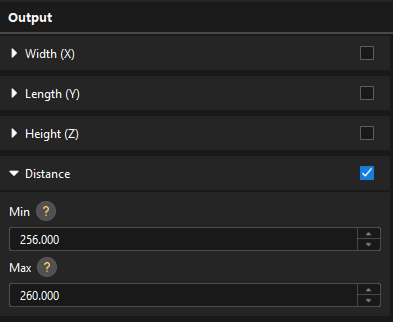
After the Step is run, you can view the width measurement and inspection results in the Output Results panel.

Obtain Length Measurement and Inspection Results
Upon the process of Measure the length of the bent plate, you can select the Measure Dimensions by Features Step and set an acceptable range for its output item Distance.
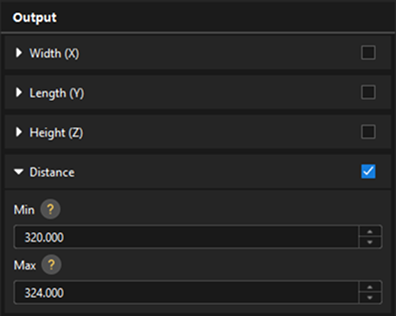
After the Step is run, you can view the length measurement and inspection results in the Output Results panel.
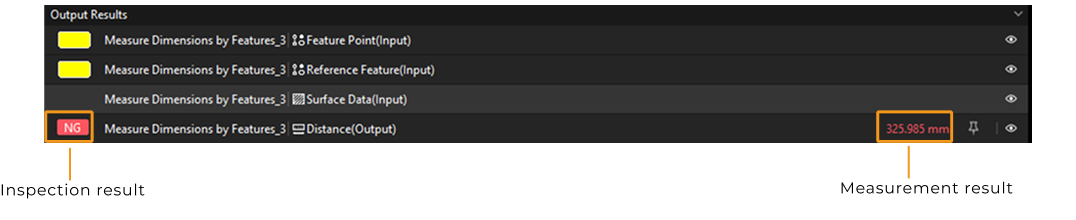
Obtain Bent Plate Inspection Result
The inspection result of the bent plate depends on its thickness and dimensions, which is the quality judgment result of the entire project. Click the Output Management button from the toolbar of the home interface to set quality judgment rules for the project.
Select the project under the Quality judgment tab, set Judgment type to Comprehensive, and select the output items corresponding to the above four inspection results.
Examples:
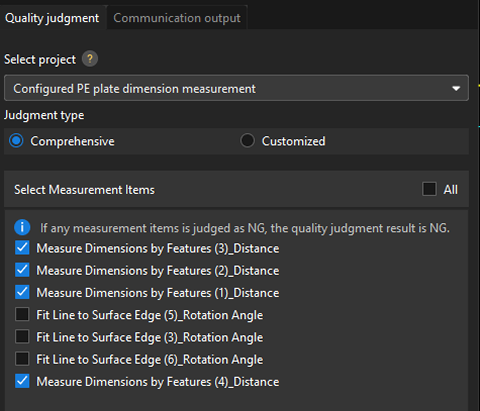
Then, click the Apply button to save the settings and run the project. You will obtain the judgment result of the project in the upper-left corner of the graphical programming workspace.
|
For more information, see Configure the Comprehensive Judgment Rule for the Project. |
(Optional) Send Measurement and Inspection Results to External Devices
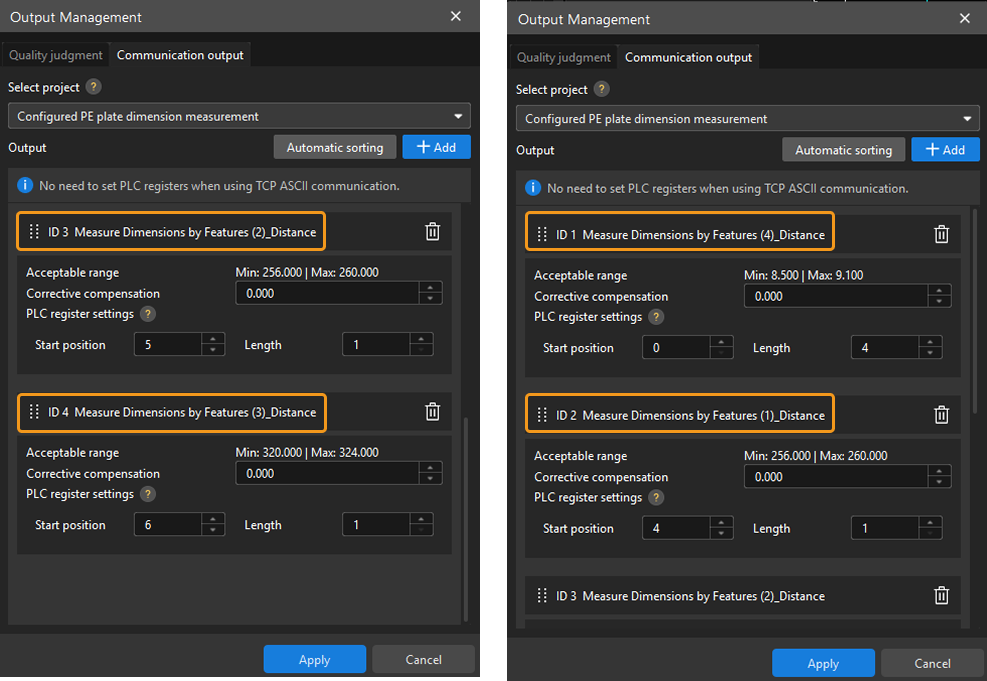
If you need to send the measurement and inspection results to an external device, you can configure the settings under the Communication output tab in the Output Management window.
|
Now, you have finished deploying the solution.