Locate Feature Point of Mask
Usage Scenario
This Step is commonly used to quickly obtain representative center points of target regions in mask images, mainly for dimension measurement scenarios.
Workflow
The process of configuring this Step is shown below:
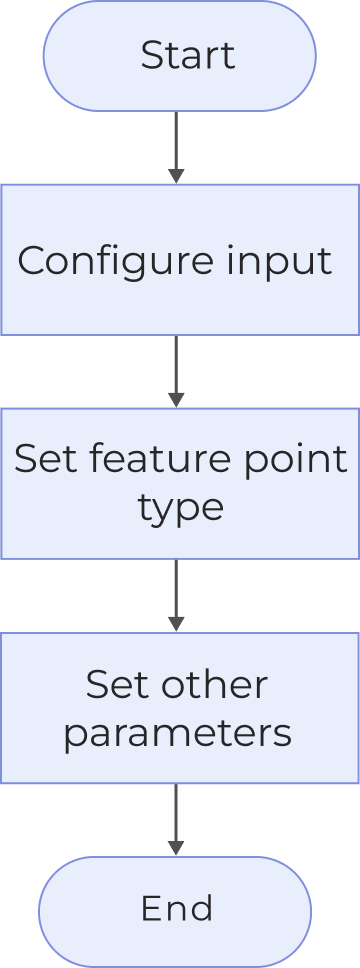
-
Configure the input. Connect the ports manually or select the input(s) under Input in the parameter configuration panel.
-
In the Parameters panel, select the desired Feature Point Type.
-
If additional parameters are available in the Parameters panel, select and adjust them as needed.
-
Under Output, select the desired output items. Click ▶ on the left of an output item to expand it, and configure the Upper Limit and Lower Limit values to define the acceptable range.
Parameter Description
| Parameter | Description |
|---|---|
Feature Point Type |
Select the feature point type.
|
Output Description
Select the output item(s) to add the output port(s) to the Step, which outputs the specific data when the Step runs. Select the desired output items based on the measurement requirements.
|
If you select an expandable output item, you should expand it by clicking ▶, and then set the Upper Limit and Lower Limit values to determine the acceptable range. If the output value falls within the acceptable range, the measurement item is judged as passing (OK), or else it is judged as failing (NG). |
| Output item | Description |
|---|---|
Feature point |
Located feature point. |
Point X |
X coordinate of the feature point. |
Point Y |
Y coordinate of the feature point. |
Troubleshooting
|
CV-W6801
Error: The mask image is empty.
Solution: Check whether the upstream step or input port provides valid mask image data.
CV-W6802
Error: The mask image is too small.
Solution: Ensure that its width and height must be greater than or equal to 3 pixels.
CV-W6803
Error: The input mask image is not a single-channel image (CV_8UC1).
Solution: Provide a valid single-channel mask image as input.