Object Detection
Function
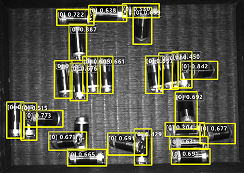
Use the Object Detection model package to run inference on the input image. The model package detects the positions of all target objects, classifies them, and outputs their classes.
Applicable to scenarios such as counting target objects, and detecting and extracting target object regions.
Input and Output
After you import the model package in the Deep Learning Model Package Inference Step, the following input and output ports are displayed.
Input
| Input Port | Data Type | Description |
|---|---|---|
Image |
Image/Color |
Image input to this port will be used for deep learning model package inference. Displays when the Input Data Type is 2D image. |
Surface Data |
Surface |
Surface data input to this port will be used for deep learning model package inference. Displays when the Input Data Type is Surface data. |
Output
| Output Port | Data Type | Description |
|---|---|---|
Visualization Output |
Image/Color |
Visualized results. |
Object Bounding Boxes |
Shape2D/Contour[] |
Bounding box for detection results. This port is displayed when the Input Data Type is 2D image. |
Object Images |
Image/Color |
The image cropped from the input image based on the detection result bounding box. |
Object Confidences |
Number[] |
Confidence of the detection result. |
Object Labels |
String[] |
The label of the inspection result. |
Object Bounding Box Masks |
Image/Color/Mask[] |
Square mask of the bounding box of the target object. Regions with non-zero pixel values represent the mask. This port is displayed when the Input Data Type is 2D image. |
Surface Data in Bounding Box |
Surface[] |
Rectangular surface data within the target bounding box. This port is displayed when the Input Data Type is Surface data. |
Parameter Description
The following parameters need to be adjusted when the object detection model package is imported into this Step.
Model Package Settings
| Parameter | Description |
|---|---|
Model Manager Tool |
Parameter description: This parameter is used to open the deep learning model package management tool and import the deep learning model package. The model package file is a .dlkpack file exported by Mech-DLK.
|
Model Name |
Parameter description: After a Deep Learning Model Package is imported, this parameter is used to select the imported model package for this step.
|
Release Original Model Package After Switching |
Parameter description: Controls whether the resources used by the original model package are released upon the switch.
|
Model Package Type |
Parameter description: Once a Model Name is selected, the Model Package Type will be filled automatically. |
Input Batch Size |
Parameter description: The number of images processed during each inference. |
GPU ID |
Parameter description: This parameter is used to select the device ID of the GPU that will be used for the inference.
|
Input Data Type |
Parameter description: This parameter is used to specify the type of input data. The corresponding input ports will be displayed after the parameter is selected. It supports 2D image and surface data input. |
Preprocessing
| Parameter | Description | ||||
|---|---|---|---|---|---|
ROI File |
Parameter description: This parameter is used to set or modify the ROI of the input image. Tuning instruction: Once the deep learning model is imported, a default ROI will be applied. If you need to edit the ROI, click the Open the editor button. Edit the ROI in the pop-up Set ROI window, and fill in the ROI name. Instructions for Setting ROI: Hold down the left mouse button and drag to select an ROI, and then click the left mouse button again to confirm. If you need to re-select the ROI, please click the left mouse button and drag again. The coordinates of the selected ROI will be displayed in the “ROI Properties” section. Click the OK button to save and exit.
|
Postprocessing
| Parameter | Description |
|---|---|
Inference Configuration |
Parameter description: Configures the inference settings for an Object Detection model package. Click Open the editor to open the inference configuration window.
|
Class Display Mode |
Parameter Description: Selects whether to display classes by name or by index in the output results. |
Visualization Settings
| Parameter | Description |
|---|---|
Draw Result on Image |
Parameter description: Once enabled, the detection results will be displayed on the image.
|
Customize Font Size |
Parameter description: This parameter determines whether to customize the font size in the visualized outputs. Once this option is selected, you should set the Font Size (0–10). The default value is 1.5.
|