Compose Images
Description
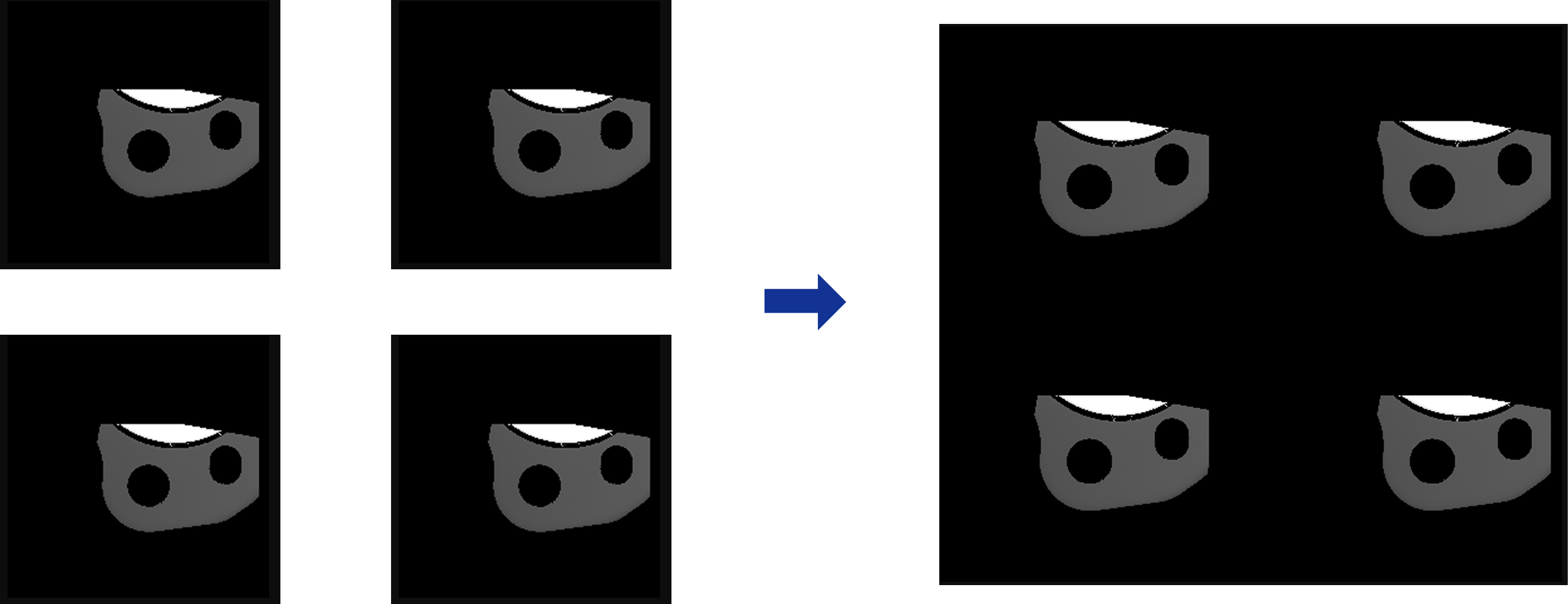
Use this Step to arrange multiple images at specified positions and compose them into a single image.
Usage Scenario
This Step is suitable for scenarios where multiple images are stitched together into one result image at a set position. For example, images from different regions can be grouped into the same image, or multiple images can be arranged by a specified displacement and output together.
You can obtain input images from Steps that perform functions such as image capturing, image reading, cropping, or scaling, and output the stitching results to Steps that perform functions such as visualization, image saving, or detection and analysis.
Workflow
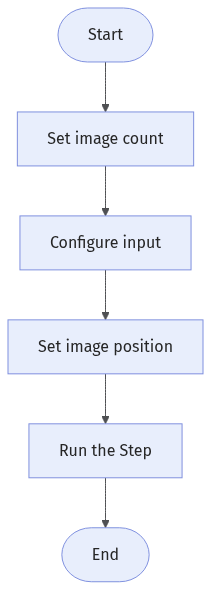
The process of configuring this Step is shown below:
-
Set the number of images to be stitched in the Parameters section.
-
Configure the input. Connect the Step ports in the graphical programming workspace or select the input under Input in the parameter configuration panel.
-
Set the image position.
-
Run the Step, and view output.
Input Description
Multiple images input for composing. The actual number of input ports is determined by the Number of Images parameter.
Parameter Description
| Parameter | Description | ||
|---|---|---|---|
Image Count |
Specifies the number of images to be composed, corresponding to the number of input ports of the Step. |
||
Composition Settings |
Click the Open the editor button to set the position of each input image in the stitched image. Specific parameters include:
|
Troubleshooting
|
Failed to Compose Images
Symptom:
An error message saying “Cannot compose image ……” appeared when the Step was running.
Possible Cause:
The input images are of different sizes or types, making it impossible to compose images.
Solutions:
Check the sizes and types of all images to be composed together to ensure they are consistent and then re-run the Step.