Rotate Image
Usage Scenario
This Step rotates the input image by a specified angle around a specified center of rotation. It is applicable for scenarios such as image orientation adjustment and geometric transformations.
Workflow
The process of configuring this Step is shown below:
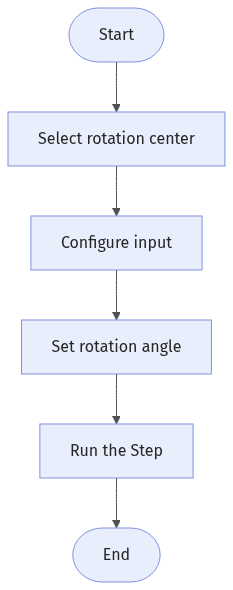
-
Select rotation center.
-
Configure the input. Connect the ports manually or select the input(s) under Input in the parameter configuration panel.
-
Set the rotation angle.
Input Description
| Input Item | Description |
|---|---|
Image |
The image to be rotated. |
Rotation Angle |
Rotation angle of images obtained from another Step. Only visible when Fixed Angle Rotation is not selected. |
Reference Point |
The center point around which the image is rotated. Only visible when Rotation Center is set to Reference point. |
Parameter Description
| Parameter | Description |
|---|---|
Rotation Center |
This parameter specifies the point around which the image is rotated. You can select Image center, Reference point, or Custom point.
|
Fixed Angle Rotation |
Once this option is selected, set a Fixed Angle Value to specify the rotation angle of the image. |
Crop on Overflow |
This parameter is used to control whether to crop the rotated image. When selected, parts of the rotated image that extend beyond the original size will be cropped. When unselected, the image size will automatically expand to display the entire rotated image. |
Troubleshooting
|
For common errors, see Error Code List. |