Configure Custom Communication Service - TCP Server
This section describes how to configure a custom communication service of the TCP Server type in Mech-MSR.
Configuration Process
| Before configuring, click Communication Configuration on the software toolbar and confirm that the software is currently using the custom communication mode. |
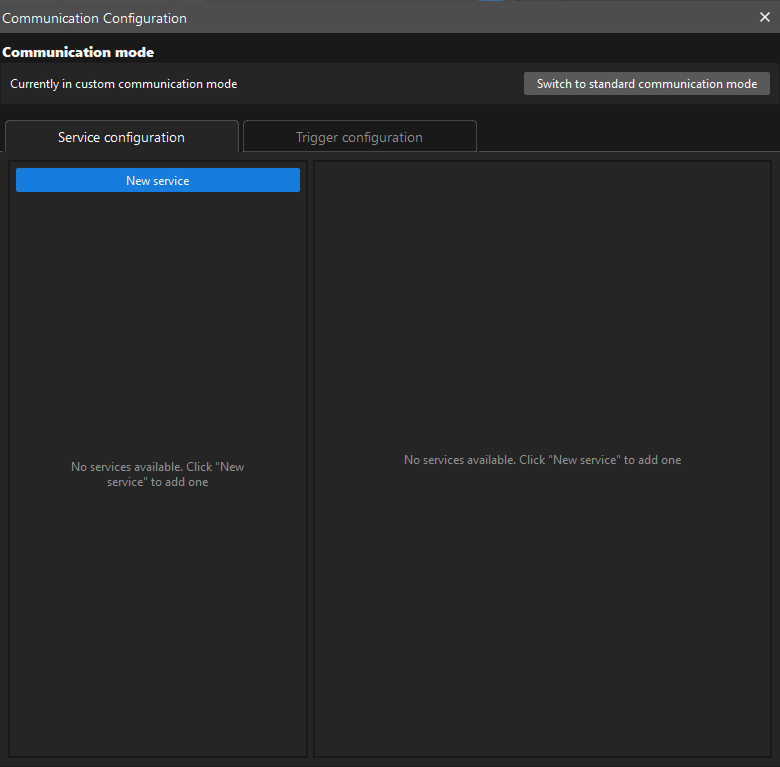
To configure a custom communication service of the TCP Server type, perform the following steps:
-
On the Service configuration tab of Communication Configuration, click New service.
-
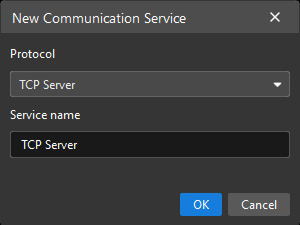
In the New Communication Service dialog box, set Protocol to TCP Server, specify Service name, and then click OK.
-
In the service list on the left, click the newly created service. Its configuration interface is displayed on the right.
-
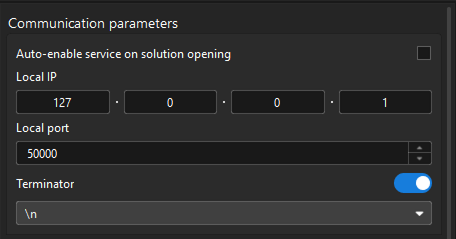
In the Communication Parameters area, set parameters as needed.
-
Auto-enable the service when opening the solution: If you want the software to automatically enable the service the next time the solution is opened, select this option.
-
Local IP: Specifies the IP address of the current IPC as the IP address of the TCP server. The default value is 127.0.0.1, which means that the TCP server listens for requests on all IP addresses of the IPC.
-
Local port: Specifies the port of the current IPC as the listening port of the TCP server. The default value is 50000.
-
Terminator: Specifies the terminator agreed upon by both ends of the communication. It is used to mark the end of a message so that the receiver can correctly split and parse data. To use it, select the Terminator option and specify the terminator. The software supports "\n", "\r", and "\r\n" as terminators.
-
-
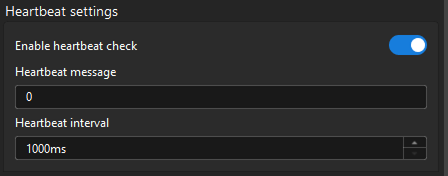
In the Heartbeat Settings area, enable heartbeat checks as needed, and configure heartbeat parameters.
-
Heartbeat message: Specifies the heartbeat message to send. It is recommended that the heartbeat message use a format different from business data so that the receiver can identify it more easily.
-
Heartbeat interval: Specifies the interval for sending heartbeat messages. The default value is 1000 ms.
-
After the configuration is complete, you can start the communication service.
Test Communication
After configuring and successfully starting a custom communication service of the TCP Server type, you can test whether the service communicates properly. To test communication, perform the following steps:
-
In the service list on the left, click the service. Its configuration interface is displayed on the right.
-
In the Communication Test area, enter data in the input box, and then click Send.
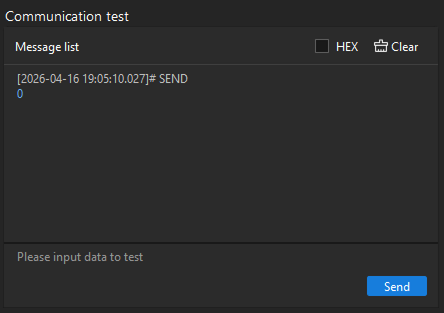
To send data in hexadecimal format, select HEX, enter hexadecimal data in the input box, and then click Send.