Light Source Management
The Light Source Management window is used to connect and manage the light source controller and configure its communication parameters, ensuring that the system can correctly detect and connect the light source controller.
Start the Feature
You can use the following methods to enter the light source management window:
-
In the Step Parameters pane of the Light Source, click the Manage Light Source button to enter.
-
Select from the menu bar.
User Interface
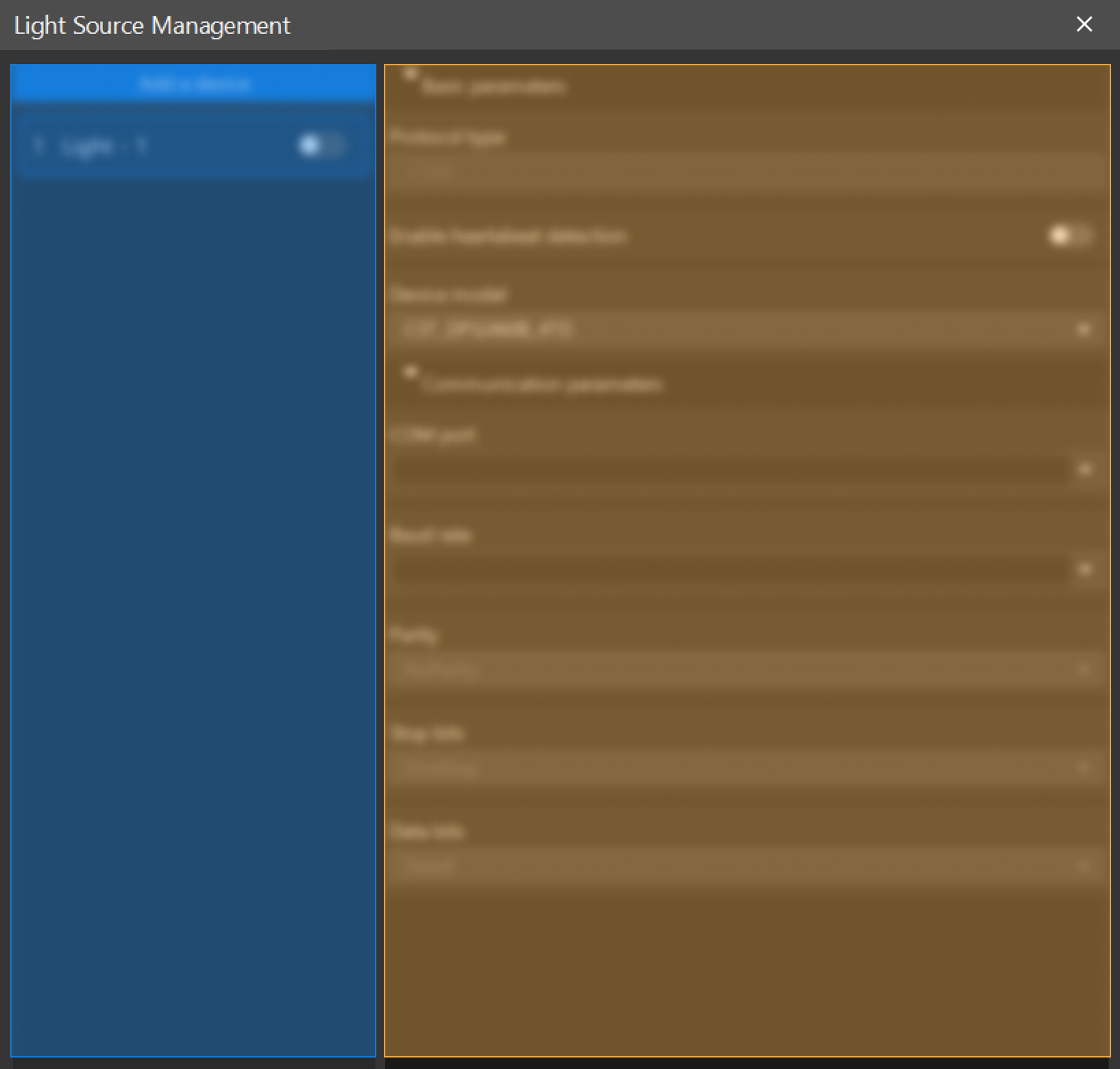
The light source management window consists of a Light Source List area and a Parameter area, as shown below:
| No. | Area | Description |
|---|---|---|
① |
Light Source List |
Displays the added light source devices. You can add new devices, or enable/disable, delete, and rename existing ones. |
② |
Parameter |
Configure the Basic parameters and Communication parameters of the light source. |
Add a Device
Click the +Add a Device button, and then set the brand and name in the pop-up window to complete the addition. Up to 64 devices can be added.
Currently only the following brands and models of light source controllers are supported:
| Light source controller brand | Light source controller model |
|---|---|
CSTLightSource |
CST-DPS2460B-4TD |
J1LightSource |
JL-DCV-6024-4-B |
PPXLightSource |
PPX-DCP2410-4G |
| After enabling a light source device in the light source list, the Light Source Step can run this device. |
Parameter
Basic Parameters
| Name | Description |
|---|---|
Protocol type |
Specifies the communication mode of the light source controller. Currently only the COM protocol is supported. |
Enable heartbeat detection |
Once enabled, the system periodically monitors the light source connection status. If connection fails, the system automatically attempts to reconnect. The default value of Auto-reconnect attempts is 5. |
Device model |
Specifies the model of the light source device. The current model is for display only and cannot be modified. |
Communication Parameters
| Name | Description |
|---|---|
COM port |
Specifies the COM port of the light source controller. This must match the port to which the device is physically connected. |
Baud rate |
Communication speed, which should be set to the same as the light source controller. |
Parity |
Specifies the parity setting (none, odd, even) for communication to ensure correct data transmission. This parameter value is a fixed value of the corresponding device model and cannot be modified. |
Stop bits |
Specifies the number of stop bits used to mark the end of each character frame. This parameter value is a fixed value of the corresponding device model and cannot be modified. |
Data bits |
Specifies the data bit length for communication. This parameter value is a fixed value of the corresponding device model and cannot be modified. |
Troubleshooting
Failed to Connect to the Device
Symptom:
When enabling a device in the light source list area, the message “Device connection failed……” appears.
Possible Causes:
-
Incorrect communication parameters settings.
-
Abnormal cable connection.
-
The selected COM port is occupied.
Solutions:
-
Verify that the device communication parameters of the device are correctly configured.
-
Check whether the cable connection is normal.
-
Ensure that the selected COM port is not occupied.