Extract Target Region by Color
Description
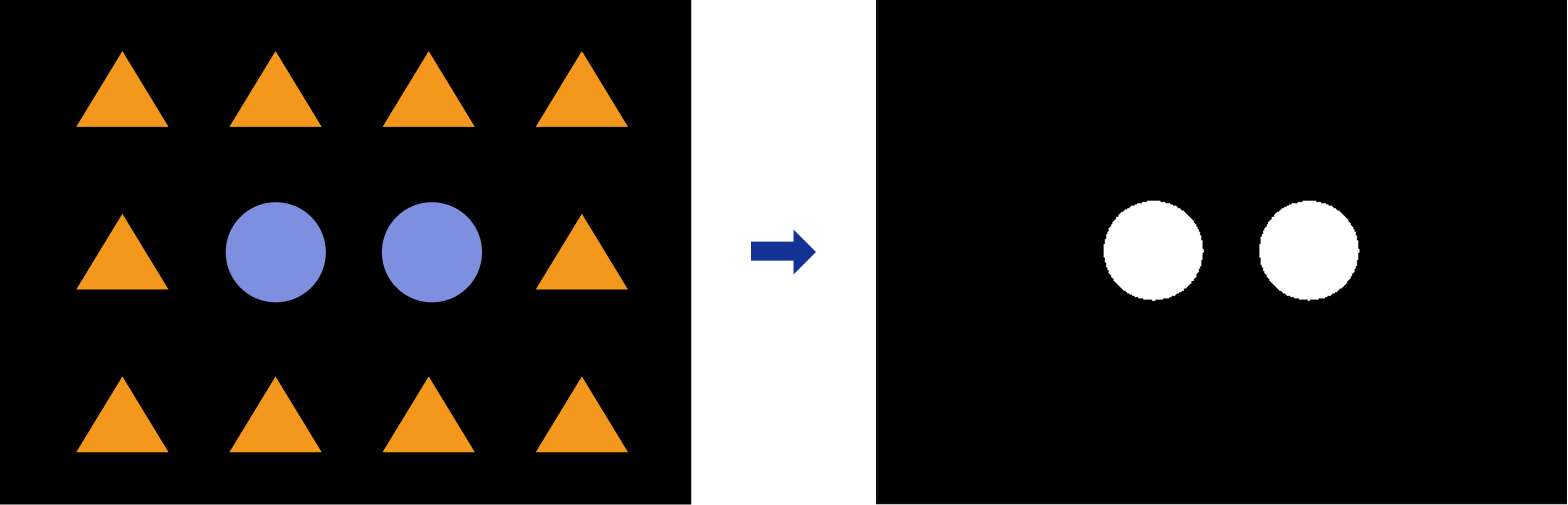
This Step extracts the target region(s) in the specified color space according to the color range (upper and lower threshold limits) of the three channels, generating a binary image where pixels in the target region are set to 255 and all others to 0.
Usage Scenario
A common image preprocessing Step. Applicable to scenarios where the input is a three-channel color image and the target region differs consistently in color from the background — for example, separating component regions, marking regions, or coating regions of specific colors from the image.
If the target is similar in color to the background, or the on-site lighting varies significantly, it is usually necessary to first verify whether the selected color space and threshold range can reliably distinguish the target.
Basic Concepts
-
Color space
A color space is a mathematical model for representing colors. Common color spaces include RGB, HSV, and HSI. Different color spaces decompose colors into different channels, so their effectiveness in color discrimination and target extraction also varies.
-
Binary image
A binary image is an image where each pixel has only two possible values: 0 and 255. In this step, pixels that meet the color threshold conditions are marked as the target region, and pixels that do not are marked as the background region.
-
Color threshold segmentation
Color threshold segmentation refers to setting a value range for each channel individually in a specific color space, selecting pixels that simultaneously meet the threshold conditions of all channels, and thereby extracting the target region.
Workflow
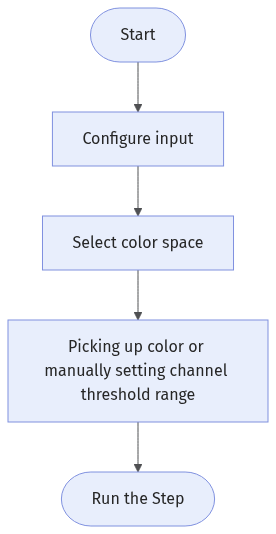
The process of configuring this Step is shown below:
-
Configure the input. Connect the ports manually or select the input(s) under Input in the parameter configuration panel.
-
Set the color space.
-
Pick colors or set the channel threshold range manually.
-
Run the Step and view output.
Parameter Description
| Parameter | Description | ||
|---|---|---|---|
Color Picker |
Click the Pick color button. Then, press and hold the left mouse button and drag in the visualization area to select the target color region. The system will automatically determine the threshold ranges for all three channels. If the selected area contains multiple colors, the system will generate the threshold ranges based on the dominant color.
|
||
Color Space |
Specify the color space of the input image to be converted. If the target color is not well distinguished in the current color space, you can try switching to another color space to better extract the target region. Value list: RGB, HSI, and HSV |
||
Channel 1 / Channel 2 / Channel 3 |
Set the Max and Min of each channel to determine the value range of the corresponding channel. Only pixels that simultaneously meet the threshold ranges of all channels are retained as the target region, and the remaining pixels are treated as the background. |
||
Invert Binary Image |
When this option is enabled, the black and white pixel values in the binary image are inverted: the pixel values of the target region become 0, and the remaining pixel values become 255. |
Troubleshooting
|
For common errors, see Error Code List. |