Backup Solution
During the actual operation of the project, you can back up the solution to save the important data for case analysis and troubleshooting. The detailed instructions are as follows.
-
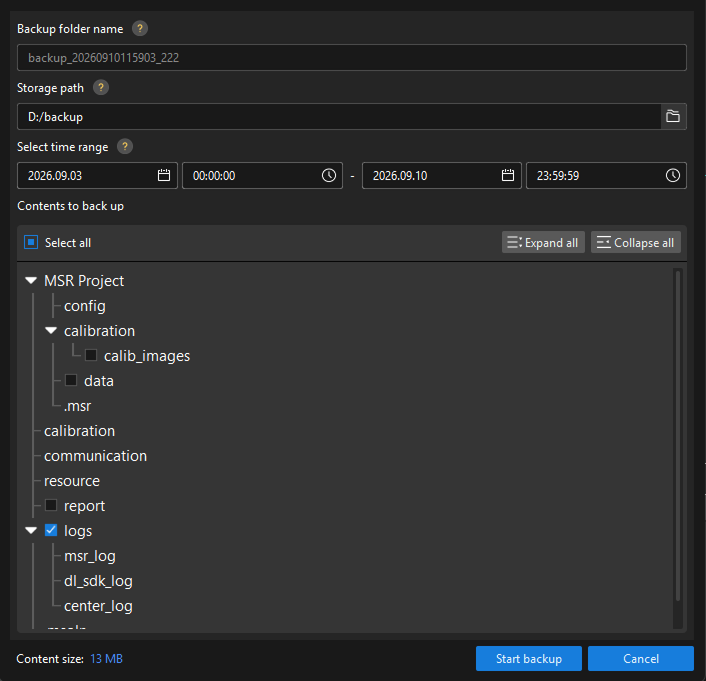
Right-click the solution in the Project List, and then select Back up Solution in the shortcut menu to open the Backup Solution window.
-
Please follow the instructions in the Backup Solution window:
-
Confirm the backup folder. The name of the folder for storing the backup files cannot be modified, which is “backup_system time_version info” by default.
-
Set the storage path. Click the path selection button on the right to set the directory for storing the backup folder.
The storage path cannot be located within the current solution directory.
-
Select time range. Set the time range for filtering production data, statistical report exports, and logs.
This time indicates when the file is modified.
-
Select backup content. Refer to Solution Structure and select the contents that need to be backed up.
-
-
Start backup. Click Start backup to back up the solution.
-
Check backup result. Open the backup folder under the corresponding path to check the completed backup solution.