2D Camera
Description
This Step is used to capture images with an industrial 2D camera for subsequent inspection, measurement, and analysis.
| Before using this Step, add and configure the 2D Camera in the 2D Camera Management window. |
Currently, only 2D cameras from the following manufacturers are supported, and their compatibility has been validated with the following software and SDK versions:
| Manufacturer | Software Version | SDK Version |
|---|---|---|
iRAYPLE |
Ver2.5.1.33_Build20250903 |
2.5.1.33.390167 |
DAHENG IMAGING |
3.2.2511.8201 |
2.5.2512.9221 |
Hikvision |
V4.5.1 build20250227 |
V4.5.1.2 build20250317 |
Basler |
25.06.4.17077 |
10.3.1.606 |
|
If you need to use a 2D camera from DAHENG IMAGING or Hikvision, select in the menu bar, clear the camera2d_bsl plugin, and restart the software for the settings to take effect. The camera plugins from these four manufacturers will be automatically loaded by default; however, there is a conflict between the Basler plugin and the DAHENG IMAGING and Hikvision plugins. If the Basler plugin is enabled, DAHENG IMAGING and Hikvision cameras cannot be found in the 2D Camera Management window. |
Usage Scenario
This Step is typically used to acquire image data as the first Step in a project. It is often connected with subsequent Steps for image preprocessing, positioning, and other functions.
Workflow
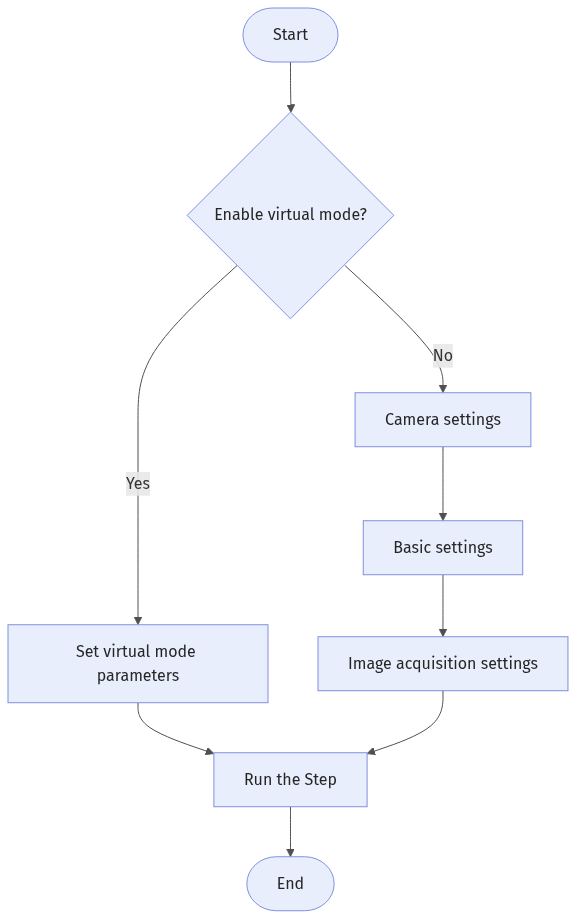
The process of configuring this Step is shown below:
-
Select whether to enable Virtual Mode.
-
If it is enabled, set parameters in virtual mode.
-
If it is not enabled, you need to configure Camera Settings before proceeding to Basic Settings and Image Acquisition Settings.
-
-
Run the Step to acquire images and output them to other Steps.
Parameter Description
Camera Settings
| Parameter | Description |
|---|---|
Select Camera |
Select the 2D camera to connect from the drop-down list. You can click the Camera management button to open the 2D Camera Management window, where you can manage available 2D cameras and camera parameters. |
Camera Type |
Used to display industrial 2D camera manufacturers. Currently only the following types of 2D cameras are supported:
|
Basic Settings
Frequently Used Parameters
| Parameter | Description |
|---|---|
Virtual Mode |
Disabled by default. If you need to run the project with the locally saved data, you can enable Virtual Mode. Refer to Virtual Mode for Step parameters. |
Enable Calibration |
Once enabled, select the calibration parameter group to apply the 2D Camera Distortion Calibration results. Applying calibration can correct image distortion and improve measurement accuracy. |
Advanced Parameters
| Parameter | Description |
|---|---|
Acquisition Timeout |
Defines the maximum response time (in ms) for the camera to send data back to the client after receiving information. Image acquisition is automatically stopped upon timeout to prevent process blocking. |
Parameters in Virtual Mode
| Parameter | Description | ||
|---|---|---|---|
Data Path |
This parameter is used to specify the path to the image data, from which the Step reads images during execution. |
||
Playback Mode |
This parameter is used to specify the order to read the images. Value list:
|
||
Current Frame Name |
This parameter is used to read the name of the currently loaded image. |
Image Acquisition Settings
| When the Step runs, for any parameters in the table below that also appear in the 2D Camera Management window, the values from the Step Parameters pane are used. |
| Parameter | Description |
|---|---|
Exposure Time |
This parameter affects the image brightness. In dark conditions, increase exposure time to brighten the image; in bright conditions, decrease it to avoid overexposure. |
Gain |
This parameter increases image brightness while also amplifying noise. When the expected brightness cannot be reached by adjusting Exposure Time, adjust this parameter. Gain should not be set too high to avoid increasing noise affecting detection performance. |
Max Capture Attempts |
The maximum number of automatic retries when image capture fails, used to improve the success rate of image capture. The default value is 3. |
Output Description
| Output Item | Description |
|---|---|
Image |
Image acquired by the camera or read from a local path. |
Timestamp String |
Timestamp string corresponding to the image acquired by the camera. |
Troubleshooting
|
For common errors, see Error Code List. If the error code is inconsistent with the error message, contact Technical Support for help. |
CV-E0201
Error: Failed to connect to camera.
Possible causes:
-
The cable connection between the camera, IPC, and router/switch is abnormal.
-
Firewalls or antivirus software are not shut down.
-
The IP address of the camera is changed.
-
Network adapter conflict.
Solutions:
-
Make sure that the cables are properly connected.
-
Disable the computer firewall or add Mech-MSR to the computer firewall whitelist, and then disable the antivirus software.
-
Check if the camera IP address is correct.
-
Disable other Ethernet ports on the computer that are not used for camera connections, then run Mech-MSR and reconnect the camera.
If the camera still cannot be detected after all the above steps are tried, try power-cycling the camera.
CV-E0202
Error: Camera XXX has no access permission.
Solution: Please check the logs, ensure the network is working properly, and that no other software is using the camera, and then try again. If the issue persists, please contact Technical Support.
CV-E0204
Error: Failed to connect the camera XXX.
Possible cause: The camera is already occupied by another software program through a GenICam port or USB connection.
Solution: Ensure that the camera is not being used by any other software program via GenICam interface or USB connection.
CV-W0208
Error: Failed to connect to camera.
Solutions:
-
Please make sure that the camera is in a valid state.
-
Please make sure that the IPC and camera are in the same subnet.
-
Ensure that all software that may be occupying the camera is closed.
-
Turn off the firewall, or allow Mech-MSR through the firewall.
CV-W0211
Error: An internal error occurred in the software.
Solution: Please contact Technical Support.
CV-W0213
Error: An internal error occurred in the software.
Solution: Please contact Technical Support.
CV-W0215
Error: Image acquisition failed.
Possible causes:
-
Acquisition timeout period is set too short.
-
The delay time for triggering the camera was too long.
-
The camera is not responding or disconnected.
-
If an external trigger is used, the external trigger signal is not sent normally.
Solutions:
-
Adjust the acquisition timeout to a sufficient duration.
-
Check the camera trigger delay settings.
-
Ensure the camera is connected and responding.
-
If external trigger is used, verify that the trigger signal is functioning properly.
CV-W0261
Error: An internal software error occurred.
Solution: Please try restarting the camera and reconnecting. If the issue still exists, please contact Technical Support.
CV-W0262
Error: An internal software error occurred.
Solution: Please try restarting the camera and reconnecting. If the issue still exists, please contact Technical Support.
CV-W0263
Error: An internal software error occurred.
Solution: Please try restarting the camera and reconnecting. If the issue still exists, please contact Technical Support.
CV-W0264
Error: The camera IP address is not on the same subnet as the IPC.
Solution: Please check if the camera IP address and the IPC are in the same subnet. If not, change the IP address of the camera to the same subnet as that of the IPC.
CV-W0265
Error: An internal software error occurred.
Solution: Please try restarting the camera and reconnecting. If the issue still exists, please contact Technical Support.
CV-W0266
Error: An internal software error occurred.
Solution: Please try restarting the camera and reconnecting. If the issue still exists, please contact Technical Support.
CV-W0267
Error: An internal error occurred in the camera.
Solution: Please try restarting the camera and reconnecting. If the issue still exists, please contact Technical Support.
CV-W0268
Error: Camera not found.
Possible causes:
-
Network issue.
-
The camera IP address and the current IPC are not in the same subnet.
Solutions:
-
Make sure the network connection is normal.
-
Make sure that the camera IP address and the IPC are in the same subnet.
CV-W0269
Error: Failed to connect to camera.
Possible causes:
-
Network issue.
-
Camera is in use.
Solutions:
-
Make sure the network connection is normal.
-
Please make sure that the camera is not occupied.
CV-W0270
Error: Camera is in use.
Solution: Make sure that the camera is not occupied by another program or device.
CV-W0271
Error: Camera is offline.
Possible cause: The network connection is abnormal or the camera is not started.
Solution: Please check your network connection and make sure the camera is started.
CV-W0272
Error: An internal error occurred in the camera.
Solution: Please try restarting the camera and reconnecting. If the issue still exists, please contact Technical Support.
CV-W0273
Error: Camera IP address conflict.
Possible cause: Other devices in the current subnet occupy the same IP address.
Solution: Please modify the IP address of the current camera.