Instance Segmentation
Function
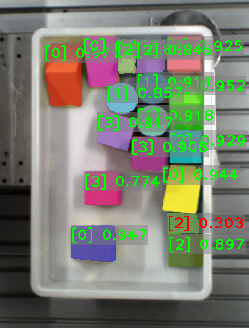
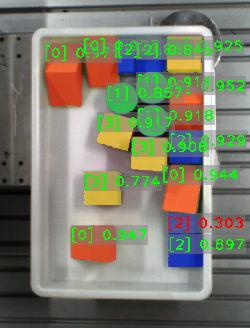
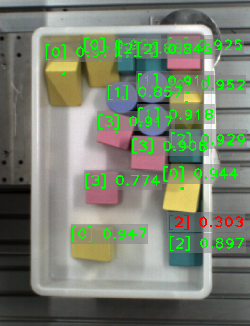
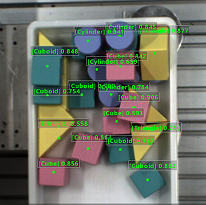
Use the instance segmentation model package to run inference on the input image. The model package segments the contour of each target object and outputs class labels.
This model is suitable for scenarios requiring accurate recognition and positioning of individual objects, such as depalletizing and palletizing, target object loading and unloading, and goods picking.
Input and Output
After importing the model package in the Deep Learning Model Package Inference Step, the following input and output ports will be displayed.
Input
| Input port | Data type | Description |
|---|---|---|
Image |
Image/Color |
Image input to this port will be used for deep learning model package inference. |
Output
| Output port | Data type | Description |
|---|---|---|
Visualization Output |
Image/Color |
Visualized results. |
Instance Masks |
Image/Color/Mask[] |
Masks of target objects detected. Non-zero pixel values are masks. The mask contour is the contour of the target object. |
Instance Bounding Boxes |
Shape2D/Contour[] |
Detected bounding box of target object. |
Instance Bounding Box Masks |
Image/Color/Mask[] |
Mask of the object bounding box. Non-zero pixel values are masks. |
Instance Confidences |
Number[] |
Confidence of detected objects. |
Instance Labels |
String[] |
Object labels. |
Parameter Description
The following parameters need to be adjusted when the instance segmentation model package is imported into this Step.
Model Package Settings
| Parameter | Description |
|---|---|
Model Manager Tool |
Parameter description: This parameter is used to open the deep learning model package management tool and import the deep learning model package. The model package file is a “.dlkpack” file exported by Mech-DLK.
|
Model Name |
Parameter description: This parameter is used to select the model package that has been imported for this Step.
|
Release Original Model Package After Switching |
Parameter description: This parameter determines whether to release the resources occupied by the original model package immediately when the model package is switched.
|
Model Package Type |
Parameter description: Once a Model Name is selected, the DI Algo Type Translated String will be filled automatically. |
Input Batch Size |
Parmeter description: The number of images processed during each inference. |
GPU ID |
Parameter description: This parameter is used to select the device ID of the GPU that will be used for the inference.
|
Pre-Process
| Parameter | Description | ||||
|---|---|---|---|---|---|
ROI File |
Parameter description: This parameter is used to set or modify the ROI of the input image. Tuning instruction: Once the deep learning model is imported, a default ROI will be applied. If you need to edit the ROI, click Open the editor. Edit the ROI in the pop-up Set ROI window, and fill in the ROI name.
|
Post-Process
| Parameter | Description | ||
|---|---|---|---|
Inference Configuration |
Parameter description: This parameter is used to configure parameters related to instance segmentation model package inference. You can click Open the editor to open the inference configuration window. Instruction: Please refer to Inference Configuration Tool for detailed parameter description.
|
||
Class Display Mode |
Parameter description: Select to display classes in the output results by name or by index. |
Visualization Settings
| Parameter | Description |
|---|---|
Draw Instance on Image |
Parameter description: Once enabled, the detection result will be displayed on the image.
|
Visualization Method for Results |
Parameter description: This parameter is used to specify the instance color scheme in the visualized output result.
|
Customize Font Size |
Parameter description: This parameter determines whether to customize the font scale in the visualized output result. Once this option is selected, you should set the Font Size (0–10).
|
Font Size (0–10) |
Parameter description: This parameter is used to set the font scale in the visualized output result.
|
Tuning Examples
Visualization Method for Results
| Visualization Method for Results | Description | Image |
|---|---|---|
Display each instance |
Visualize each instance in a unique color. |
|
Display instances by class |
Visualize the displayed instances by class, and the objects of the same class have the same color. |
|
Display instance center point |
Visualize the center point of an instance. The instance color is related to the “Confidence Threshold”. |
|