AI Optical Character Recognition
Function
This Step is used to perform intelligent recognition of characters such as letters and numbers in images. Through image acquisition, and ROI selection, the system uses deep learning for training and validation to output character recognition results.
|
Using this Step requires the "Lite AI" feature license. Please contact Mech-Mind sales to obtain it. |
Usage Scenario
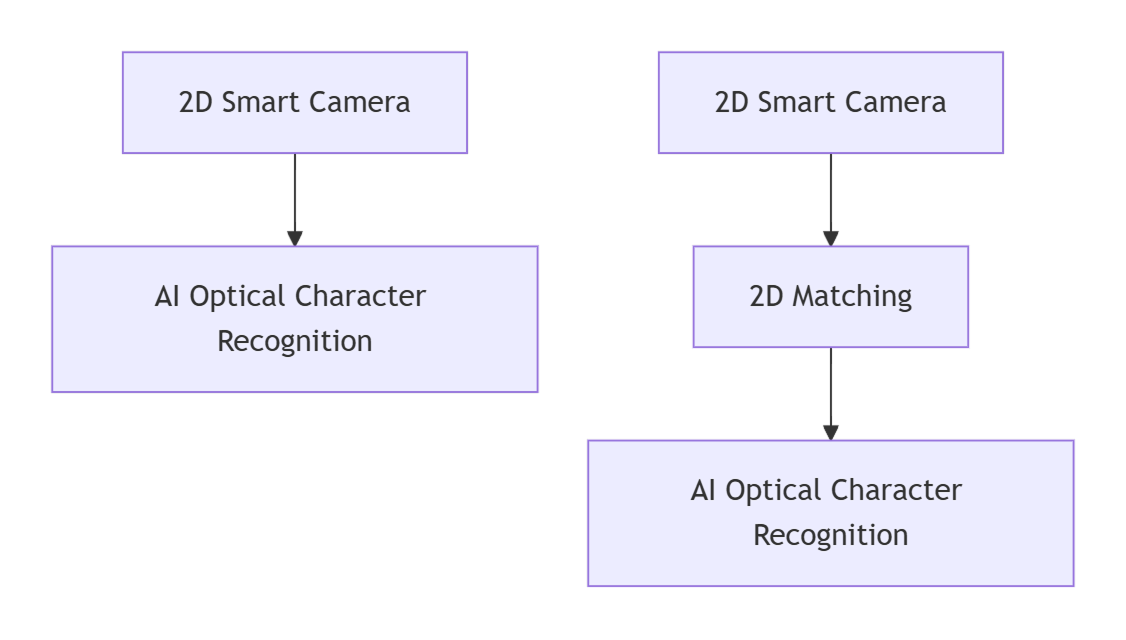
This Step is suitable for character recognition scenarios with complex backgrounds, multiple fonts, or irregular characters. This Step typically follows the 2D Smart Camera Step, or Steps such as 2D Matching. The former is suitable for scenarios where the target position is relatively fixed, performing recognition judgment after acquiring image data; the latter is suitable for scenarios where the target position may shift, using alignment Steps to obtain the target’s pose transformation parameters, which are input to this Step to synchronously adjust the ROI position for stable recognition judgment.
Input and Output
Input
| Input port | Data type | Description |
|---|---|---|
Image |
Image |
Image containing characters to be recognized. |
Object Pose |
Pose2D[] |
The position and orientation of the matched objects in the image. |
Output
| Output port | Data type | Description |
|---|---|---|
Recognition Result |
String[] |
Character recognition result. |
Recognition Judgment Result |
String[] |
Recognition judgment result, that is OK or NG. |
Recognition Status |
Bool[] |
Used to indicate whether recognition is successful; true for success, false for failure. |
Target Region Info |
Shape2D[][] |
Information about recognized targets, including target type, position, and related geometric parameters. |
Image with Result |
Image[] |
Image with recognition result. |
Parameter Description
| Parameter | Description |
|---|---|
Model Name |
Parameter description: Select a configured model from the drop-down list. The model must be added in the editor in advance.
|
Result Visualization |
Parameter description: When this parameter is checked, the Step outputs an image with recognition results for inspection and result visualization.
|