Scale Image in 2D ROI
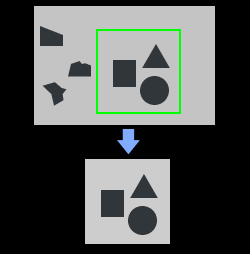
Usage Scenario
It is usually used for image preprocessing in deep learning related Steps and is usually used with Recover Scaled Images in 2D ROI and deep learning related steps.
Input and Output
Input
| Input port | Data type | Description |
|---|---|---|
Original Image |
Image |
2D image (if processing multiple images at the same time, please increase/decrease the number of input ports in the parameters). |
Output
| Output port | Data type | Description |
|---|---|---|
ROI Image |
Image |
Image of the ROI selection area. |
Scale Parameters |
JsonValue |
Scaling parameters (usually used in "Recover Scaled Images in 2D ROI"). |
ROI Parameters |
Number[] |
ROI parameters (usually used in "Recover Scaled Images in 2D ROI"). |
Visualization Image |
Image |
Output image with ROI. |
Instruction
This Step is used to scale images in the ROI into a designated size by setting the parameter Color ROI Settings and Ideal Destination Resolution.
Auto Scale
To auto scale the ROI, please follow these steps:
-
Select the checkbox Auto Scale under Color ROI Settings.
-
Select the checkbox Same as Input Color ROI & Skip Scaling under Ideal Destination Resolution.
Output Initial ROI Image
To output the initial ROI image, please follow these steps:
-
Disable Auto Scale under Color ROI Settings.
-
Set 1 as the value of Customized Scale.
-
Select the checkbox Same as Input Color ROI & Skip Scaling under Ideal Destination Resolution.
Scale ROI Image by a Particular Degree
To output ROI image of a particular size, please follow these steps:
-
Disable Auto Scale under Color ROI Settings.
-
Set Customized Scale according to your need. When the value of this parameter is higher than 1, image will be magnified. If the value is lower than 1, image will be reduced.
-
Select the checkbox Same as Input Color ROI & Skip Scaling under Ideal Destination Resolution.
Output ROI Image of Designated Width and Height
To out put ROI image of designated width and height, please follow these steps:
-
Disable the Same as Input Color ROI & Skip Scaling under Ideal Destination Resolution.
-
Set the value of Width and Height according to your need.
-
Choose whether to select Padding according to your need.
|
Please continue your reading to view the description of parameters. |
Parameter Description
| Parameter | Description |
|---|---|
Number of Input Ports (1–8) |
Parameter description: This parameter specifies the number of input ports for this Step. |
Color ROI Settings
ROIByFile
| Parameter | Description | ||
|---|---|---|---|
Color ROI File |
Description: This parameter sets the ROI of color image. Please refer to Set 2D ROI for more information. In the image below, point A is the top left vertex, and B is the bottom right vertex. 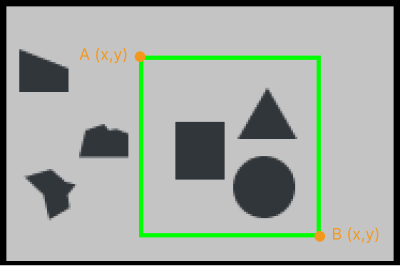
|
ROIByParam
| Parameter | Description | ||
|---|---|---|---|
Start X |
Description: the x-coordinate of the ROI’s top left vertex.
|
||
Start Y |
Description: the y-coordinate of the ROI’s top left vertex.
|
||
Width |
Instruction: This parameter refers to the width of the ROI.
|
||
Height |
Instruction: This parameter refers to the height of the ROI. Default value: 0 Instruction: Start Y + Height < Initial image height 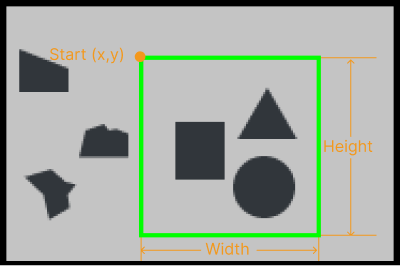
|
| Parameter | Description |
|---|---|
Method to Update Color ROI |
Description: This parameter decides the type of ROI.
|
Color ROI Scaling
| Parameter | Description | ||
|---|---|---|---|
Auto Scale |
Description: This parameter automatically adjusts the size of the ROI image.
|
||
Customized Scale |
Description: This parameter designates the degree to which the ROI is scaled. Instruction: Scaled image size = Initial ROI size × Customized scaling factor. As shown below, the image on the left is of the initial size, with a customized scaling factor of 0.5.
|
Ideal Destination Resolution
| Parameter | Description | ||
|---|---|---|---|
Same as Input Color ROI & Skip Scaling |
Description: This parameter decides whether the size of the image output is set the same as that of the image after Color ROI Scaling setting. Default setting: unselected.
|
||
Width/Height |
Description: This parameter sets the width and height of the ROI (in px). Default value: 1024 px Tuning recommendation: Please set the parameter according to the actual situation.
|
Padding Color
| Parameter | Description |
|---|---|
Padding |
Description: This parameter is used to fill the extra space of the ROI when it is scaled up to a particular size. Default setting: selected. Instruction: It is recommended to fill the space with black (0,0,0) or grey (128,128,128). Adjustment Example: The image on the left below is the scaled-up ROI without padding. When padding is used, the size of the ROI image must be designated, and the extra space will be filled up by color, as the image on the right side shows below. 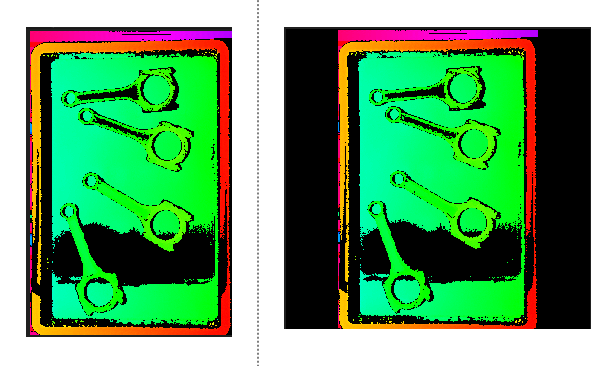
|
R/G/B |
Description: Color image is made up of three colors: R, G, and B. Different R/G/B values can fill the image with different colors.
|