Compose Images

You are currently viewing the documentation for a pre-release version (2.2.0). To access documentation for other versions, click the "Switch Version" button located in the upper-right corner of the page.

■ If you're unsure about the version of the product you are using, please contact Mech-Mind Technical Support for assistance.

Description

Use this Step to arrange multiple images at specified positions and compose them into a single image.
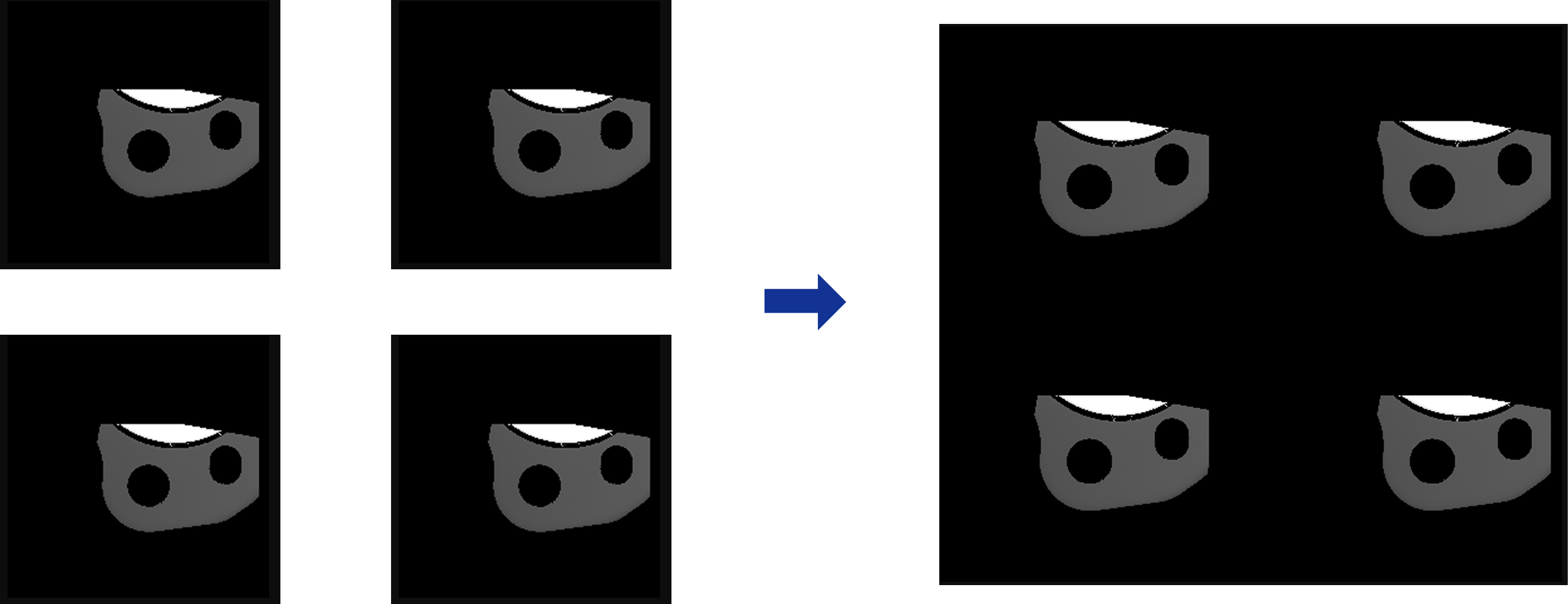
compose images demo

Usage Scenario

This Step is suitable for scenarios where multiple images are stitched together into one result image at a set position. For example, images from different regions can be grouped into the same image, or multiple images can be arranged by a specified displacement and output together.

You can obtain input images from Steps that perform functions such as image capturing, image reading, cropping, or scaling, and output the stitching results to Steps that perform functions such as visualization, image saving, or detection and analysis.

Input and Output

Input

Input ports Data type Description

Image

Image

The image used for composition, indexed as 1.

Image

Image

The image used for composition, indexed as 2.

Output

Output ports Data type Description

Composed Image

Image

The resulting image after composing multiple images.

Parameter Description

Parameter Description

Number of images

Specifies the number of images to be composed, corresponding to the number of input ports of the Step.

Composition Settings

Click the Open the editor button to set the position of each input image in the stitched image. Specific parameters include:

  • Image index: Specify the input image of the current input. The index corresponds to the input port number.

  • X-direction translation: Set the horizontal position of the current image in the composed image.

  • Y-direction translation: Set the vertical position of the current image in the composed image.

If the images overlap, the input images will overwrite the previously input images.

Troubleshooting

Failed to Compose Images

Symptom:

An error message saying “Cannot compose image …​…​” appeared when the Step was running.

Possible Cause:

The input images are of different sizes or types, making it impossible to compose images.

Solutions:

Check the sizes and types of all images to be composed together to ensure they are consistent and then re-run the Step.

Is this page helpful?

You can give a feedback in any of the following ways:

We Value Your Privacy

We use cookies to provide you with the best possible experience on our website. By continuing to use the site, you acknowledge that you agree to the use of cookies. If you decline, a single cookie will be used to ensure you're not tracked or remembered when you visit this website.