Manual Calibration in the Eye-in-Hand Setup (Six-Axis Robot—Using Multiple Random Calibration Board Poses Method)
This how-to guide introduces how to complete the manual hand-eye calibration for six-axis robots and 2D cameras in the eye-in-hand (EIH) setup (using multiple random calibration board poses).
Introduction to the Overall Process
The following figure shows the overall process of the manual calibration for a six-axis robot in the eye-in-hand (EIH) setup.

-
Preparation before Calibration: Complete the required preparations before the calibration.
-
Configuration before Calibration: Complete the pre-calibration configuration, such as selecting the robot model and the camera setup.
-
Perform Calibration: Start the calibration and obtain the calibration result after completing a series of operation steps. In this step, you need to perform operations on the robot side to establish the communication between the vision system and the robot.
-
Validate Calibration Results: Validate the obtained calibration result to check whether the result meets the requirements.
-
Apply Calibration Result: You use the new calibration parameter group in the vision project.
The following sections describe the above process in detail.
Preparation before Calibration
Before hand-eye calibration, you need to finish the following preparations:
Complete the Camera Installation
Please refer to Camera Installation to complete the camera installation.
You need to use Mech-Vision & Mech-Viz during hand-eye calibration. Please ensure that they have been installed and are running the latest versions.
Complete the Robot Communication Configuration
If the robot uses the Standard Interface to communicate with the Vision System, please set up the Standard Interface communication with the robot. According to the robot brand used in your project, you can complete the Standard Interface communication configuration by referring to the “Set up Standard Interface Communication” guide for the corresponding robot brand in xref:2.2.0@robot-integration:standard-interface-robot:standard-interface-use-flow.adoc[Standard Interface Communication.
If the robot uses the Master-Control to communicate with the Vision System, please set up the Master-Control communication with the robot. According to the robot brand used in your project, you can complete the Master-Control communication configuration by referring to the “Set up Master-Control Communication” guide for the corresponding robot brand in vxref:2.2.0@robot-integration:full-control:full-control-use-flow.adoc[Master-Control Communication.
Prepare the Materials Required for Calibration
The automatic calibration in the ETH setup needs to use the calibration board or marker.
-
If a calibration board is used, please prepare according to the following requirements:
-
Ensure that the circles of the calibration board are clearly visible and without obvious scratches, and the board does not suffer from deformations.
-
In the ETH setup, mount the robot-specific bracket for calibration board onto the robot flange, and then mount the calibration board onto the bracket. Ensure that the calibration board is securely mounted, located at the center of the camera’s field of view, and as parallel as possible to the plane where the camera is located, i.e., as perpendicular as possible to the Z-axis of the camera reference frame.
If an undetachable gripper is connected to the robot flange, you can attach the calibration board directly to the gripper.
-
-
If a calibration board is not convenient to use on-site (due to space constraints or mounting difficulties), a marker can be used instead. Please prepare according to the following requirements:
-
The marker should have clearly visible feature points, and the feature points should be distributed as evenly as possible.
-
Check Calibration Board Image Quality
| The image quality of the calibration board will affect the accuracy of the hand-eye calibration results. Therefore, you need to check the image quality of the calibration board. The calibration process involves checking the image quality of the calibration board. You can also check the image quality of the calibration board in advance, thus saving time during the calibration process. |
-
Place the calibration board horizontally at the center of the working plane within the camera’s field of view.
-
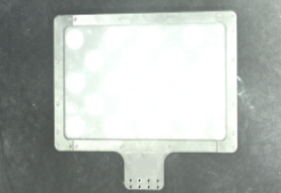
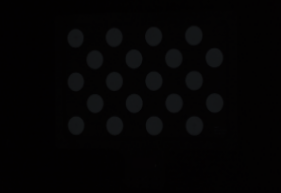
Connect to the camera and adjust camera parameters in the 2D Camera Management tool to ensure that the overall brightness of the calibration board in the 2D image is not too dark, too bright, or has uneven brightness, and each calibration circle is clearly visible.
If the on-site ambient light is complex, it is recommended to use shading or supplemental light to reduce the impact of ambient light on 2D images.
Normal Overexposed Underexposed 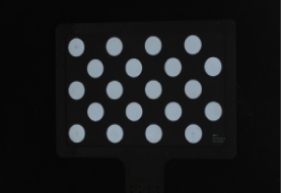
Complete Pre-calibration Checks
Please refer toPre-calibration Checks and complete the following checks:
-
Confirm that the robot base is mounted securely.
-
Confirm that the camera mounting frame and camera are mounted securely.
-
Confirm that the absolute accuracy of the robot meets the requirements for use.
-
Verify robot model parameters.
-
Confirm that the camera is undistorted or has undergone distortion calibration.
-
Confirm that the camera is warmed up.
Pre-calibration Configuration
-
Open Mech-Vision, and select in the menu bar. The Configuration before Calibration window will be prompted.
-
After confirming that pre-calibration checks are completed, click I’ve finished all checks, and then click Next.
-
In the Select how to calibrate window, select the New calibration radio button, and then click the Next button.
-
In the Select calibration task window, select Hand-eye calibration for custom robot from the drop-down list box, specify the Robot Euler angle convention parameter, select the robot coordinate system type, and then click the Next button.
-
In the Select a robot type for calibration window, select the 6-axis robot radio button, and then click the Next button.
-
In the Select camera setup window, select the Eye in hand radio button, and then click the Next button.
-
In the Select how to collect data window, select Multiple random calibration board poses, and then click the Calibrate button. The Calibration (Eye in Hand) window will be prompted.
At this point, the pre-calibration configuration is complete, and you will proceed to the calibration process.
Perform Calibration
Connect to Camera
-
Connect the camera.
In the Connect to camera step, select a connected camera from the drop-down list.
If there is no available camera in the list, you can click the 2D Camera Management button, complete the camera connection in the 2D Camera Management tool, and then return here to select the corresponding camera.
-
Confirm that the camera can capture images normally.
After the camera is connected, you can click the Capture live or capture once button to view the captured images in the right Image viewer panel.
When capturing images, ensure that the overall brightness of the captured calibration board is not too dark, too bright, or uneven, and that each calibration circle is clearly visible. If the image quality does not meet the requirements, you can adjust Exposure Time and Gain to improve the image quality.
-
Load the distortion calibration result.
To correct the distortion in the image and ensure that the subsequent hand-eye calibration is based on more accurate image coordinates, the distortion calibration result of the corresponding camera should be loaded, and the tool will correct the acquired image based on this result before performing the subsequent calibration.
If the camera is undistorted, you can omit this operation.
After the camera is connected and the image quality is confirmed, click the Next button on the bottom bar.
Select Calibration Method
The tool provides two calibration methods: Calibrate using calibration board and Calibrate using feature points. The details are as follows.
Use the Calibration Board
This method is suitable for scenarios that require high calibration accuracy or where no suitable marker is available.
-
In the drop-down menu of Calibration mode, select Calibrate using calibration board.
-
Based on the mark on the calibration board, select the model of the calibration board in use in the drop-down menu of “Standard Calibration Board Model”.
Use Feature Points for Calibration
This method is suitable for scenarios where a calibration board is inconvenient to use on-site (due to space constraints or mounting difficulties) and where there are already usable feature points on the marker.
|
If the target object has clear edges and is not completely symmetrical, it can be used as a marker. |
The tool provides two feature point calibration methods: 2D matching and Obtain from project. The details are as follows.
| Feature Point Recognition Method | Description | Operation |
|---|---|---|
2D matching |
Recognize feature points in an image through model matching.
|
Typical scenarios
|
Obtain from project |
This method obtains feature points through the processing flow in an existing vision project.
|
|
Obtain Feature Points and Poses
-
In the Obtain feature points and poses step, control the robot to move to different calibration points, and then click the Add images and record flange poses button.
After moving the robot to different calibration points, please record the pose of each point in the robot program for easy retrieval during re-calibration. -
In the prompted window, enter the robot flange pose.
The robot flange pose should be entered as displayed on the teach pendant.
-
For UR robots, the orientation should be represented using “Rotation vectors”.
-
When representing orientation using “Euler angles”:
-
For other robot brands, select the Euler angle convention specific to the robot brand.
-
For robots already supported by the software, the correct Euler angle convention is selected automatically and no manual configuration is required.
-
Please create a new local file (.txt or .xlsx) to save the input robot flange poses for easy input during re-calibration. -
-
Repeat the above steps until the added calibration points meet the data requirements. Then click the Next button on the bottom bar.
Calculate Extrinsic Parameters
-
In the Calculate extrinsic parameters step, click the Calculate extrinsic parameters button in the Calculate extrinsic parameters and check results area.
-
In the prompted Calibration success dialog box, click OK to view the calibration result in the Messages panel below.
-
On the bottom bar of the Calculate extrinsic parameters step, click the Save button. A message saying “Calibration file saved successfully” will pop up in the message box, and the calibration result will be automatically saved to the “calibration” folder of the solution.
Validate Calibration Results
After obtaining the calibration results, you need to verify the accuracy of the calibration results by test picking. Verify that the requirements of the application are met.
-
Save the calibration result.
On the bottom bar of the Calculate extrinsic parameters step, click the Save button. A message saying “Calibration file saved successfully” will pop up in the message box, and the calibration result will be automatically saved to the “calibration” folder of the solution.
-
Prepare for test picking the target objects.
-
Prepare multiple target objects of the same type as the actual application.
-
Place the workpiece within the camera’s field of view and ensure that the target objects are distributed in different areas of the camera’s field of view (such as the center and four corners) to fully verify the calibration accuracy.
-
-
Prepare the target object recognition project and test picking project.
-
Ensure that the 2D Smart Camera Step has the Enable calibration function enabled, and select the saved calibration result in the drop-down menu.
-
Set the pick point and gripper type according to the actual application requirements.
-
-
Run the target object recognition project and the test picking project.
Check if the robot can accurately pick the target object and check the following indicators:
-
Picking success rate: The robot should be able to pick stably, with a success rate of at least 95%.
-
Picking position accuracy: Check if the robot’s picking position is consistent with the relative position during calibration on the calibration board. If there is a systematic deviation (such as deviation in one direction all the time), the calibration result is incorrect.
-
-
Determine whether the calibration is effective based on the test picking results.
-
Successfully verified: If the test picking result meets the application requirements and the calibration result is valid, the calibration parameter group can be applied again.
-
Validation failed: If there is a significant positional or orientation deviation during the attempted picking, the calibration accuracy does not meet the requirements. It is recommended that:
-
Check whether the preparations before calibration are complete, such as checking whether the camera has distortions and whether the feature point recognition is accurate.
-
Depending on the specific direction and magnitude of the deviation, consider whether you need to adjust calibration parameters (such as increasing the number of rotations, expanding the translation range, etc.) and then re-calibrate.
-
-
Apply Calibration Result
After validating the extrinsic parameters, you can apply the calibration result.
Select the 2D Smart Camera Step, enable the Enable calibration function in the Step Parameters panel, and then select the saved calibration result from the drop-down menu to apply the calibration result for subsequent visual processing and picking.
The calibration process is now complete.