Error-Proofing Check (Misalignment and Tilt Classification)
This section introduces the target object recognition configuration workflow for the misalignment and tilt classification scenario. This method is used to detect whether the placement position or orientation of a target object is abnormal, such as offset, tilt, or incorrect placement.
Click Config wizard, select the Error-Proofing Check scenario, and select the Misalignment and tilt classification method to enter this configuration workflow.
Usage Workflow
The overall recognition workflow includes four steps:

-
Image preprocessing: Perform color conversion, enhancement, denoising, morphological transformations, and other preprocessing on the input image to improve image quality, highlight target object features, and reduce background interference, providing a reliable data foundation for subsequent target object recognition.
-
Pose correction: Set the recognition region and align the recognition target with the template through alignment operations. Select an appropriate correction method based on recognition target features, flexibly configure parameters, eliminate position and angle deviations, and improve recognition accuracy and result reliability.
-
Error-proofing check: Based on actual requirements, set the target area for detection in the aligned image, edit the good-quality target object template, and set recognition parameters and judgment rules to implement automatic detection and classification of target object misalignment/tilt status.
-
General settings: Configure output ports to output judgment results, status, and other related information, meeting production line automated detection requirements.
Image Preprocessing
Before recognizing target objects, you can choose to enable Convert color space or Image preprocessing based on the input image quality, and adjust the corresponding parameters to make image features clearer, thereby improving recognition accuracy and efficiency.
Convert Color Space
Converting the image color space can transform the input image from one color space to another, for example, from BGR to grayscale, BGR to HSV, etc. Through color space conversion, image features can be better highlighted to facilitate subsequent image processing.
For detailed parameter description and tuning examples, please read Convert Color Space.
Image Preprocessing
In image preprocessing, you can perform enhancement, denoising, morphological transformations, grayscale inversion, edge extraction, and other preprocessing operations on the input image.
For detailed parameter description and tuning examples, please read Image Preprocessing.
Pose Correction
After completing image preprocessing, configure the pose correction settings. By setting the recognition region and correction parameters, the pose of the recognition target in the current image is corrected to align with the template, ensuring the accuracy and reliability of subsequent recognition.
Add Correction Settings
After entering the pose correction workflow, you need to create a new correction parameter group. The system supports creating multiple parameter groups, each of which can independently set recognition regions and parameters without affecting each other.
Click the Add button to enter the new parameter group window. When creating a parameter group, select an appropriate correction method based on image features and configure the corresponding parameters.
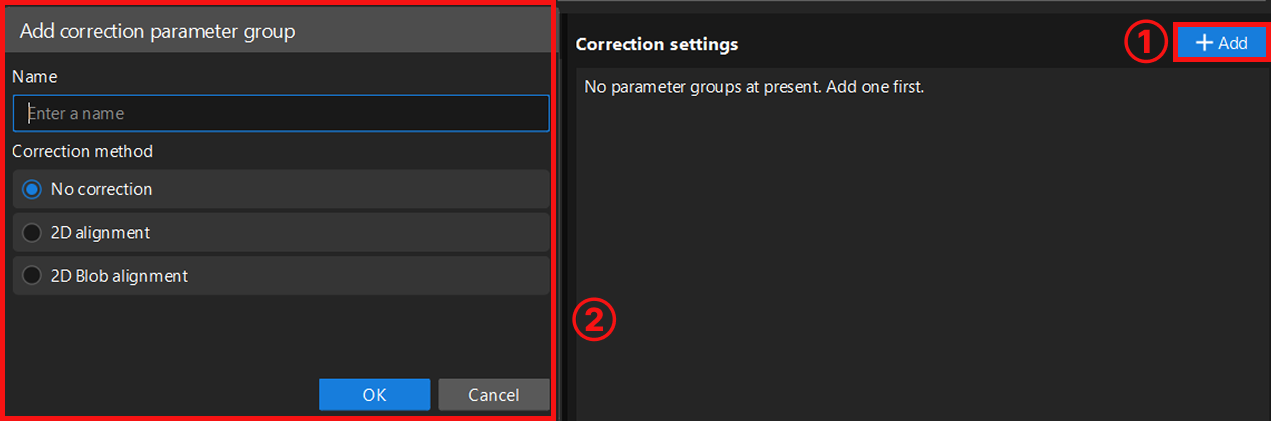
Currently, the following three correction methods are supported:
-
No correction: Uses the original input image directly for recognition without any pose correction processing. Suitable for scenarios where the recognition target position is relatively fixed in the image and the correction accuracy requirement is not high.
-
2D alignment: Aligns the recognition target’s pose with the template through translation and rotation operations. This method can extract the edge contour of the recognition target and uses an edge matching algorithm for precise alignment. Suitable for scenarios where the recognition target position is not fixed but has distinct fixed contours. For detailed configuration, read 2D Alignment.
-
2D Blob alignment: Used to detect bright and dark regions (i.e., Blobs) in the image. Filters target Blobs based on geometric features of the Blob (such as area, centroid, etc.) and calculates its minimum bounding rotated rectangle. Then adjusts the image pose so that the target Blob’s centroid aligns with the image center point, and the principal axis of its minimum bounding rotated rectangle aligns with the image coordinate axes. For detailed configuration, read 2D Blob Alignment.
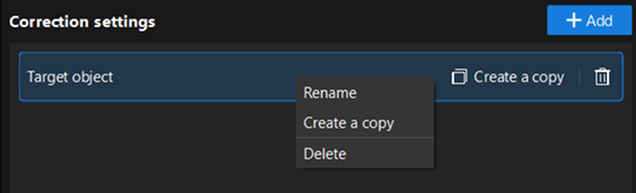
After creating the parameter group, right-click the parameter group name, or directly click the function buttons on its right side to perform operations such as rename, delete, or create a copy.
2D Alignment
2D alignment is a correction method that aligns the recognition target in the input image with the template through translation and rotation operations. It can eliminate recognition errors caused by inconsistent recognition target positions, improving recognition stability. After selecting this method, you need to complete recognition region settings, template settings, and recognition parameter tuning in sequence.
Set Target Region
Used to set the effective range for alignment. When selecting, the recognition target must be fully covered with appropriate margins on all sides to ensure the stability of alignment operations and the accuracy of subsequent recognition. You can select Set all as target region or Customize target region based on actual requirements. After selecting customize, click the "Select" button to manually select the recognition region.
-
Set all as target region: Recognizes the entire image, typically suitable for scenarios where recognition targets are widely distributed.
-
Customize target region: Recognizes only the selected area, typically suitable for scenarios where you only need to focus on a specific part of the image, or want to exclude irrelevant areas (such as background, fixtures, and other interferences), helping to improve recognition efficiency and accuracy.
Recognize Target Object
Set Target Object Template
After setting the recognition region, select or edit the template for subsequent positioning and matching of the recognition target. Click the Edit button to enter the 2D Matching Template Editor.
Select representative and stable edge features from the image to generate the template, so that the system can subsequently search the image automatically and accurately locate target objects that match the template features, while ensuring the uniqueness and stability of matching results. For detailed instructions, please refer to 2D Matching Template Editor.
| After each template editing, click Update to apply the latest configuration. |
Adjust Recognition Parameters
After selecting the template, click Run Step to view the template matching results and recognition performance.
If the recognition performance is not satisfactory, you can adjust other parameters based on the features and requirements of the recognition target for optimization.
For detailed parameter description, please refer to 2D Alignment.
Then, click Next to proceed to the error-proofing check workflow.
2D Blob Alignment
2D Blob alignment is a Blob-based correction method. This method detects all Blobs in the image and filters out the Blob with the most prominent geometric features. It then adjusts the image pose so that the target Blob’s centroid aligns with the image center point, and the principal axis of its minimum bounding rotated rectangle aligns with the image coordinate axes. After selecting 2D Blob alignment, you need to complete recognition region settings and recognition parameter tuning in sequence.
Set Target Region
Used to set the effective range for alignment. When selecting, the recognition target must be fully covered with appropriate margins on all sides to ensure the stability of alignment operations and the accuracy of subsequent recognition. You can customize the settings based on actual requirements.
The system supports rectangle and circle selection modes, and allows mixed addition of multiple regions. That is, on the same image, multiple rectangle or circle recognition regions can exist simultaneously to meet recognition requirements in complex scenarios.
Recognize Target Object
After setting the recognition region, you can adjust other parameters based on the features and requirements of the recognition target for optimization.
For detailed parameter description and tuning suggestions, please refer to 2D Blob Alignment.
You can also learn more about the usage of each parameter through tuning examples.
Error-Proofing Check
After aligning the image, begin misalignment and tilt detection. Through 2D template matching, perform pose deviation detection on target objects in the image. By comparing the target object with the template for feature matching, and combined with the set deviation thresholds, automatically determine whether the target object has anomalies such as offset, tilt, or incorrect placement.
Set Target Region
First, set the effective range for detection. When selecting, the target object to be detected must be fully covered, excluding irrelevant background interference. You can select Set all as target region or Customize target region based on actual requirements. After selecting customize, click the "Select" button to manually select the recognition region.
-
Set all as target region: Recognizes the entire image, typically suitable for scenarios where target objects are widely distributed.
-
Customize target region: Recognizes only the selected area, typically suitable for scenarios where you only need to focus on a specific part of the image, or want to exclude irrelevant areas (such as background, fixtures, and other interferences), helping to improve recognition efficiency and accuracy.
Recognize Target Object
Set Target Object Template
After setting the target region, you need to use a good-quality product to create a template for comparing real-time captured target objects against the template to identify differences. Click the Edit button in the Select template section to enter the 2D Matching Template Editor.
Select representative and stable edge features from the image to generate the template, so that the system can subsequently search the image automatically and accurately locate target objects that match the template features, while ensuring the uniqueness and stability of matching results. For detailed instructions, please refer to 2D Matching Template Editor.
| After each template editing, click Update to apply the latest configuration. |
Adjust Recognition Parameters
After selecting the template, you can adjust other parameters based on the features and detection requirements of the target object to optimize detection performance.
| Parameter | Description | ||
|---|---|---|---|
Edge polarity |
Parameter description: This parameter controls whether edge polarity must match the template. The polarity indicates the direction of intensity changes along the edges, e.g., light-to-dark or dark-to-light.
|
||
Min matching score |
Parameter description: This parameter is used to determine whether a matching result is valid. Any result whose score is below this value will be discarded.
|
||
Valid match threshold |
Parameter description: In the target image, points with gradient magnitudes greater than or equal to this threshold are considered valid edge points and participate in matching score calculation.
|
||
Min valid match ratio |
Parameter description: The minimum ratio of valid matched edge points to the total number of edge points in the template.
|
||
Search radius |
Parameter description: The radius of the circular search area for finding corresponding matching points of each template feature point in the target image during pose refinement. Default value: 8
|
||
Max overlap ratio |
Parameter description: This parameter is used to filter out duplicate matching results. If there is an overlap between two matching results and the overlap ratio exceeds this value, only the result with the higher matching score will be retained.
|
||
Padding ratio |
When the object to be matched may partially extend beyond the image boundary, specify the ratio of padding size to template size allowed. Padding can improve edge matching success rate but typically increases computation.
Default value: 0% |
Set Judgment Logic
| Parameter | Description |
|---|---|
X-axis offset range |
Parameter description: This parameter sets the allowable offset of the target object center relative to the template center in the X direction. Only when the offset is within this range, the judgment is OK; otherwise, it is judged as misalignment, i.e., NG. Default value: -100.00 mm to 100.00 mm |
Y-axis offset range |
Parameter description: This parameter sets the allowable offset of the target object center relative to the template center in the Y direction. Only when the offset is within this range, the judgment is OK; otherwise, it is judged as misalignment, i.e., NG. Default value: -100.00 mm to 100.00 mm |
Angle offset range |
Parameter description: This parameter sets the allowable rotation angle offset of the target object relative to the template. Only when the offset is within this range, the judgment is OK; otherwise, it is judged as tilt, i.e., NG. Default value: -180.00° to 180.00° |
|
Among all the above judgment conditions, if any parameter fails to meet the requirement (i.e., exceeds the set range), the overall judgment result is NG. |
General Settings
In this workflow, you can configure auxiliary functions beyond visual recognition. Currently, output port configuration is supported.
Configure Output Port
Here, you can select the output ports based on actual requirements. By default, the deviation judgment result is output, i.e., OK or NG.
-
Deviation check: Used to indicate whether the target object passes the deviation check; pass is 1, fail is 0.
-
Angle deviation: Outputs the rotation angle deviation of the target object relative to the template.
-
Center X offset: Outputs the offset of the target object center relative to the template center in the X direction.
-
Center Y offset: Outputs the offset of the target object center relative to the template center in the Y direction.
After checking the relevant ports, the 2D Target Object Recognition Step will add the corresponding output ports in real time.