Object-Bin Segmentation
Function
This Step segments the target objects and the bin from the input depth map and color image based on the Object-Bin Segmentation Model Package. It outputs the target object mask and the bin mask, and provides visualization results.
Usage Scenario
This Step is suitable for scenarios where target objects need to be effectively separated from the bin. It typically follows the image acquisition Steps and precedes the point cloud extraction Steps.
|
Go to Download Center to get the Object-Bin Segmentation deep learning model package. |
Input and Output
Input
| Input port | Data type | Description |
|---|---|---|
Camera Depth Map |
Image/Depth |
Original depth map of the object. |
Camera Color Image |
Image/Color |
Original color image of the object. |
Output
| Output port | Data type | Description |
|---|---|---|
Visualization Output |
Image/Color |
Visualized results. |
Object Presence |
Bool |
Detection result indicating whether target objects are present in the input image. true indicates that target objects exist, and false indicates that no target objects exist. |
Object Mask Image |
Image/Color/Mask |
Mask image of segmented target objects. |
Bin Mask Image |
Image/Color/Mask |
Mask image of the segmented bin. |
System Requirements
The following system requirements need to be met when using this Step.
-
CPU: needs to support the AVX2 instruction set and meets any of the following conditions:
-
IPC or PC without any discrete graphics card: Intel i5-12400 or higher.
-
IPC or PC with a discrete graphics card: Intel i7-6700 or higher, with the graphics card not lower than GeForce GTX 1660.
This Step has been thoroughly tested on Intel CPUs but has not been tested on AMD CPUs yet. Therefore, Intel CPUs are recommended.
-
-
GPU: GeForce GTX 1660 or above (if with a discrete graphics card).
Parameter Description
Model Package Settings
| Parameter | Description |
|---|---|
Model Manager Tool |
Parameter description: This parameter is used to open the deep learning model package management tool and import the deep learning model package. The model package file is a “.dlkpack” file exported by Mech-DLK.
|
Model Name |
Parameter description: This parameter is used to select the model package that has been imported for this Step.
|
Release Original Model Package After Switching |
Parameter description: This parameter determines whether to release the resources occupied by the original model package immediately when the model package is switched.
|
Model Package Type |
Parameter description: Once a Model Name is selected, the DI Algo Type Translated String will be filled automatically. |
Input Batch Size |
Parmeter description: The number of images processed during each inference. |
GPU ID |
Parameter description: This parameter is used to select the device ID of the GPU that will be used for the inference.
|
Pre-Process
| Parameter | Description | ||||
|---|---|---|---|---|---|
ROI File |
Parameter description: This parameter is used to set or modify the ROI of the input image. Tuning instruction: Once the deep learning model is imported, a default ROI will be applied. If you need to edit the ROI, click Open the editor. Edit the ROI in the pop-up Set ROI window, and fill in the ROI name.
|
Post-Process
| Parameter | Description |
|---|---|
Morphological Transformation |
Parameter description: When enabled, morphological processing is applied to target object and bin segmentation results.
|
Morphological Transformation Type |
Parameter description: This parameter is used to select the morphological post-processing method for masks. Value list: Dilation, Erosion
|
Kernel Size |
Parameter description: This parameter is used to set the kernel size of morphological transformation. A larger kernel gives a stronger effect.
|
Visualization Settings
| Parameter | Description |
|---|---|
Draw Segmentation Mask on Image |
Parameter description: This parameter is used to display the segmentation mask on the image. Tuning instructions: Select this option to enable visualization. The segmentation masks are displayed directly on the image, as shown below: 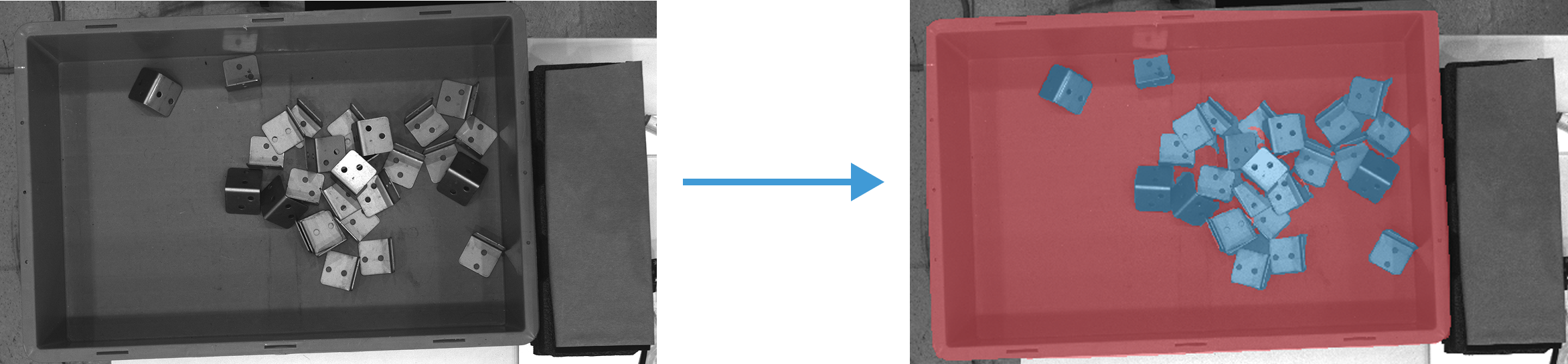
|