Edit Point Cloud
Once the point cloud model is generated, you can remove any interference points during the editing process.
Point cloud editing tools include:
-
Select point cloud (supports rectangle selection
 and polygon selection
  )
) -
Inverse selection

-
Delete point cloud

The following sections use rectangle selection as an example to explain how to remove interference points.
Select and Delete Interference Points
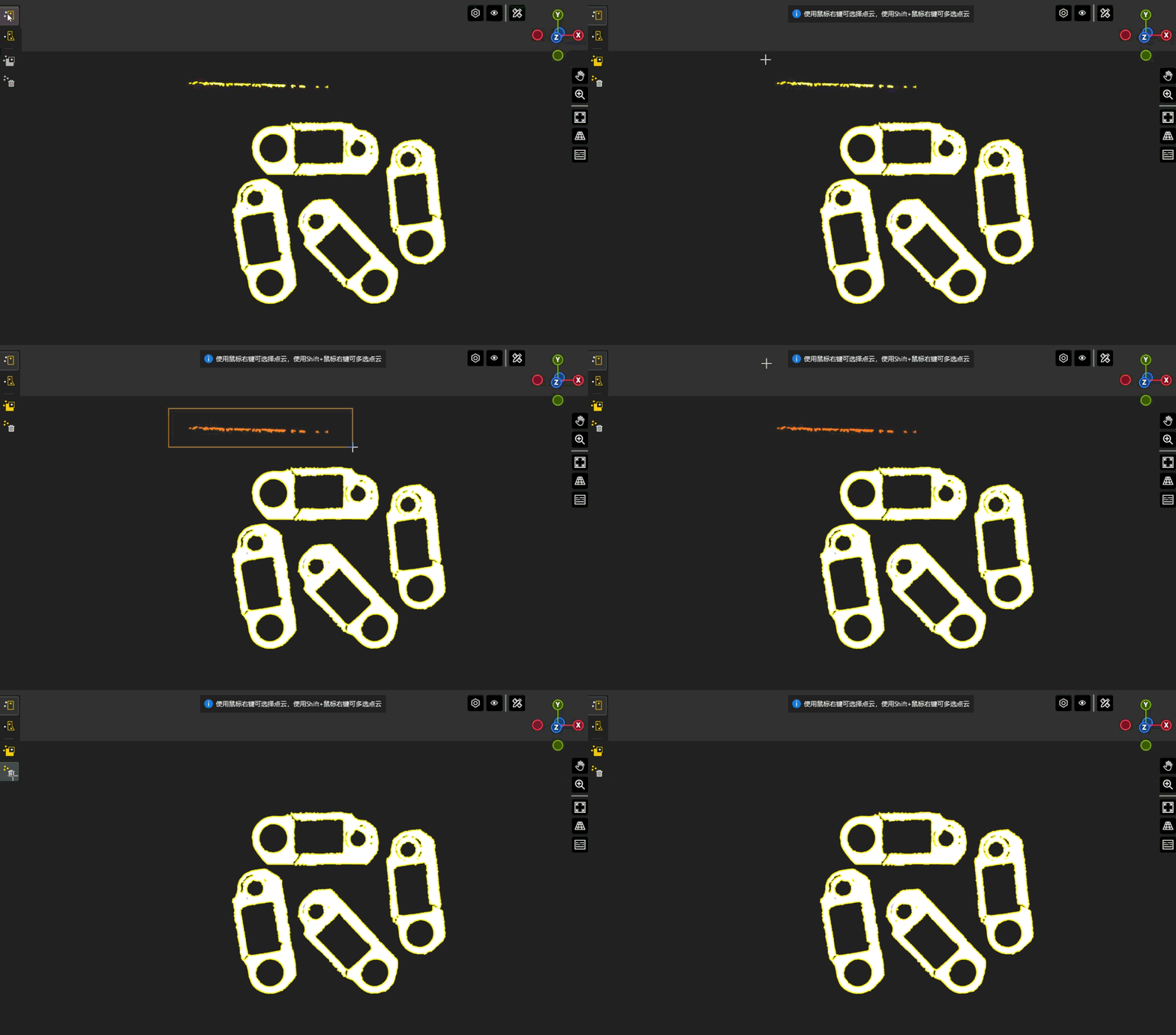
When there are only a few interference points, you can directly select and delete them.
-
Click "Rectangle selection"
to select irrelevant point clouds. -
Click
to delete irrelevant point clouds.
Delete Points by Inverse Selection
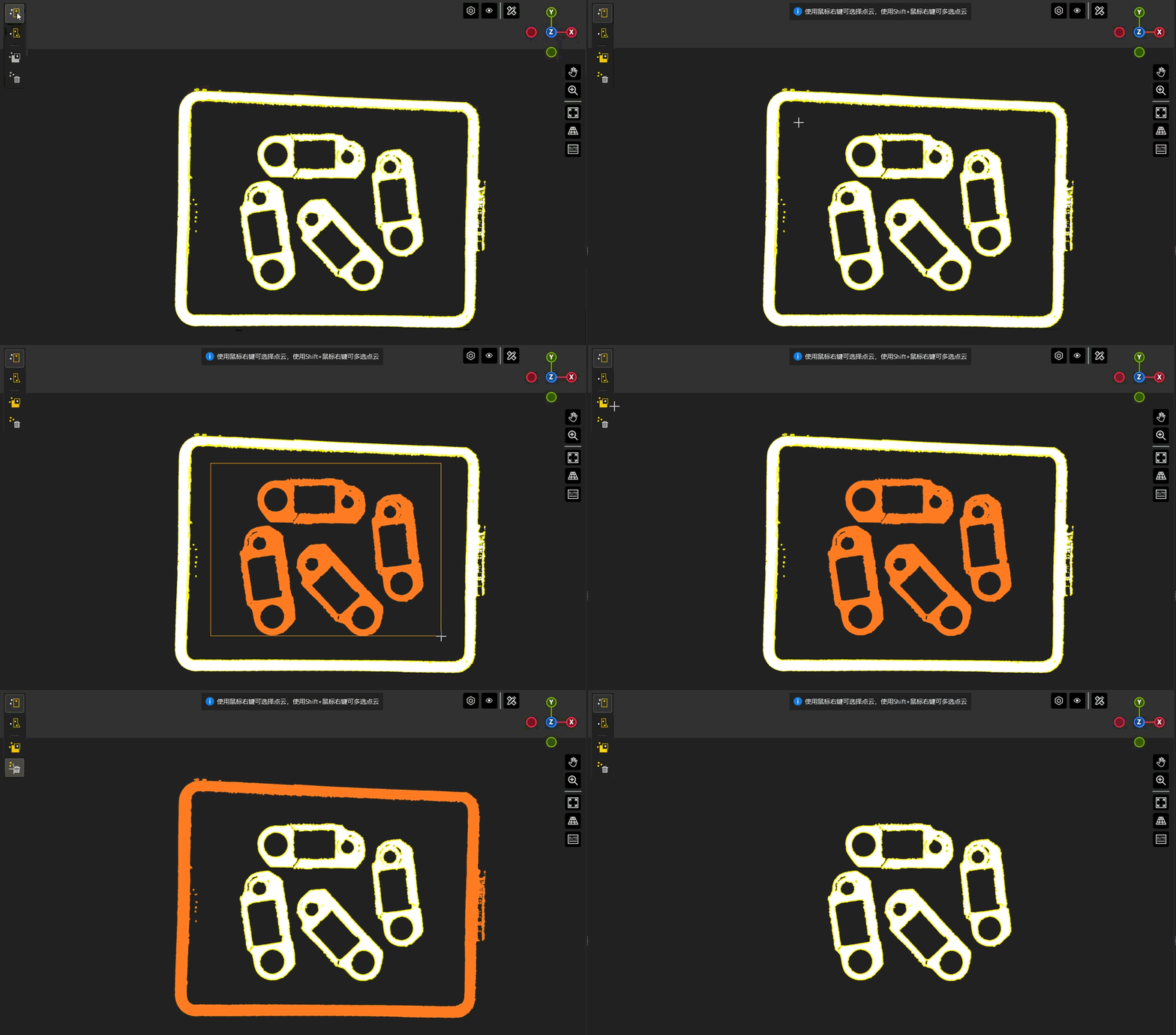
When there are many interference points that are difficult to select directly, you can first select the target object’s point cloud, then use inverse selection to select and delete the interference points.
-
Click "Rectangle selection"
to select irrelevant point clouds. -
Click "Inverse selection"
to select and delete irrelevant point clouds.
Delete Irrelevant Points from Surface/Edge Point Clouds Only
If you want to remove irrelevant points from surface or edge point cloud only, refer to the following steps.
-
In the “Point cloud display settings” panel on the right, select the point cloud display mode.
This allows you to view or edit different types of point cloud models for the current object in the target object editor.
-
Delete irrelevant points from surface/edge point clouds.
The irrelevant points in the surface/edge point cloud can be deleted by either directly selecting the points or using the inverse selection method.