Deep Learning Model Package Management Tool
This section offers a guide on using the deep learning model package management tool and some notes worth your attention.
Introduction
The deep learning model package management tool is designed to manage all deep learning model packages in Mech-Vision. It can be used to optimize model packages exported from Mech-DLK 2.2.0 or later versions and manage the operation mode, hardware type, model efficiency, and model package status. Besides, this tool can be used to monitor the GPU memory usage of the IPC.
If deep learning Steps are used in the project (such as Deep Learning Model Package Inference or Pick Anything V2), you can import the model package to the deep learning model package management tool first and then use the models in the relative Steps. Importing the model package to the tool facilitates optimizing the model package in advance.
|
|
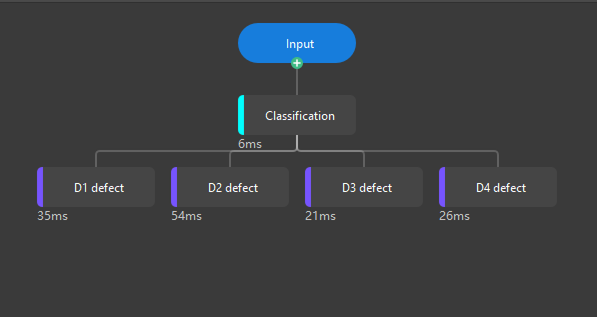
Since Mech-DLK 3.0.0, model packages are available in two types: single model packages and multiple model packages. Versions from Mech-DLK 2.4.1 and Mech-DLK 3.0.0 support exporting only single-model packages and cascaded model packages (that is, serial models).
|
Start the Feature
You can open the tool in the following ways:
-
After creating or opening a project, select in the menu bar.
-
In the graphical programming workspace of the software, click the Config wizard button on the deep learning Steps.
-
In the graphical programming workspace of the software, select the deep learning Step you need, and then click Open the editor button under the Model Manager Tool in the Parameters section.
Interface Description
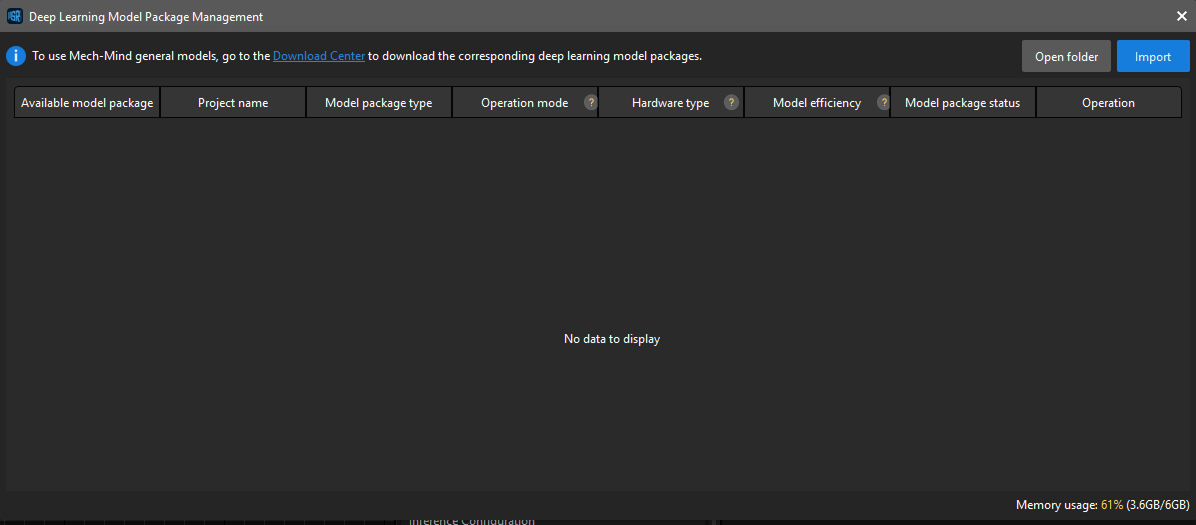
The fields in this tool are described as follows:
| Field | Description | ||
|---|---|---|---|
Available model package |
The name of the imported model package. |
||
Project name |
The Mech-Vision project that uses the corresponding model package. |
||
Model package type |
The types of model packages, including single model packages (object detection, text recognition, etc.) and multiple model packages. |
||
Operation mode |
The operation mode of the model package during inference, including Sharing mode and Performance mode.
|
||
Hardware type |
The hardware type used for model package inference, including GPU (default), GPU (optimization), and CPU.
|
||
Model efficiency |
The inference efficiency of the model package. |
||
Model package status |
The statuses of the model package, including Optimizing…, Fail to optimize, Unloaded, and Ready for use.
|
||
Operation |
You can release or delete a model package.
|
Common Operations
Follow the steps below to learn about common operations for using the deep learning model package management tool.
Import the Deep Learning Model Package
-
Open the deep learning model package management tool and click the Import button in the upper right corner.
-
In the pop-up window, select the model package you want to import, and click the Open button. The model package will appear in the list.
Switch the Operation Mode
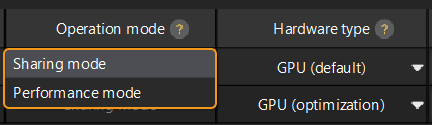
If you want to switch the Operation mode for deep learning model package inference, you can click  in the Operation mode column in the deep learning model package management tool, and select Sharing mode or Performance mode.
|
Switch the Hardware Type
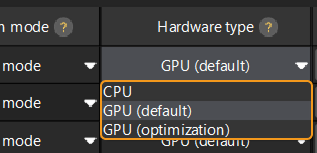
You can change the hardware type for deep learning model package inference to GPU (default), GPU (optimization), or CPU.
Click the button in the Hardware type column in the deep learning model package management tool, and select GPU (default), GPU (optimization), or CPU.
|
Configure the Model Efficiency
The process of configuring model efficiency is as follows:
-
Determine the deep learning model package to be configured.
-
Click the corresponding Configure button under Model efficiency and set the Batch size and Precision in the pop-up window. The model execution efficiency is affected by batch size and precision.
-
Batch size: the number of images that will be passed through the neural network at once during inference, ranging from 1 to 128. Increasing the value will increase the model’s inference speed, but more video memory will be used. If the value is not set properly, the inference speed will be slowed down.
-
|
-
Precision (only available when the Hardware type is set to GPU (optimization)):
-
FP32: high-precision model with slow inference.
-
FP16: low-precision model with fast inference.
-
Troubleshooting
Fail to Import a Deep Learning Model Package
Symptom
After a deep learning model package to import was selected, the system shows the error message of “Failed to import the deep learning model package.”
Possible causes
-
A model package with the same name has been imported.
-
A model package with the same content has been imported.
-
Hardware and software cannot meet the minimum requirements.
Solutions
-
Modify the model package name or remove the imported model package with the same name.
-
Check the content of the model package. If it is the same as the imported model package, you do not need to import it again.
-
Ensure that the minimum required version of the graphics driver is 526.98, and the minimum required CPU version is 6th generation Intel Core.
Fail to Optimize a Deep Learning Model Package
Symptom
When optimizing a deep learning model package, an error message saying “Model package optimization failed” popped up.
Possible causes
Insufficient GPU memory.
Solutions
-
Remove the unused model packages in the tool and then re-import the model package for optimization.
-
Switch the “Operation mode” of other model packages to “Sharing mode” and then import the model package for optimization again.
Notes for Compatibilities
-
Mech-Vision 2.2.0 and above can use deep learning model packages exported by Mech-DLK 2.5.4 and above, supporting all algorithm modules in Mech-DLK, and can import and use multi-model packages for inference. However, the following compatibility issues may be encountered in actual use:
-
Fast positioning models do not support using the GPU (optimization) hardware type.
-
When importing model packages from Mech-DLK 2.5.4, the category names in the post-processing interface may display abnormally. For example, image classification models may only display a single category in the visualization configuration of the Inference Configuration Tool, and cannot display all categories properly.
-
-
Deep learning model packages exported by Mech-DLK 2.4.1 can be used in Mech-Vision 1.7.1. However, there may be some compatibility issues. It is recommended to use deep learning model packages exported by Mech-DLK 2.4.1 or above with Mech-Vision 1.7.2 or above.
-
Cascaded model packages cannot be used in Mech-Vision.
-
The model efficiency cannot be configured.
-
The performance of image classification may be diminished.
-
Model packages cannot be used on CPU devices.
-
-
If model packages optimized with Mech-Vision 1.7.1 are used in Mech-Vision 1.7.2, the execution time may be longer when the optimized model package is used in the “Deep Learning Model Package Inference” Step for the first time.
-
Please pay attention to the following issue when the Hardware type for model package inference is set to GPU (optimization).
If the model package is not optimized in Mech-Vision 1.7.X, and it is optimized in Mech-Vision 1.8.0 or later versions, the model package cannot function properly in Mech-Vision 1.7.X. You should click Open folder in the Deep Learning Model Package Management Tool, delete the cache folder corresponding to the model package, and optimize the model package again.
You can check the cache folder corresponding to the model package in the model_config.json file.