Detect and Fit Rectangle
Description
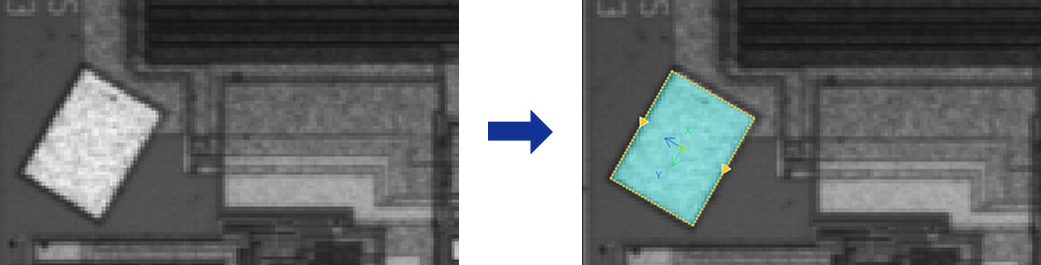
This Step is used to detect the edges of a rectangle from an image and fit the rectangle.
Usage Scenario
This Step is primarily used in scenarios such as detecting rectangular areas, reference frames, pads, and patch areas on workpieces, where there is a rigid requirement for rectangle positioning or dimensional measurement.
Basic Concepts
-
Caliper
In image processing, a virtual measurement tool detects edges within a specified region. Adjusting its count, width, and length affects the accuracy and stability of edge detection.
-
Edge Polarity
It refers to the direction of grayscale change across an edge, e.g., dark-to-light or light-to-dark.
Input and Output
Input
| Input port | Data Type | Description |
|---|---|---|
Image |
Image |
The image used for detecting rectangle-shaped edges. |
Object Pose |
Pose2D |
The position and orientation of the matched objects in the image. |
Output
| Output port | Data Type | Description |
|---|---|---|
Rectangle Pose |
Pose2D |
The position and orientation of the fitted rectangle. |
Center Point |
Shape2D/Point |
The geometric center of the fitted rectangle. |
Center X |
Number |
The X coordinate of the center point of the fitted rectangle. |
Center Y |
Number |
The Y coordinate of the center point of the fitted rectangle. |
Rectangle Width |
Number |
The width of the fitted rectangle. |
Rectangle Height |
Number |
The height of the fitted rectangle. |
Rectangle Rotation Angle |
Number |
The rotation angle of the fitted rectangle, relative to the positive X-axis direction. |
Fitted Rectangle |
Shape2D/Rectangle |
The rectangle obtained through fitting. |
Parameter Description
| Parameter | Description |
|---|---|
ROI Settings |
You can draw a rectangular ROI. The system extracts multiple columns of pixels according to the caliper settings, and the detected edge points in each column will be used for rectangular fitting. For a closed ROI, such as a rectangle, the calipers detect edges outward from the inside of the ROI. The caliper direction generally does not need adjustment, and rotating the ROI does not change the detection direction. |
Edge Polarity |
This parameter specifies the direction in which the grayscale values change at the edges. Value list:
|
Filter Window Size |
Specify the window size to be used when filtering each column of pixels in its direction. Filtering can reduce noise and improve the stability of edge detection results. |
Edge Type |
Define the edge types to be retained in edge detection. Value list: Best, First, Last. |
Gray Value Change Threshold |
This parameter specifies the minimum gray value change between adjacent pixels at the edge of an extracted pixel column required for edge point detection. Setting this parameter value properly can effectively filter out weak edges and noise. |
Use Relative Threshold |
Once selected, an edge point is detected only if the gray value change between adjacent pixels at the edge of a pixel column meets or exceeds the specified percentage of the maximum change in that column. Once this parameter is selected, set Relative Threshold. |
Max Distance Threshold |
This parameter is used to set the maximum allowed distance from detected edge points to the fitted rectangle. Edge points with a distance less than or equal to this threshold are considered inliers. Default value: 4 px |
Min Fit Score |
This parameter is used to determine the lowest score for determining whether the fitted result is acceptable. It is only used for result evaluation and will not affect the fitting process. The score equals the ratio of the number of inliers to the total number of edge points. When high measurement accuracy is required, raise Min Fit Score. A typical value is 0.8 or above. Default value: 0.7 |
Max Iterations |
The maximum number of attempts the algorithm will make to fit an optimal rectangle. Iteration stops once this limit is reached. When the target contour is complex or subject to high interference, increasing the number of iterations improves accuracy at the cost of increased processing time. Default value: 1000 |