Sort Poses by Predefined Options
This section introduces how to sort poses with the provided pose sorting options.
You can select one of the seven pose sorting types in the drop-down list.
Sort by S shape on plane
Function
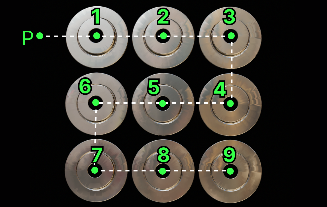
Sort the poses in rows and columns based on the given reference pose (with priority given to sorting poses according to “Row Direction”). This type is usually used for unloading neatly arranged workpieces or depalletizing.
Usage Instructions
Reference pose
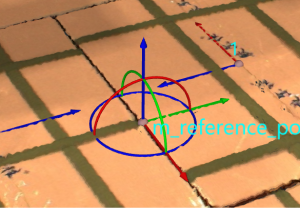
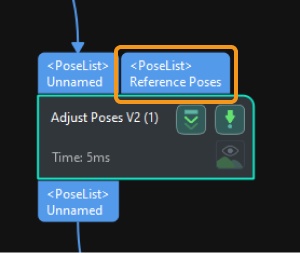
There are two methods to set the reference pose, namely, Drag with pose manipulator and Input from external Step, as explained in the table below.
No. |
Method |
Description |
Instruction |
Illustration |
1 |
Drag with pose manipulator |
Adjust the position and orientation of the manipulator to set the reference pose. |
|
|
2 |
Input from external Step |
Input a reference pose from other Steps. |
|
|
Row direction
This parameter is used to specify the row direction when the poses are sorted by S shape on plane.
Sort by Z shape on plane
Function
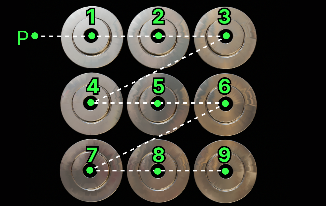
Sort the poses in rows and columns based on the given reference pose (with priority given to sorting poses according to “Row Direction”). This type is usually used for unloading neatly arranged workpieces or depalletizing.
Usage Instructions
Reference pose
There are two methods to set the reference pose, namely, Drag with pose manipulator and Input from external Step, as explained in the table below.
No. |
Method |
Description |
Instruction |
Illustration |
1 |
Drag with pose manipulator |
Adjust the position and orientation of the manipulator to set the reference pose. |
|
|
2 |
Input from external Step |
Input a reference pose from other Steps. |
|
|
Row direction
This parameter is used to specify the row direction when the poses are sorted by Z shape on plane.
Sort by X/Y/Z value of pose
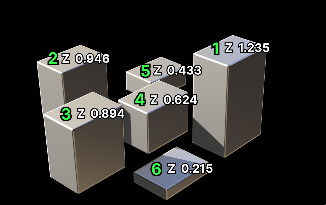
Sort by distance from pose to reference pose
Function
This sorting type calculates distances from all poses to be sorted to the reference pose and sort the poses according to the distance.
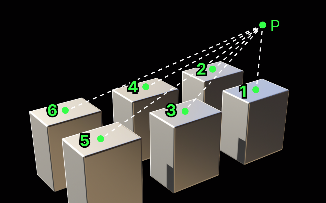
Usage Instructions
Reference pose
There are two methods to set the reference pose, namely, Drag with pose manipulator and Input from external Step, as explained in the table below.
No. |
Method |
Description |
Instruction |
Illustration |
1 |
Drag with pose manipulator |
Adjust the position and orientation of the manipulator to set the reference pose. |
|
|
2 |
Input from external Step |
Input a reference pose from other Steps. |
|
|
Sort by distance from pose to reference pose on XOY plane
Function
Project poses to be sorted and the specified reference pose onto the XOY plane, calculate the distances from poses to the reference pose on the plane, and then sort the poses according to the distance.
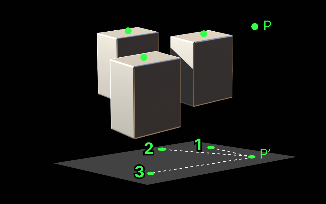
Usage Instructions
Reference pose
There are two methods to set the reference pose, namely, Drag with pose manipulator and Input from external Step, as explained in the table below.
No. |
Method |
Description |
Instruction |
Illustration |
1 |
Drag with pose manipulator |
Adjust the position and orientation of the manipulator to set the reference pose. |
|
|
2 |
Input from external Step |
Input a reference pose from other Steps. |
|
|
Sort by pose confidence
Function
This sorting type sorts poses according to the corresponding confidence. You can switch between ascending and descending order.
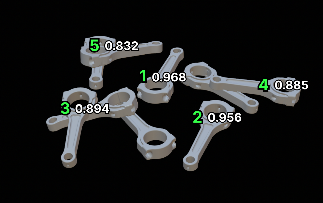
Usage Instructions
Once this sorting type is selected, a new “NumberList” input port will be added to the “Adjust Poses V2” Step for inputting the pose confidence. You should connect other Steps that output values to the new input port of the “Adjust Poses V2” Step. Then click Get data to receive the pose confidence.
Sort by two dimensions
Function
This sorting method sorts poses according to the information of the two dimensions. Poses are first sorted according to the primary dimension, then grouped into layers based on the interval you set. Within each layer, poses are further sorted by the secondary dimension. You can switch between ascending and descending order. The dimension values can be any numeric attributes, such as object height or angle.

Once this sorting method is selected, two new input ports will be added to the Adjust Poses V2 Step:
-
Primary Sorting Values: Values input by this port will be used for the primary sorting dimension.
-
Secondary Sorting Values: Values input by this port will be used for the secondary sorting dimension.
Connect the output port of another Step that outputs numeric values to the newly added input port of the “Adjust Poses V2” Step, then click Get data to receive the input data to be sorted.
Usage Instructions
Primary dimension
This parameter is used to set the sorting order of the primary dimension. You can choose between ascending and descending order.