Adjust Poses to Point Cloud Surface

You are currently viewing the documentation for the latest version (2.2.0). To access a different version, click the "Switch version" button located in the upper-right corner of the page.

■ If you are not sure which version of the product you are currently using, please feel free to contact Mech-Mind Technical Support.

Function

This Step translates the input poses along the specified directions so that the centers of the translated poses are on the surfaces of the input point clouds.

Usage Scenario

This Step is usually used to correct pick points to point cloud surfaces.

Input and Output

Input

Input port Data type Description

Point Clouds

PointCloud/XYZNormal[]

Point clouds input to this port will be used as references for adjusting the input poses.

Poses

Pose[]

Poses input to this port will be adjusted to the point clouds' surfaces.

Output

Output port Data type Description

Adjusted Poses

Pose[]

Poses adjusted to the point clouds' surfaces.

Parameter Description

Visualization Settings

Parameter Description

Pose Type to Visualize

Description: This parameter is used to select the pose type to visualize.
Default value: After
Value list: After, Before, and All
Instruction: Select an appropriate option according to actual needs. Please refer to the tuning example for the corresponding result.

Usage Setting of Inputs

Parameter Description

Mapping Type

Parameter description: Specifies the correspondence relationship between the input point clouds and the input poses.

Value list:

  • OneToOne: There should be a one-to-one correspondence between the input point clouds and the input poses.

  • FirstToAll: Adjust all poses using the first point cloud in the point cloud list.

Default value: OneToOne

Coordinate System Settings

Parameter Description

Coordinate Type

Parameter description: Specifies the coordinate system to use when adjusting the poses.

Value list:

  • Object Frame: Use the object coordinate system or local coordinate system to adjust the poses.

  • World Frame: Use the world coordinate system to adjust the poses.

Default value: Object Frame

Point Cloud Range Settings

Parameter Description

Extract Point Cloud Method

Parameter description: Specifies the method for extracting surface point clouds.

Value list:

  • PointsInsideCylinder: Extract point clouds within a cylindrical range centered on the pose. When this method is selected, the following parameters need to be set:

    • Min Z Value: The minimum distance threshold along the Z-axis. Default value: -100.000 mm.

    • Max Z Value: The maximum distance threshold along the Z-axis. Default value: 100.000 mm.

    • Inner Radius: The inner radius of the ring. Point clouds within the radius will not be extracted.

    • Outer Radius: The outer radius of the ring. Default value: 100.000 mm.

  • PointsInTopNPercent: When extracting the point cloud, sort the point cloud within the specified range in ascending order according to the Z values of the points, and extract the top point clouds according to the percentage. When this method is selected, the following parameters need to be set:

    • Percent: When extracting the point cloud, sort the point cloud within the specified range in ascending order according to the Z values of the points, and extract the top point clouds according to the percentage. Default value: 0.1000.

Default value: PointsInsideCylinder

Adjust Method Settings

Parameter Description

Adjust Method

Parameter description: Specifies the method for adjusting the poses.

Value list:

  • MoveToCenter: Move the input poses to the center of the extracted point clouds.

  • MoveACertainDisAlongZAxis: Move the input poses along the Z-axis of the specified coordinate system for a certain distance (the projected length of the vector formed by the extracted point cloud center and the input pose on the Z-axis).

Default value: MoveACertainDisAlongZAxis

Tuning Examples

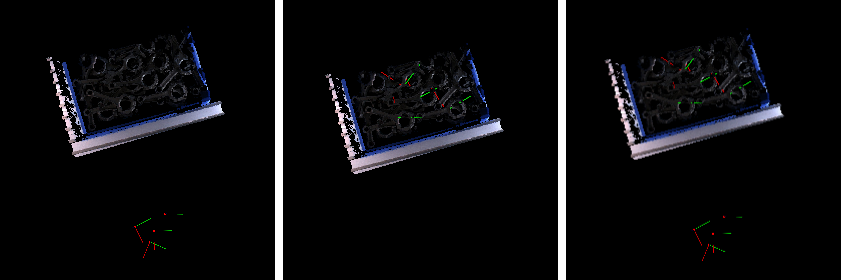
Pose Type to Visualize

In the case of the robot reference frame, the visualized poses are as follows when the Pose Type to Visualize is set to After, Before, and All.

transform poses pose display settings

Is this page helpful?

You can give a feedback in any of the following ways:

We Value Your Privacy

We use cookies to provide you with the best possible experience on our website. By continuing to use the site, you acknowledge that you agree to the use of cookies. If you decline, a single cookie will be used to ensure you're not tracked or remembered when you visit this website.