2D Template Editor
In Mech-Vision, use the 2D template editor to define 2D regions of interest (ROIs) on the image. Data within the ROI is used to extract edge features for generating a 2D matching template.
The extracted edge features should meet the following requirements:
-
Common to all images: If the extracted edge features are not present in all images, matching between the images and the template may fail.
-
Representative: Extracted edge features must be representative to ensure unique and accurate matching; otherwise, matching results may be incorrect.
-
Moderate quantity: In general, more extracted edge features improve matching accuracy. However, an excessive number may reduce matching speed.
Start the Feature
In the parameter configuration panel of the Step, click the Open the editor button to open the 2D Template Editor.
| Matching templates cannot be used across scenarios. |
Preparations
-
Ensure that the Step has proper input.
-
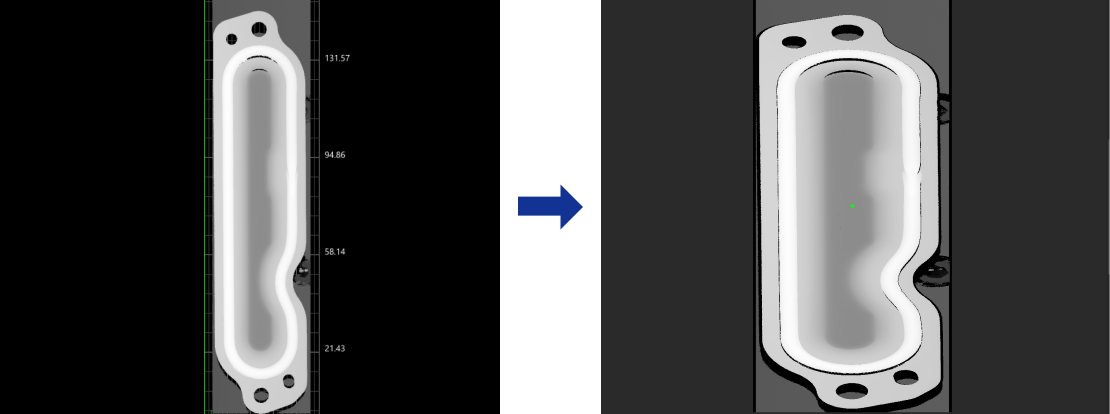
Under Parameters in the parameter configuration panel of the Step, click the Open the editor button to open the 2D Template Editor. This tool will automatically obtain the input image of the Step.
|
Workflow
-
Rename the default template or click the + New button to create a new template.
After selecting a template from the template list, right-click and select the Rename option, enter a custom name, and click the OK button to rename the template. 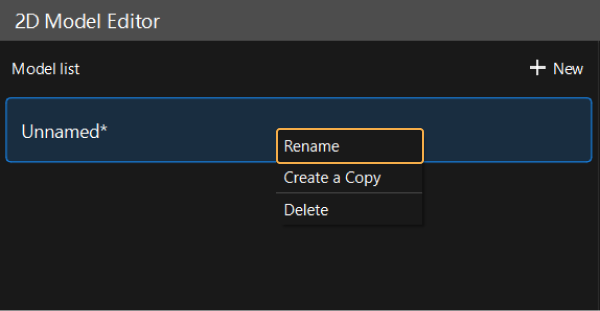
-
Select an ROI. Ensure that the edge features in the ROI are representative and not excessive.
Instruction: Click the icon on the toolbar to the right of the template list to select the appropriate ROI tool and create ROIs in the image. Note that the extracted edge features will only take effect when a feature region or ROI is used in the Step. Otherwise, the generated matching template will lead to matching failure.
-
In the ROI list section at the bottom left of the interface, right-click an ROI and select Enable, Disable, etc., to set the drawn ROI.
-
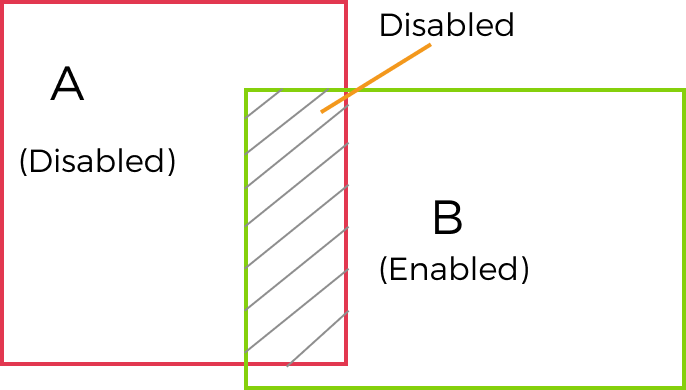
For overlapping areas, Disable has priority over Enable. In other words, when one region is set to Enabled and an overlapping region to Disabled, the overlapping area is effectively Disabled; edge features within it are ignored and not used for template generation.
-
-
Set the center point. The template rotates around the center point within a specified angle range to accommodate different angle variations of the target in the image.
If the center point is changed after the template is generated, you must click the Generate template button again to update the template for the center point setting to take effect. -
Set Feature parameters.
-
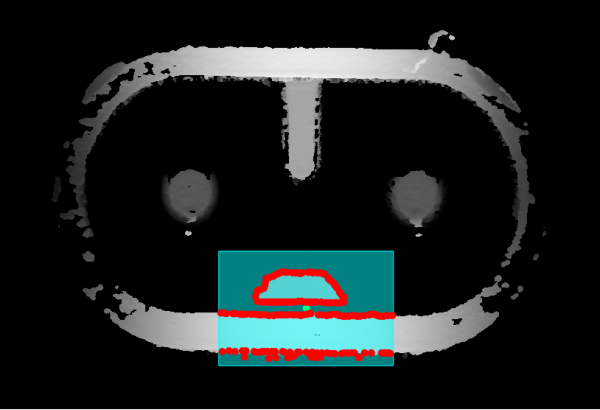
Click the Generate template button in the lower-right corner to generate and preview the template.
-
Click the Save button in the lower-right corner to save the generated template.
If you only clicked the Save button in the lower-right corner and did not generate a template, the edited template would be saved but would not work.
After configuration, close the editor. Click ▼ under the Open the editor button in the Parameters section of the 2D Alignment Step and then select the corresponding template in the drop-down menu.
ROI Drawing Tools
The usage instructions on ROI drawing tools are shown in the table below.
| Icon | Tool | Instructions |
|---|---|---|

|
Circle ROI Tool |
Use the Circle ROI Tool to draw a circular ROI.
|

|
Rectangle ROI Tool |
Use the Rectangle ROI Tool to draw a rectangular ROI.
|

|
Polygon ROI Tool |
Use the Polygon ROI Tool to draw a polygonal ROI.
|

|
ROI Eraser Tool |
Use the ROI Eraser Tool to erase the drawn ROI, and the points in the erased parts will not be used to generate the template.
|

|
Select Tool |
Use the Select Tool to select and edit the drawn ROI.
|


|
Feature Parameters
| Parameter | Description |
|---|---|
Search scale |
The downsampling scale applied to the template image during the fast search phase. Higher scales increase search speed at the cost of feature resolution. In the Auto Mode, the system will select the optimal search scale based on the image content. |
Coarse edge threshold |
Points with gradient magnitudes smaller than this value are considered rough edge features, which are used to quickly estimate the approximate position of the target. |
Fine edge threshold |
Points with gradient magnitudes smaller than this value are considered fine edge features, which are used to accurately locate the target based on fast estimation. |
Search step |
The search step size (sub-pixel) for fine matching. The smaller the step size, the higher the search accuracy, but the calculation workload increases. |
Min chain length |
After grouping extracted continuous edge features into chains, any chain with a length (number of consecutive points) below this threshold is considered noise and discarded. Used to filter out scattered and meaningless edges. |
Angle search range |
Set the possible rotation angle range of the target to be matched. This range should be as narrow as possible to ensure matching speed. |
Scale ratio search range |
Set the possible scaling range of the target to be matched relative to the template. This range should be as narrow as possible to ensure matching speed. |
|
After confirming that the edge features in the ROI are stable and representative, you can quickly adjust the feature parameters along the following steps:
It is recommended to adjust only one parameter at a time and then observe the effect after the template is regenerated. |