Positioning and Picking (2D Blob Analysis)
This section introduces the target object recognition configuration workflow using the 2D Blob analysis method. This method is used to detect bright and dark regions in images, i.e., Blobs, and filter target Blobs based on geometric features such as area and circularity for target object positioning. It is suitable for scenarios where recognition relies on brightness difference features, with target objects appearing as distinct bright or dark regions.
Click Config wizard, select the Positioning and Picking scenario, and select the 2D Blob analysis recognition method to enter this configuration workflow.
Usage Workflow
The overall recognition workflow includes four steps:

-
Image preprocessing: Perform color conversion, enhancement, denoising, morphological transformations, and other preprocessing on the input image to improve image quality, highlight target object features, and reduce background interference, providing a reliable data foundation for subsequent target object recognition.
-
Target object recognition: Set the region of interest and flexibly configure Blob analysis parameters based on target object features for accurate target object recognition.
-
Target object pose calculation: Combine the 2D camera’s extrinsic calibration data and the taught data of the reference target object (i.e., the target object used for teaching) to automatically convert the recognized 2D pose of the target object into the 3D pose required for robot picking, with the 3D pose expressed in the robot frame.
-
General settings: Configure pose filtering rules and output ports to ensure that output results meet subsequent picking requirements.
Image Preprocessing
Before recognizing target objects, you can choose to enable Convert color space or Image preprocessing based on the input image quality, and adjust the corresponding parameters to make image features clearer, thereby improving recognition accuracy and efficiency.
Convert Color Space
Converting the image color space can transform the input image from one color space to another, for example, from BGR to grayscale, BGR to HSV, etc. Through color space conversion, image features can be better highlighted to facilitate subsequent image processing.
For detailed parameter description and tuning examples, please read Convert Color Space.
Image Preprocessing
In image preprocessing, you can perform enhancement, denoising, morphological transformations, grayscale inversion, edge extraction, and other preprocessing operations on the input image.
For detailed parameter description and tuning examples, please read Image Preprocessing.
Target Object Recognition
After completing image preprocessing, configure the recognition settings, including setting the recognition region of interest and adjusting 2D Blob analysis parameters for accurate target object recognition.
Add Recognition Parameter Group
After entering the target object recognition workflow, the system will create a default recognition parameter group for managing the current recognition region of interest and related parameters.
-
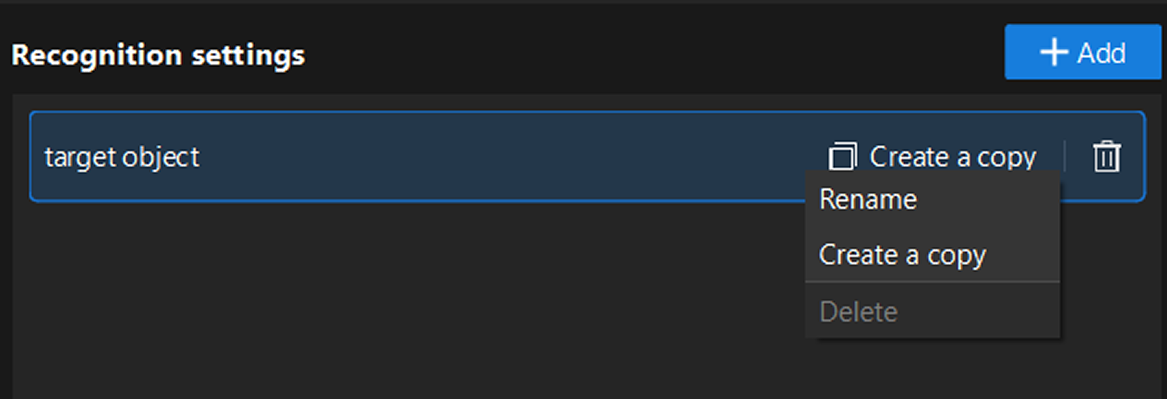
Management operations: Right-click the parameter group name, or directly click the function buttons on the right side of the parameter group to perform operations such as rename, delete, or create a copy.
-
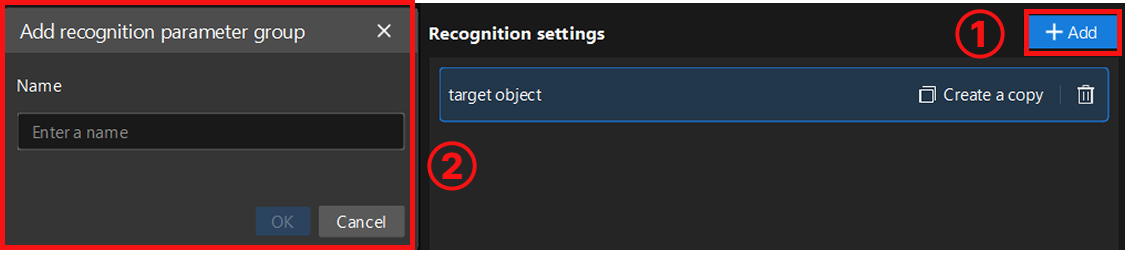
Create new parameter group: To configure a new parameter group, click the Add button in the upper-right corner to create a new parameter group. Each parameter group can independently set recognition regions and parameters without affecting each other.
Set Recognition Region
When setting the recognition region, you can customize the settings based on actual requirements. The system supports rectangle and circle selection modes, and allows mixed addition of multiple regions. That is, on the same image, multiple rectangle or circle recognition regions can exist simultaneously to meet recognition requirements in complex scenarios.
Recognize Target Object
After setting the recognition region, you can adjust other parameters based on the actual features and recognition requirements of the target object to optimize recognition performance.
| Parameter | Description |
|---|---|
Blob Polarity |
Parameter description: This parameter defines which pixel regions will be recognized as target connected regions, i.e., Blobs, compared to the background. Value list:
|
Threshold Type |
Parameter description: This parameter specifies the threshold calculation method for image binarization. Pixels with grayscale values greater than the threshold are classified as foreground, and pixels with grayscale values less than the threshold are classified as background. Value list:
|
Neighborhood |
Parameter description: This parameter specifies the connectivity rules between pixels, determining which pixels in the image are grouped into one Blob. Value list:
|
Contour Retrieval Mode |
Parameter description: This parameter sets the retrieval method for extracting Blob contours. Value list:
|
Filter Settings |
Parameter description: This parameter sets filter conditions to select Blobs that meet specific geometric features. Click the Open editor button to set related parameters in the "Filter settings" window. |
Logic Between Conditions |
Parameter description: Logical filtering rules. Used to uniformly set the condition logic (AND/OR) for multiple added filter conditions (such as area, bounding rectangle aspect ratio, circularity, etc.). Different condition items are combined by "Condition logic" (AND/OR); when the same condition item is added repeatedly, it is always combined by OR, unaffected by the "Condition logic" setting.
|
Filter Parameter Group |
Parameter description: This parameter selects a filter parameter group already created in the editor, to apply the corresponding filter conditions during recognition. |
Sort By |
Parameter description: This parameter specifies the sorting criterion for sorting detected Blobs.
|
Sort Order |
Parameter description: This parameter specifies the sorting direction.
|
Primary Sorting Direction |
Parameter description: This parameter specifies the start direction for Z-pattern sorting. Value list:
|
Secondary Sorting Direction |
Parameter description: This parameter specifies the cross-row or cross-column direction for Z-pattern sorting. Value list:
|
Layer Interval |
Parameter description: Blobs are layered based on this interval. When sorting is row-first, this parameter represents the row interval of Blobs; when sorting is column-first, this parameter represents the column interval of Blobs. |
Reference Position |
Parameter description: This parameter specifies the starting position for layering. For example, when sorting is row-first, the system arranges the first row at this position, then continues arranging other rows above and below by the set "Layer Interval". |
You can also learn more about the usage of each parameter through tuning examples.
Target Object Pose Calculation
This workflow collects reference data through teaching operations, establishes the mapping between visual recognition results and robot picking poses, and automatically converts the real-time recognized 2D pose of the target object into the 3D pose required for robot picking, with the 3D pose expressed in the robot coordinate system.
The required teaching operations and parameters vary depending on the camera mounting method (Eye to hand or Eye in hand).
| Before starting the specific teaching operations, ensure that there is only one target object within the camera field of view (if there are other target objects, remove them from the carrier first), and click Run project so that the system only recognizes this reference target object. |
Teaching Instruction in ETH Scenario
Operation Workflow
-
Place the reference target object within the camera field of view for image capture and recognition, and keep the target object position unchanged throughout the entire teaching process.
-
Click the Acquire button to obtain the currently recognized reference target object 2D pose.
-
Use the teach pendant to control the robot to accurately reach the expected picking point of the target object. Click the Edit button to enter the robot flange pose when picking the reference target object. This flange pose is read from the teach pendant in the robot reference frame.
-
After completion, use the teach pendant to control the robot to move away from the picking point while keeping the target object position unchanged.
Parameter Description
| Parameter | Description |
|---|---|
Select camera Step |
Parameter description: This parameter is used to select the 2D camera Step that has completed extrinsic parameter calibration, to ensure the calibration data is correctly applied to the current Step. |
Reference target object 2D pose |
Parameter description: The 2D pose of the reference target object recognized during image capture. |
Reference pose for picking |
Parameter description: The robot flange pose when picking the reference target object. This flange pose is read from the teach pendant in the robot reference frame. |
Teaching Instruction in EIH Scenario
Operation Workflow
-
Use the teach pendant to control the robot to move to the image-capturing point. Click the Edit button to enter the robot flange pose at the image-capturing point. This flange pose is read from the teach pendant in the robot reference frame.
-
Place the reference target object within the camera field of view for image capture and recognition, and keep the target object position unchanged throughout the entire teaching process.
-
Click the Acquire button to obtain the currently recognized reference target object 2D pose.
-
Use the teach pendant to control the robot to accurately reach the expected picking point of the target object. Click the Edit button to enter the robot flange pose when picking the reference target object. This flange pose is read from the teach pendant in the robot reference frame.
-
After completion, use the teach pendant to control the robot to move away from the picking point while keeping the target object position unchanged.
Parameter Description
| Parameter | Description |
|---|---|
Select camera Step |
Parameter description: This parameter is used to select the 2D camera Step that has completed extrinsic parameter calibration, to ensure the calibration data is correctly applied to the current Step. |
Reference target object 2D pose |
Parameter description: The 2D pose of the reference target object recognized during image capture. |
Reference pose for picking |
Parameter description: The robot flange pose when picking the reference target object. This flange pose is read from the teach pendant in the robot reference frame. |
Flange pose during capture |
Parameter description: The robot flange pose at the image-capturing point. This flange pose is read from the teach pendant in the robot reference frame. |
Robot service name in communication component (optional) |
Parameter description: This is an optional parameter, only configured when the robot communication is disconnected and needs to be reconnected. It is used to select the robot model, which must be consistent with the robot model connected in the communication component. |
| After teaching is completed, you can place other target objects back on the carrier and click Run project again so that the system can recognize and output the poses of all target objects in batch. |
After completing the target object pose calculation, click Next to proceed to the general settings workflow.
General Settings
In this workflow, you can configure auxiliary functions beyond visual recognition, including setting pose filtering rules and configuring output ports.
Set Pose Filtering Rules
Based on actual requirements and the pose data in the Recognition result, you can set the upper and lower limits in the X, Y, and Rz directions to perform error-proofing filtering on the output target object poses. This mechanism is used to eliminate poses that may cause collisions or are not executable by the robot, ensuring that the output results are safe and usable.
Click Run Step or Run project to view the filtering status.
Configure Output Port
Here, you can select the output ports based on the actual situation of the target object. By default, the target object name and recognition pose are output.
-
Blob mask: Outputs the Blob mask image.
After checking the port, the 2D Target Object Recognition Step will add the corresponding output port in real time.