Logical Judgment
Description
This Step performs logical judgment on the input data based on configured rules and outputs a Boolean result (True or False). The supported input data types include Number, String, and Bool.
Usage Scenario
This Step is designed for scenarios where data needs to be judged and routed based on multiple conditions. It can typically be used in conjunction with steps related to data processing or routing to automate data flow branching.
Input and Output
Parameter Description
| Parameter | Description |
|---|---|
Number of input ports |
This parameter is used to specify the number of input ports required for this step. The input data is used for logical judgment. |
Judgment Rules |
Click the Open the editor button to open the editor. You can create one or more judgment rules, each containing one or more conditions. See Appendix: Setting Rules for instructions on setting judgment rules. After the Step runs, each rule yields a Boolean result (True or False), with each result corresponding to a specific output port. |
Judgment Mode |
This parameter is used to select the logical judgment mode: full judgment and sequential judgment.
|
Appendix: Setting Rules
In the parameter configuration panel of the Logical Judgment Step, click the Open the editor button to open the Rule Setting window.
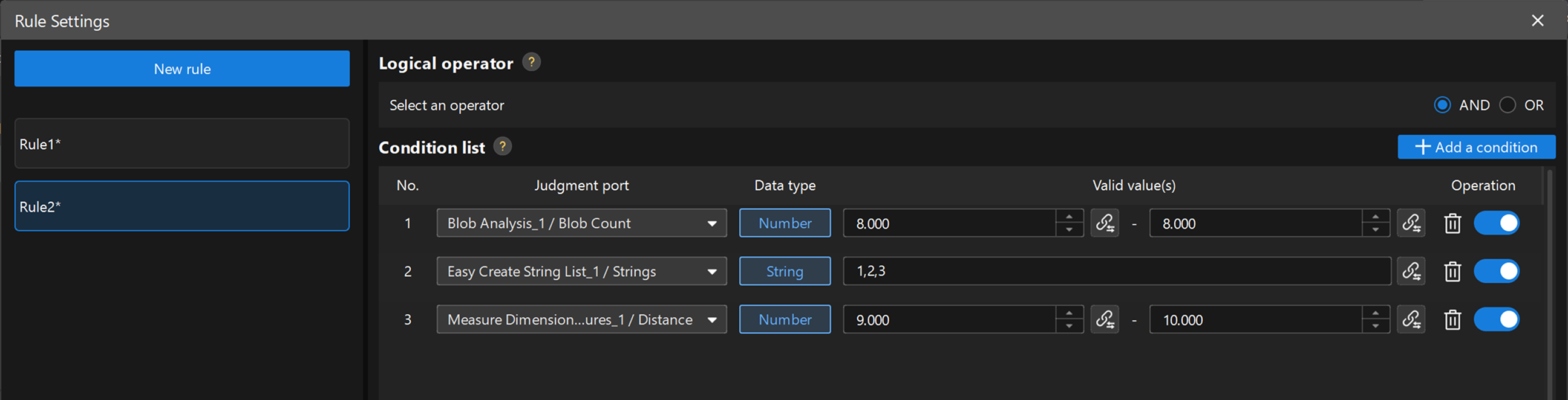
Workflow of Setting Rules
The process of setting rules is as follows:
-
In the upper left corner of the window, click the New rule button to create a new rule.
-
Select a rule and then select the logical operation mode (AND or OR) for the rule:
-
AND: The rule evaluates to True only when all conditions within the rule are satisfied simultaneously.
-
OR: The rule evaluates to True if any condition within the rule is satisfied.
-
-
Set conditions for rules. Click the Add a condition button to add a condition. After selecting a judgment port for the condition, you need to set a valid value.
-
Repeat the above steps to create multiple rules.
-
After configuration, click the Save button in the lower-right corner to save the rule settings and return to the parameter configuration panel of the Step.
Common Operations
The following are common operations in the Rules window:
-
Rename and Delete Rules
Right-click the target rule in the Rules List and select Rename or Delete.
-
Delete Condition
Find the target condition in the condition list, and click the delete icon in the row where the condition is located to delete the condition.
-
Set the Effective Status
Find the target condition in the condition list, and click the switch icon on the line where the condition is located to switch the status (on/off) of the condition. When the condition is closed, it will not participate in the logical judgment of the rule.
-
Associated outputs of other Steps with valid values
To set a valid value for a condition, click the Association icon on the right of the input box, select the output data of the Step to associate in the pop-up Data Association window, and then click the Confirm button to associate the data with a valid value for the condition. The associated data type must be the same as that of the conditional judgment port.