Convert Color Space
Function
This Step is used to convert the input image from one color space to another, such as converting BGR to grayscale or BGR to HSV. By converting the color space, this Step can better highlight image features and facilitate subsequent image processing.
|
In Mech-Vision, color images acquired by 2D cameras default to the BGR color space, and grayscale images default to the Grayscale color space. When using this Step for color space conversion, please select the correct conversion type based on the actual color space of the input image. |
Parameter Description
| Parameter | Description |
|---|---|
Conversion Type |
Parameter description: This parameter specifies the conversion type for the image color space.
|
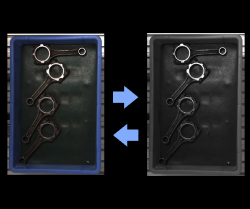
BGR to Grayscale
This conversion type converts the BGR image to a grayscale image.
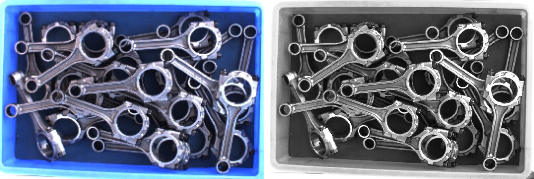
The conversion result is shown below. The figure on the left is the BGR color image, and the figure on the right is the converted grayscale image.
RGB to Grayscale
This conversion type converts the RGB image to a grayscale image.
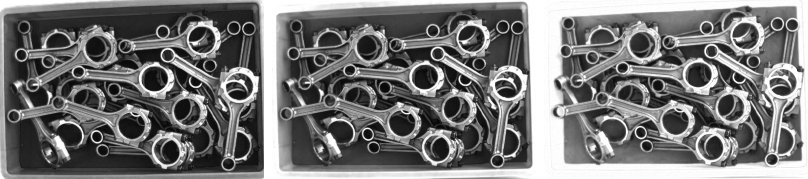
The figures below show the conversion results when R Channel Values, G Channel Values, and B Channel Values are selected as the conversion method, from left to right respectively.
Once this option is selected, a conversion ratio needs to be set. Usually, "Psychological formula" can be applied. The descriptions of the conversion methods are as follows.
-
Psychological formula: This method converts a color image to grayscale based on human visual perception. The grayscale value is calculated as a weighted sum of the R, G, and B channels: Gray = 0.299*R + 0.587*G + 0.114*B.
-
Average: Use the average value of the R, G, and B channels as the grayscale value of the output image. The conversion formula is Gray = (R + G + B)/3.
-
Max: For each pixel in the grayscale image, the grayscale value is set to the maximum of the corresponding R, G, and B channel values.
-
Min: For each pixel in the grayscale image, the grayscale value is set to the minimum of the corresponding R, G, and B channel values.
-
R channel value: Use the R channel value as the grayscale value of the output grayscale image, ignoring the other channels.
-
G channel value: Use the G channel value as the grayscale value of the output grayscale image, ignoring the other channels.
-
B channel value: Use the B channel value as the grayscale value of the output grayscale image, ignoring the other channels.
-
Custom weight: Customize the values' weight for the R, G, and B channels.
Grayscale to BGR
This conversion type converts the grayscale image to a BGR image.
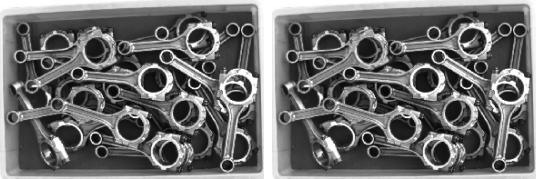
The conversion result is shown below. The figure on the left is the grayscale image, and the figure on the right is the converted BGR color image.
|
During the conversion from the grayscale image to a BGR color image, the grayscale value is assigned to B, G, and R channels. Since the assigned values of the three channels are the same, the converted image looks like black and white. However, it is a BGR color image with three channels in nature. |
Grayscale to RGB
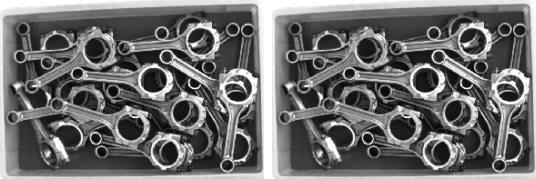
This conversion type converts the grayscale image to an RGB image.
The conversion result is shown below. The figure on the left is the grayscale image, and the figure on the right is the converted RGB image.
BGR to HSI
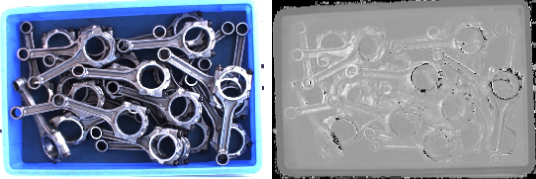
This conversion type converts the BGR image to an HSI image. Once this option is selected, you will need to set the Output Channel.
The conversion result of output in the first channel is shown below. The figure on the left is the BGR image, and the figure on the right is the converted HSI image.
RGB to HSV
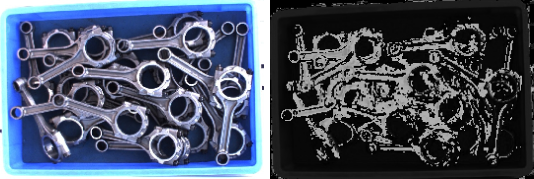
This conversion type converts the RGB image to an HSV image. Once this option is selected, you will need to set the Output Channel.
The conversion result of output in the first channel is shown below. The figure on the left is the RGB image, and the figure on the right is the converted HSV image.
BGR to YUV
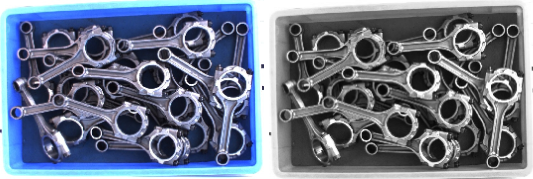
This conversion type converts the BGR image to a YUV image. Once this option is selected, you will need to set the Output Channel.
The conversion result of output in the first channel is shown below. The figure on the left is the RGB image, and the figure on the right is the converted YUV image.
BGR to HSV
This conversion type converts the BGR image to an HSV image. Once this option is selected, you will need to set the Output Channel.
The following example shows the extraction of a blue region. The figure on the left is the BGR image, and the figure on the right is the H (Hue) channel image after conversion to the HSV color space.
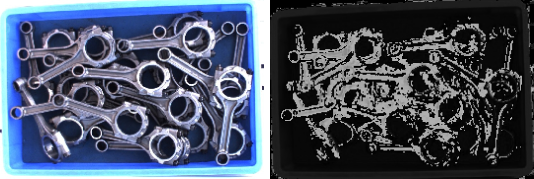
|
In OpenCV’s HSV color space, the H channel has a value range of 0~180. The H values corresponding to major colors are as follows:
Therefore, to extract a blue region, you can set the H channel threshold to approximately 100~130 to isolate the blue from the background. |
Parameter Tuning Examples
Case 1: Recognizing Blue Labels with Metallic Reflections in the Background
-
Scenario: The label color is stable, but reflective areas in the BGR image are similar to the target color, which can easily cause misidentification.
-
Recommended approach: Select BGR to HSV first, and try using the H channel for subsequent segmentation.
-
Tuning approach: View the image results of the H, S, and V channels individually, and select the channel where the target object region is more prominent and the background is cleaner.
Case 2: Significant Brightness Difference Between Target and Background, Color Information Not Needed
-
Scenario: A color camera outputs a BGR image, but the target object is distinguished from the background mainly by brightness difference. The color difference is not significant or the color information is not helpful for subsequent processing (e.g., bright metal parts on a dark matte background). The image needs to be simplified to grayscale to reduce processing complexity and highlight the brightness contrast.
-
Recommended approach: Select BGR to Grayscale (or RGB to Grayscale) first, using the "Psychological formula" conversion method.
-
Tuning approach: Observe whether the target contour is clear in the grayscale image using the "Psychological formula". If the target edges are not obvious, try the "Max" or "R/G/B Channel Values" methods to find the channel where the target region’s brightness is most prominent.
Case 3: Uneven On-Site Lighting with Obvious Shadows
-
Scenario: Different regions of the same target object have large brightness differences, resulting in poor stability with a fixed threshold.
-
Recommended approach: Select BGR to YUV first, and test the Y channel for brightness-related processing.
-
Tuning approach: Observe the differences between the target region and background region in the Y, U, and V channels, and prioritize the channel that can still stably distinguish the target within shadowed areas.
Case 4: Previous Step Outputs Grayscale, But Next Step Requires Three-Channel Input
-
Scenario: The previous Step outputs a grayscale image, but the next Step only accepts BGR or RGB three-channel images as input.
-
Recommended approach: Select Grayscale to BGR or Grayscale to RGB based on the requirements of the next Step.
-
Tuning approach: Confirm whether the next Step requires a BGR image or an RGB image as input, then select the corresponding conversion type.