Example Program 3: MMS3VisPath

You are currently viewing the documentation for the latest version (2.2.0). To access a different version, click the "Switch version" button located in the upper-right corner of the page.

■ If you are not sure which version of the product you are currently using, please feel free to contact Mech-Mind Technical Support.

Program Introduction

Description

The robot triggers the Mech-Vision project to run, and then obtains the planned path for picking and placing.

File Name

You can navigate to the installation directory of Mech-Vision and Mech-Viz and find the file by using the Communication Component/Robot_Interface/MELFA/MMS3VisPath path.

Project

Mech-Vision project

The Mech-Vision project should contain a Path Planning Step, and the Port Type parameter of the Output Step should be set to Predefined (robot path).

Prerequisites

This example program is provided for reference only. Before using the program, please modify the program according to the actual scenario.

Program Description

This part describes the MMS3VisPath example program.

  #Include "MMMODULE"
  MM_DROP_COM()
  Mcomnum = 7
  MM_INT_COM(Mcomnum)
  Tool P_NTool
  PMTool=(+0.00,+0.00,+0.00,+0.00,+0.00,+0.00)
  Tool PMTool
  MM_SET_MOD(1,1,MM_Status)
  If MM_Status <> 1107 Then
    Hlt
  EndIf
  MM_START_VIS(1,5,1,JntSend,MM_Status)
  If MM_Status <> 1102 Then
    Hlt
  EndIf
  Dim MM_Result(20,8)
  MM_GET_VISP(1,2,5,MM_Status,MM_WayPt_Num,MM_VPos_Num,MM_Result)
  If MM_Status <> 1103 Then
    Hlt
  EndIf
  MM_GET_POS(MM_Result,1,PPick_pre,MM_Label,MM_ToolID)
  MM_GET_POS(MM_Result,2,PPick,MM_Label2,MM_ToolID2)
  MM_GET_POS(MM_Result,3,PPick_after,MM_Label3,MM_ToolID3)
  MM_DROP_COM()
  Mov PPick_pre
  Mvs PPick
  Fine 0,P
  Mvs PPick
  Hlt
  Mvs PPick_after

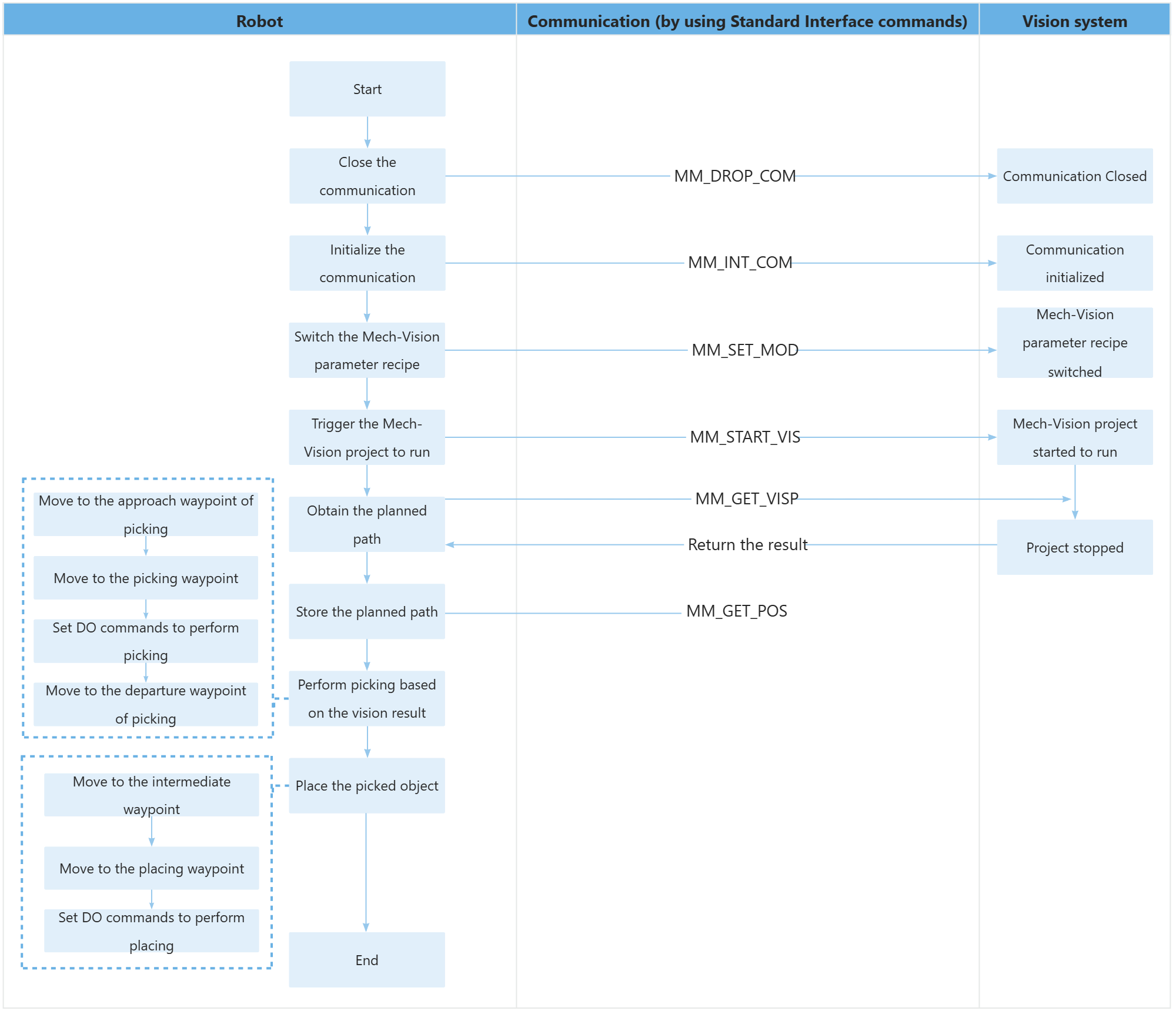
The workflow corresponding to the above example program code is shown in the figure below.
sample3

The table below explains the above program. You can click the hyperlink to the command name to view its detailed description.

Feature Code and description

Include the MM_Module header file

  #Include "MMMODULE"

Initialize communication parameters

  MM_DROP_COM()
  Mcomnum = 7
  MM_INT_COM(Mcomnum)
  • MM_DROP_COM: command to terminate the communication.

  • MM_INIT_SKT: The command to initialize the communication.

Close the communication first, then reconnect to ensure no project is currently connected.

Reset the control points to their initial values and declare the tool variables

  Tool P_NTool
  PMTool=(+0.00,+0.00,+0.00,+0.00,+0.00,+0.00)
  Tool PMTool

Switch the Mech-Vision system’s parameter recipe and verify the status code.

  MM_SET_MOD(1,1,MM_Status)
  If MM_Status <> 1107 Then
    Hlt
  EndIf
  • MM_SET_MOD: The command to switch the Mech-Vision parameter recipe.

  • First 1: The Mech-Vision project ID.

  • Second 1: The ID of the parameter recipe in the Mech-Vision project.

  • <>: Not equal. When MM_Status is 1107, the robot has successfully switched the parameter recipe.

Trigger the Mech-Vision project to run and verify the status code.

  MM_START_VIS(1,5,1,JntSend,MM_Status)
  If MM_Status <> 1102 Then
    Hlt
  EndIf
  • MM_Start_Vis: The command to trigger the Mech-Vision project to run.

  • First 1: The ** project ID.

  • 5: Set the number of vision points to be sent by Mech-Vision.

  • Second 1:Specify that the robot flange pose must be input to the ** project.

The entire statement indicates that the robot triggers the vision system to run the Mech-Vision project with an ID of 1 and expects the Mech-Vision project to return all vision points.

  • <>: Not equal. When MM_Status is 1102, the robot has successfully switched the parameter recipe.

Obtain the planned path from Mech-Vision

  Dim MM_Result(20,8)
  MM_GET_VISP(1,2,5,MM_Status,MM_WayPt_Num,MM_VPos_Num,MM_Result)
  If MM_Status <> 1103 Then
    Hlt
  EndIf
  • MM_GET_VISP: The command to obtain the path planned by Mech-Vision.

  • Dim MM_Result(20,8): Define a two-dimensional array for storing path points.

  • 1: Specify the Mech-Vision project ID.

  • 2: The pose type of the obtained waypoint is set to TCP.

  • 5: Maximum number of positions per transmission.

The entire statement indicates that the robot obtains the planned path from the Mech-Vision project that has an ID of 1.

  • <>: Not equal. When MM_Status is 1103, the robot has successfully switched the parameter recipe.

Store the planned path

  MM_GET_POS(MM_Result,1,PPick_pre,MM_Label,MM_ToolID)
  MM_GET_POS(MM_Result,2,PPick,MM_Label2,MM_ToolID2)
  MM_GET_POS(MM_Result,3,PPick_after,MM_Label3,MM_ToolID3)
  • MM_GET_POS: The command to store the planned path. Take the first item as an example

  • MM_Result: This variable stores a two-dimensional array for the planned path.

  • 1: Store the first waypoint.

  • PPick_pre: The variable that stores the joint positions of the first waypoint.

  • MM_Label: The variable that stores the label of the first waypoint.

  • MM_ToolID: The variable that stores the tool ID corresponding to the first waypoint.

The entire statement stores the TCP, label, and tool ID of the first vision point in the specified variables.

Disconnect the communication.

  MM_DROP_COM()

Move to the approach waypoint of picking

  Mov PPick_pre
  Fine 0,P

Move to the grasp approach point and set absolute positioning for arrival.

Move to the picking waypoint

  Mov PPick
  Hlt

The robot moves from the approach waypoint of picking to the picking waypoint linearly.

Hlt indicates to stop the program execution. If you have added a statement to set a DO command, you can delete the PAUSE statement here.

Move to the departure waypoint of picking

  Mvs PPick_after

The robot moves to position above the picking waypoint and reaches the departure waypoint of picking.

Adding departure waypoints of picking can prevent the robot from colliding with objects (such as bins) in the scene when moving. You can modify the Z-axis negative offset based on the actual scenario to ensure that no collision occurs during the departing process.

Is this page helpful?

You can give a feedback in any of the following ways:

We Value Your Privacy

We use cookies to provide you with the best possible experience on our website. By continuing to use the site, you acknowledge that you agree to the use of cookies. If you decline, a single cookie will be used to ensure you're not tracked or remembered when you visit this website.