Set up Standard Interface Communication with CGXi
This topic introduces the process of setting up the Standard Interface communication with a CGXi robot.
Preparation
Check Controller and Software Compatibility
|
The models and versions listed below are tested and can be used. For other models and versions, you may refer to this guide for operation. If any issues occur, please contact Mech-Mind Technical Support. |
-
Robot model: G6
-
Controller model: K20
-
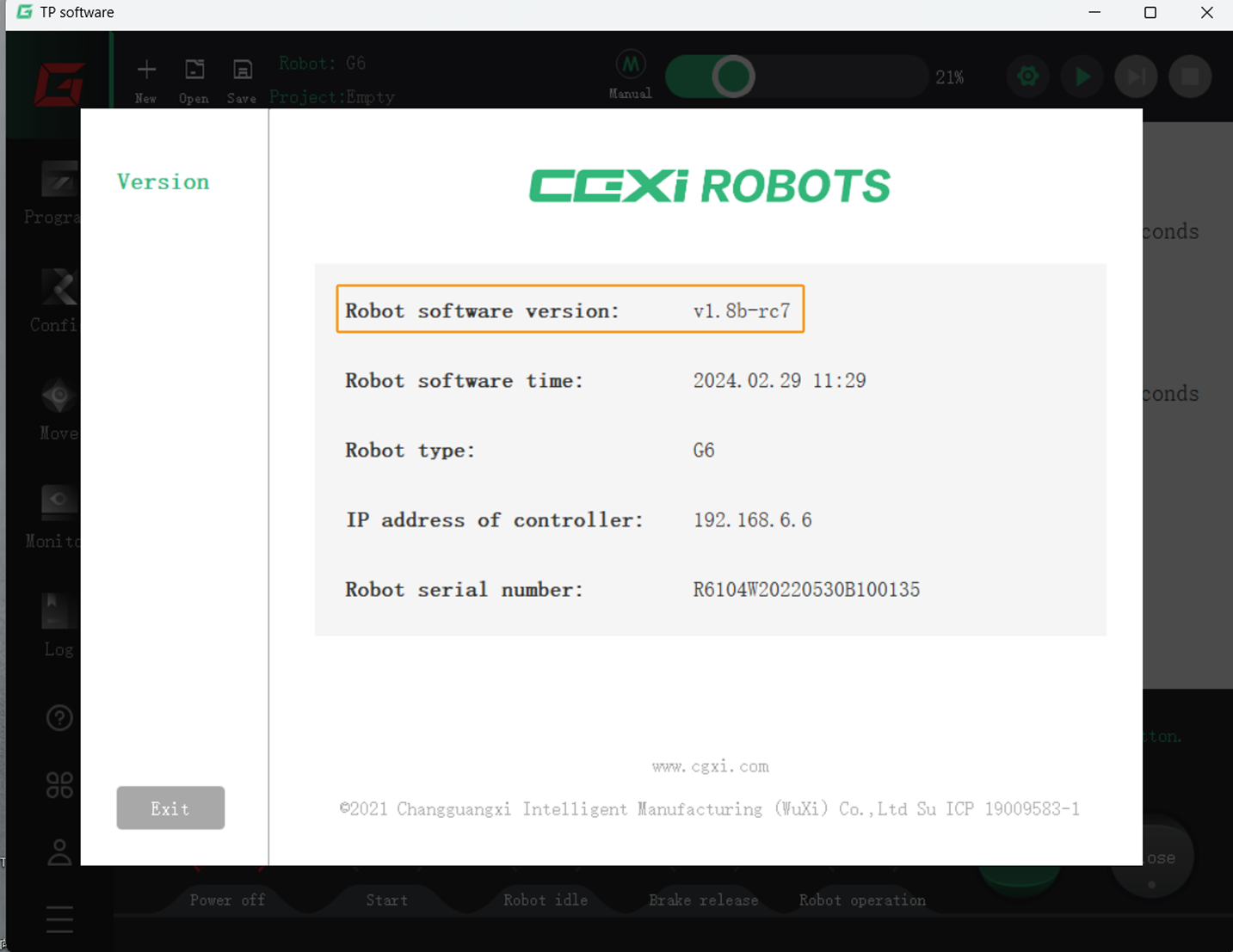
Robot software version: v1.8b-rc7
Click here for instructions
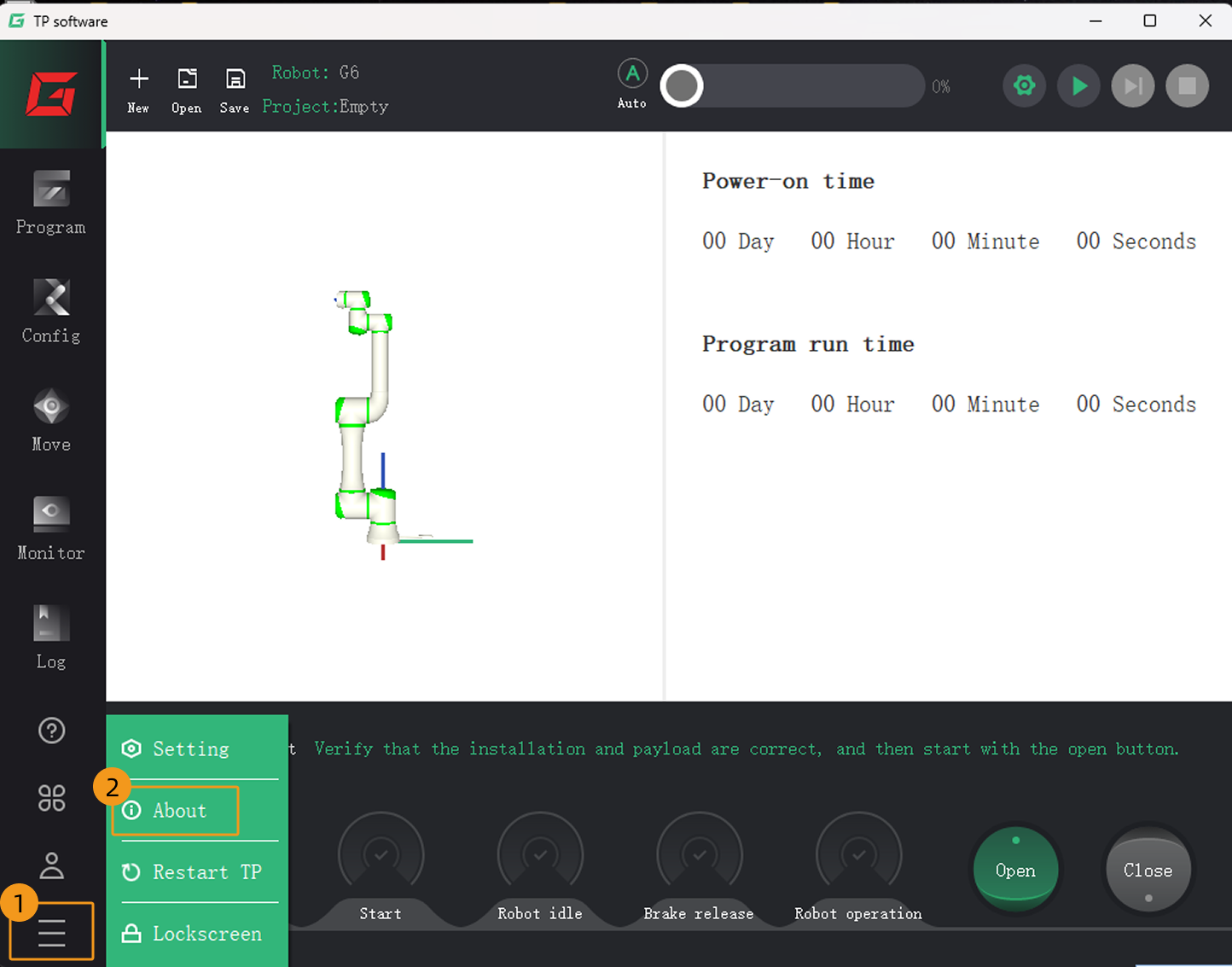
In the teach pendant interface, select to check the robot software version.
User Login
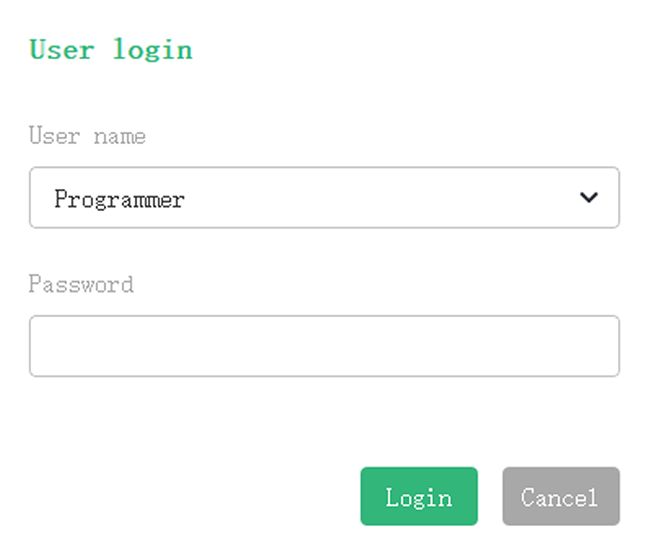
During operation, the login dialog box may occasionally pop up automatically on the teach pendant interface. At this time, select Programmer as the user name, enter admin as the password, and tap Login to continue.
Set up the Network Connection
Connect the Hardware
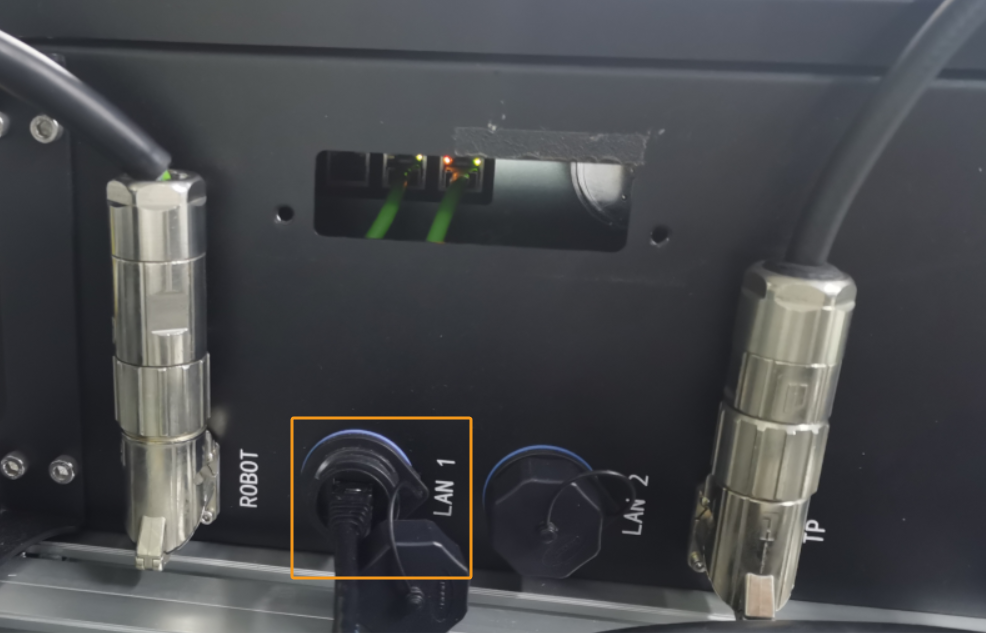
Plug one end of the Ethernet cable into the port of the IPC and the other end into the LAN1 port of the robot controller. The following figure shows a sample LAN1 port.
Set the IP Address
-
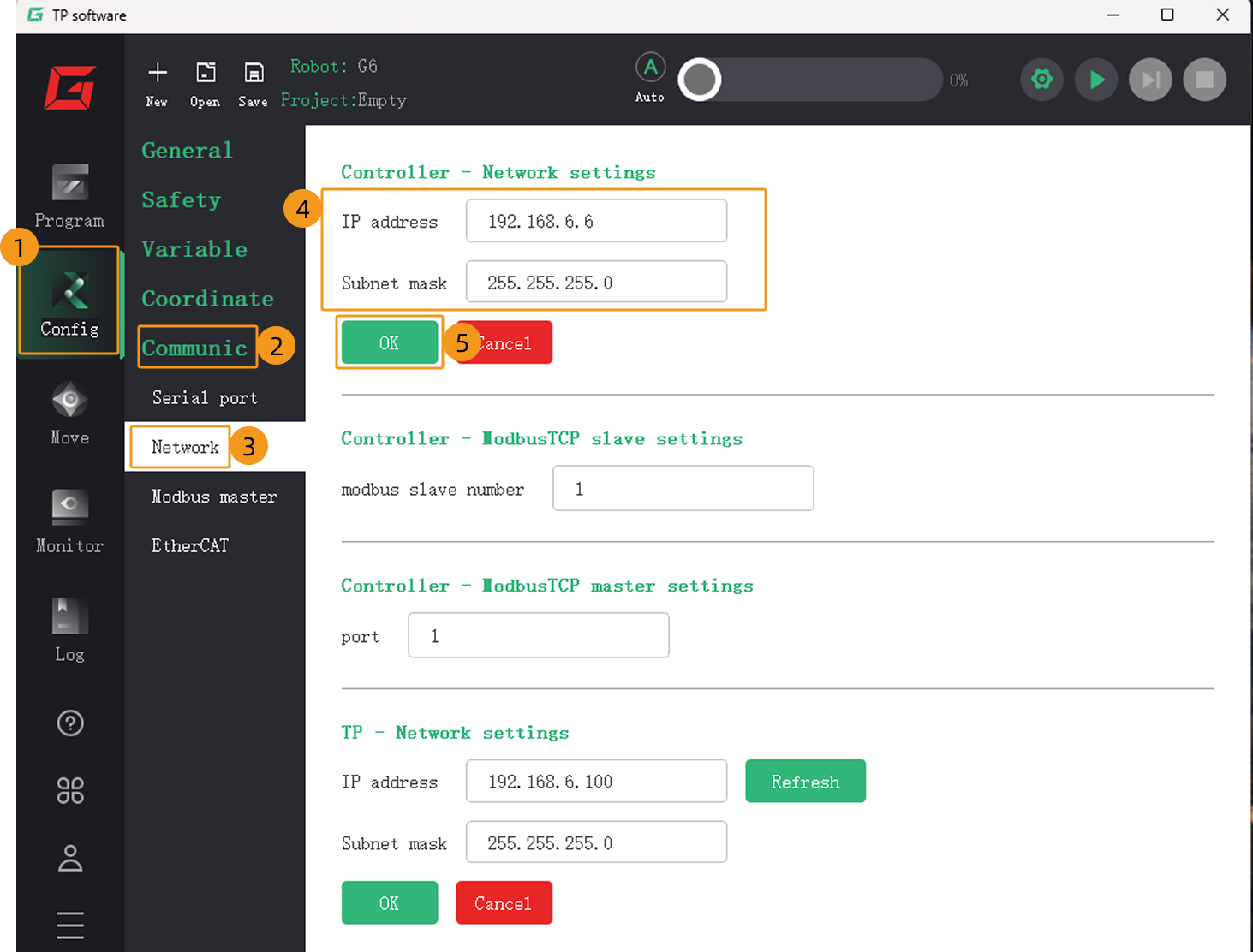
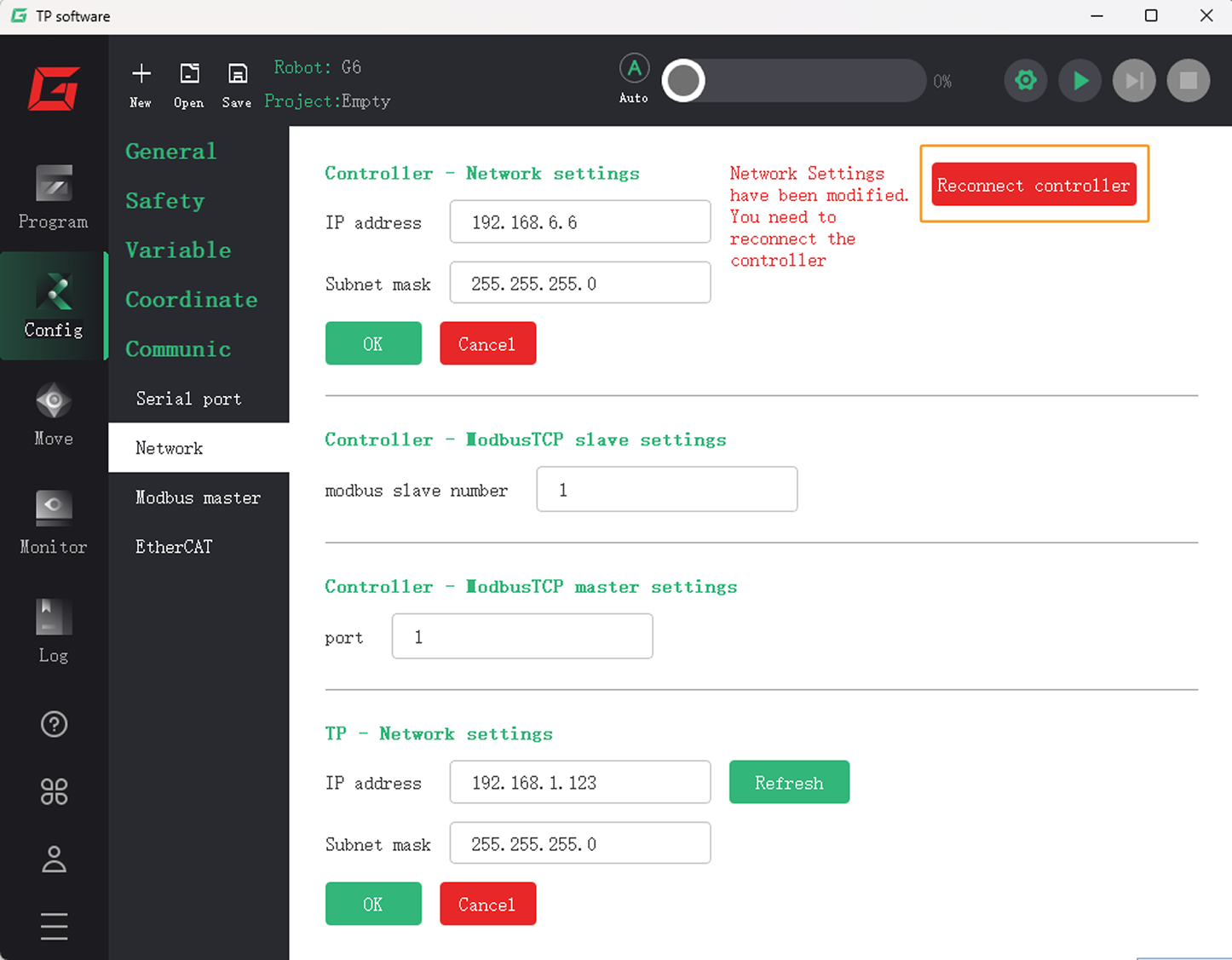
On the teach pendant interface, tap to open the network settings page. Under Controller – Network settings, enter the controller’s IP address and subnet mask, and then tap OK.
-
In the upper-right corner, tap Reconnect controller for the above network settings to take effect.
-
In the IPC, set the IP address of the IPC.
To allow communication between the IPC and the robot controller, the IP addresses of the IPC and robot controller must reside in the same subnet. This means that the network portions and subnet masks of the IP addresses should be the same. For example, 192.168.100.169/255.255.255.0 and 192.168.100.170/255.255.255.0 are in the same subnet.
Set up Robot Communication Configuration
-
Open Mech-Vision. You may enter different interfaces. Create a new solution according to the instructions below.
-
If you have entered the Welcome interface, click New blank solution.

-
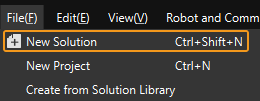
If you have entered the main interface, click on the menu bar.
-
-
Click Robot Communication Configuration on the toolbar of Mech-Vision.
-
In the Robot Communication Configuration window, complete the following configurations.
-
Click the Select robot drop-down menu, and select Listed robot. Click Select robot model, and select the robot model that you use. Then, click Next.
-
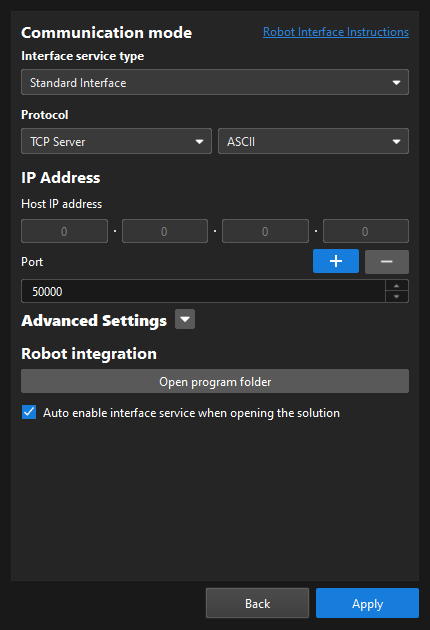
In the Communication mode section, select Standard Interface for Interface service type, TCP Server for Protocol, and ASCII for the protocol format.
-
It is recommended to set the port number to 50000 or above. Ensure that the port number is not occupied by another program.
-
Under Robot integration, click Open program folder.
The files needed for subsequent loading will be copied from this folder. Do not close this folder. -
(Optional) Select Auto enable interface service when opening the solution.
-
Click Apply.
-
-
On the main interface of Mech-Vision, make sure that the Robot Communication Configuration switch on the toolbar is flipped and has turned blue.

Load the Program Files to the Robot
-
Copy the
mmfolder in the opened program folder (theCGXIfolder) to the flash drive.You can also find the program folder in the
Communication Component/Robot_Interface/CGXIpath in the installation directory of Mech-Vision and Mech-Viz. -
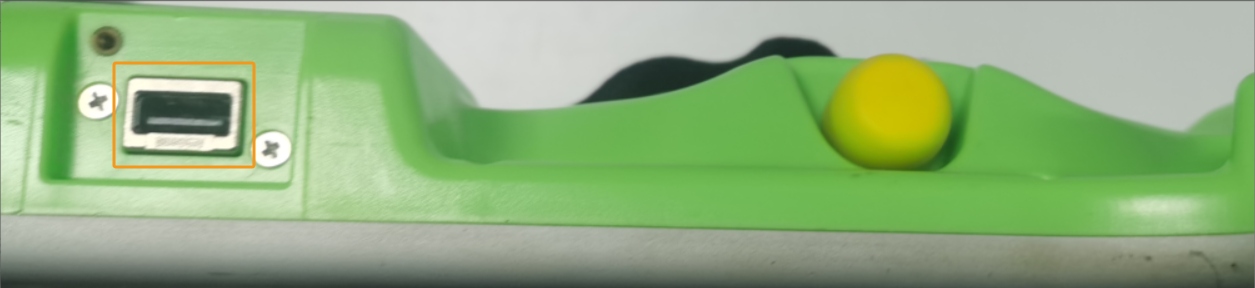
Plug the flash drive into the USB port on the back of the robot teach pendant.
-
On the teach pendant interface, tap Open, go to the controller system’s
programfolder. Then, tap New folder to create a new folder namedmm. After the folder is created, tap Cancel to return to the main interface.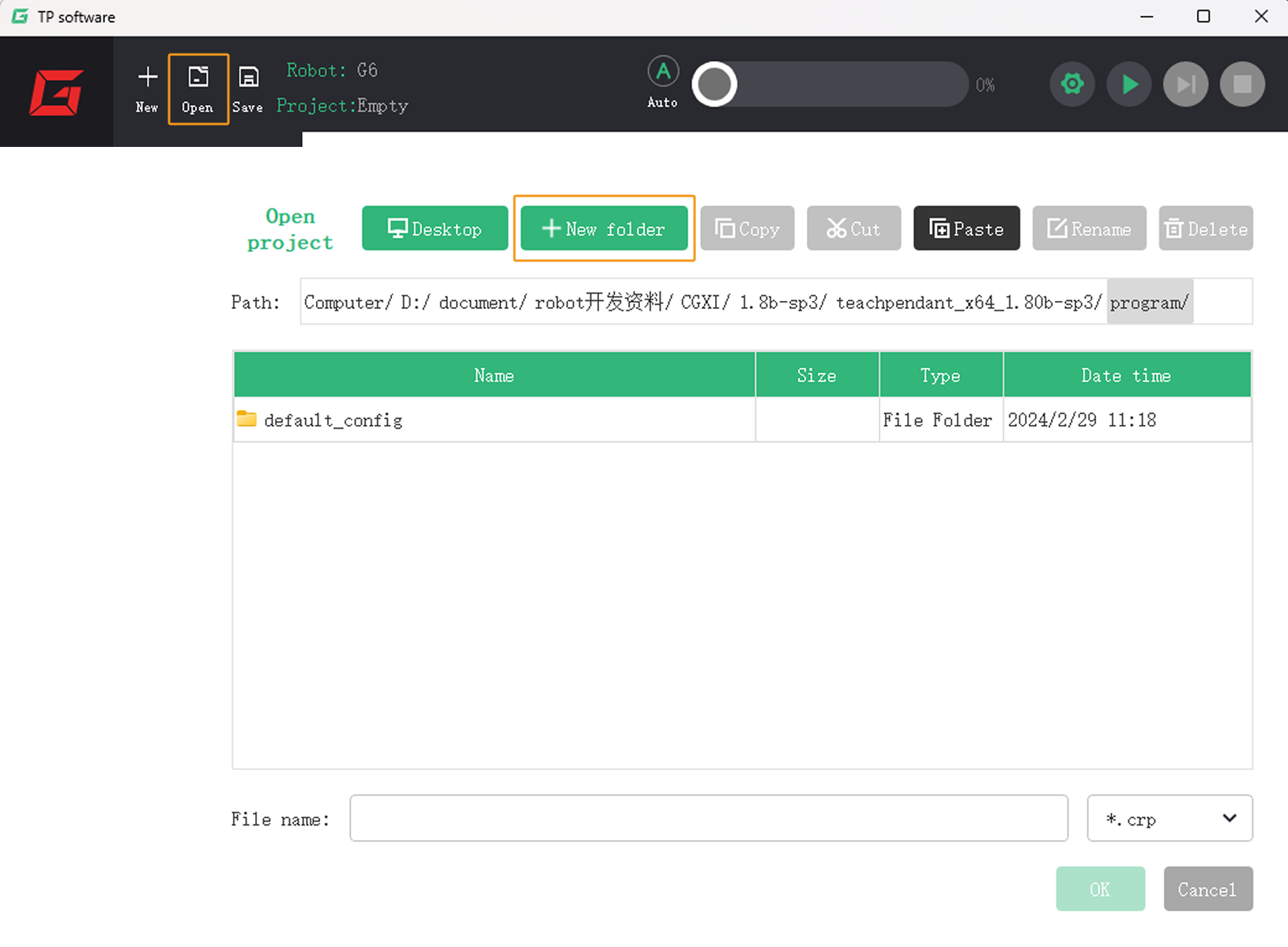
-
On the main interface of the teach pendant, tap the .
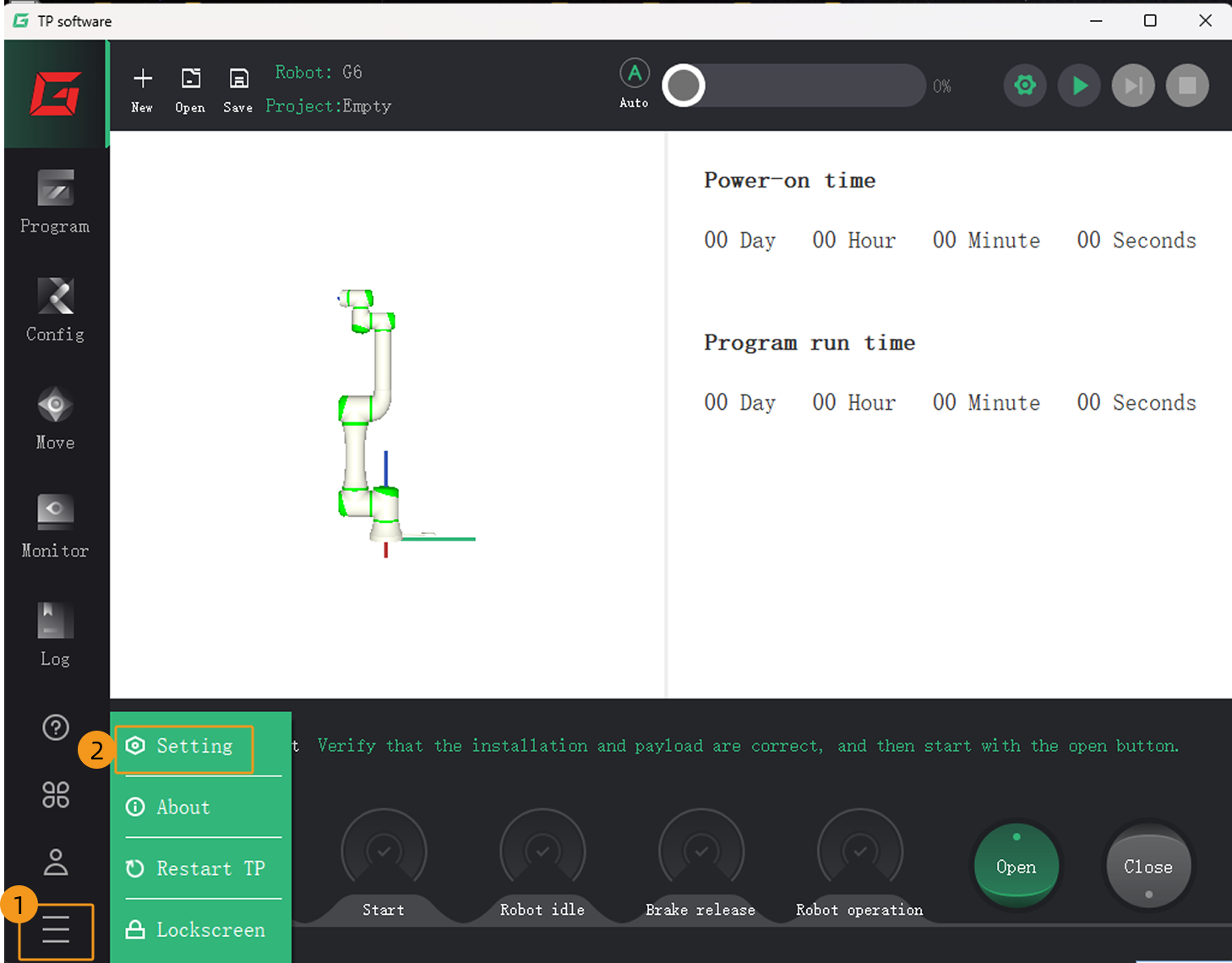
-
On the following interface, tap .
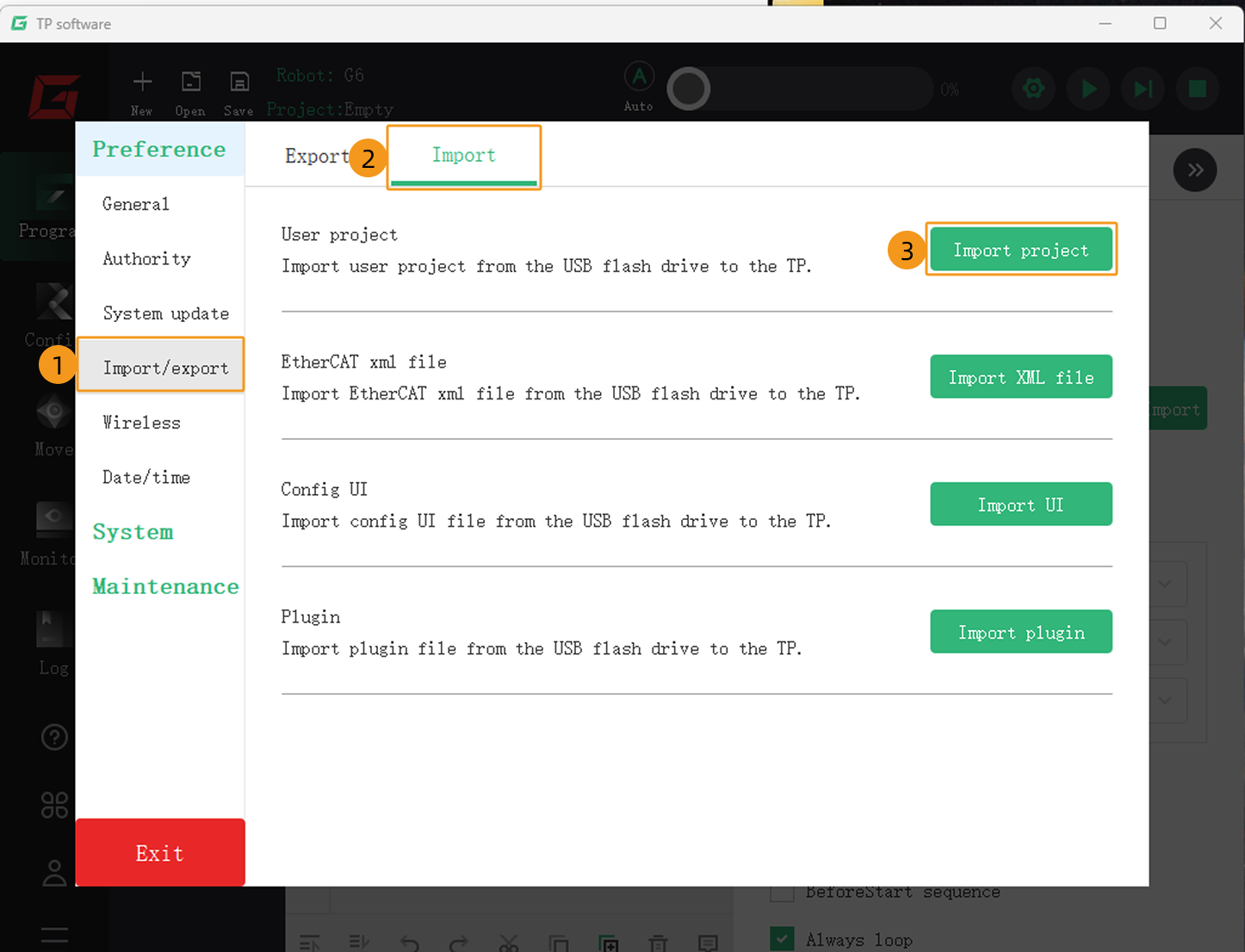
-
On the Import project page, the folders on the flash drive will be displayed. Double tap the
mmfolder to enter it, drag to select all files, and then tap Next.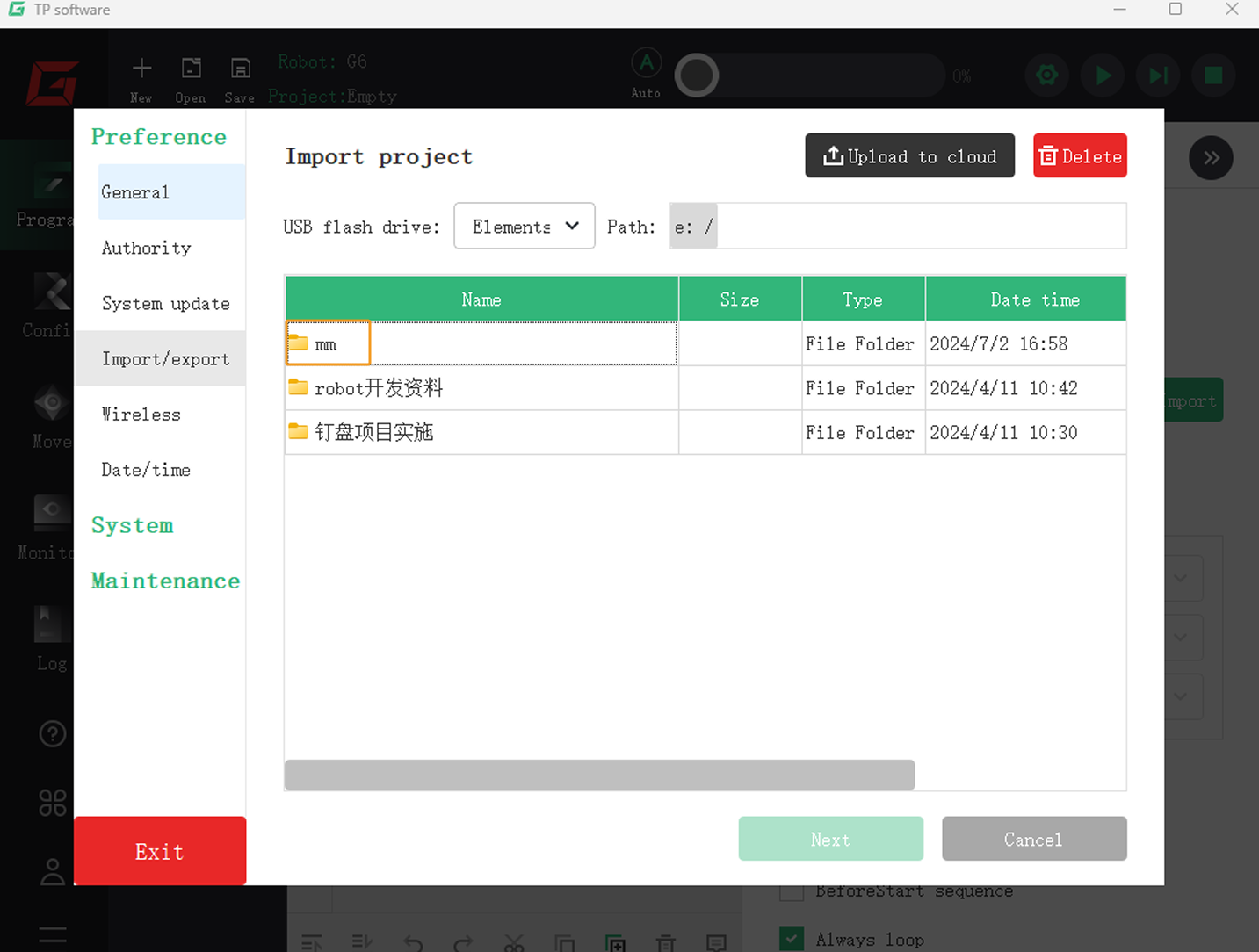
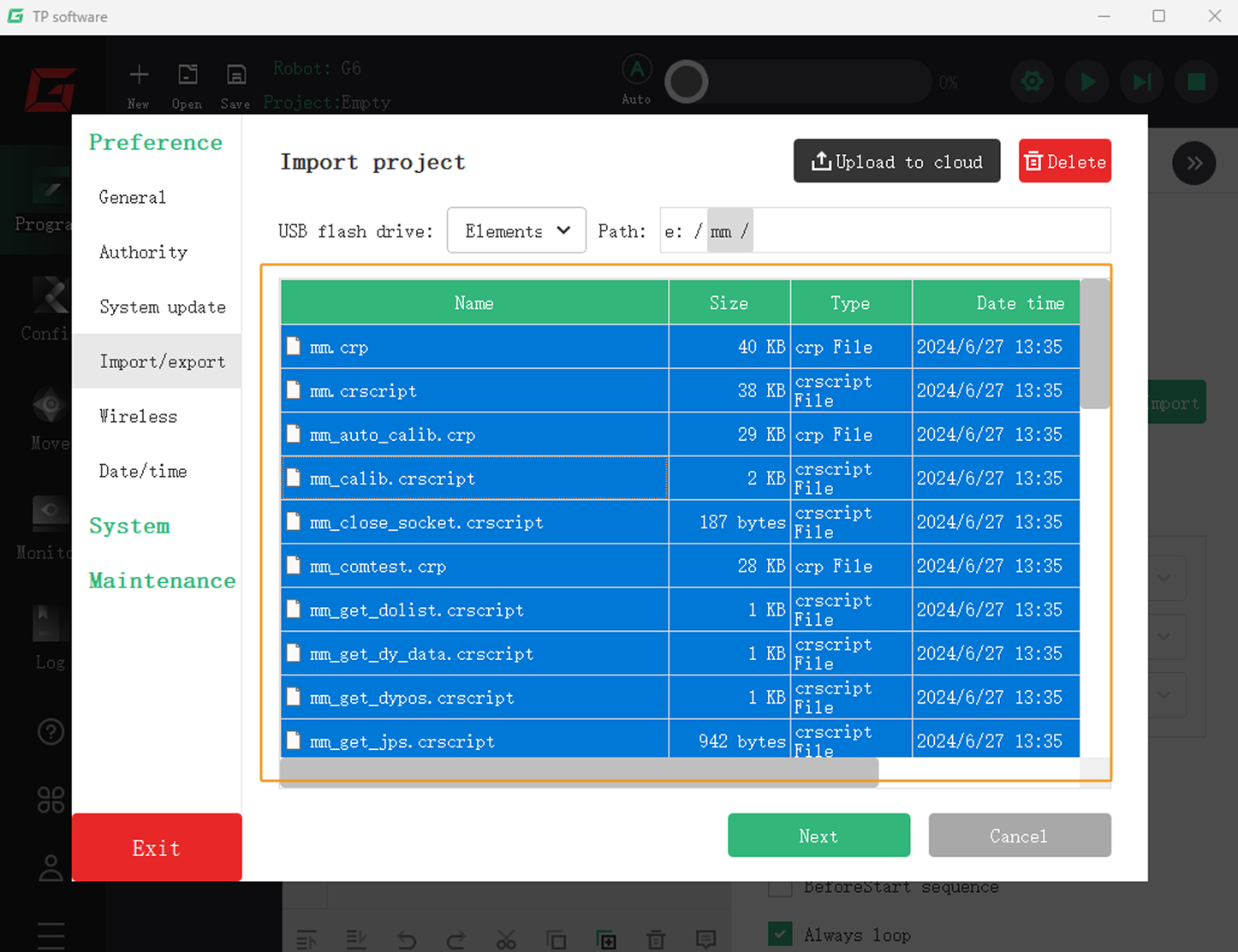
-
The path will automatically switch to the controller system’s
programfolder. Double tap to open the newly createdmmfolder, and then tap OK.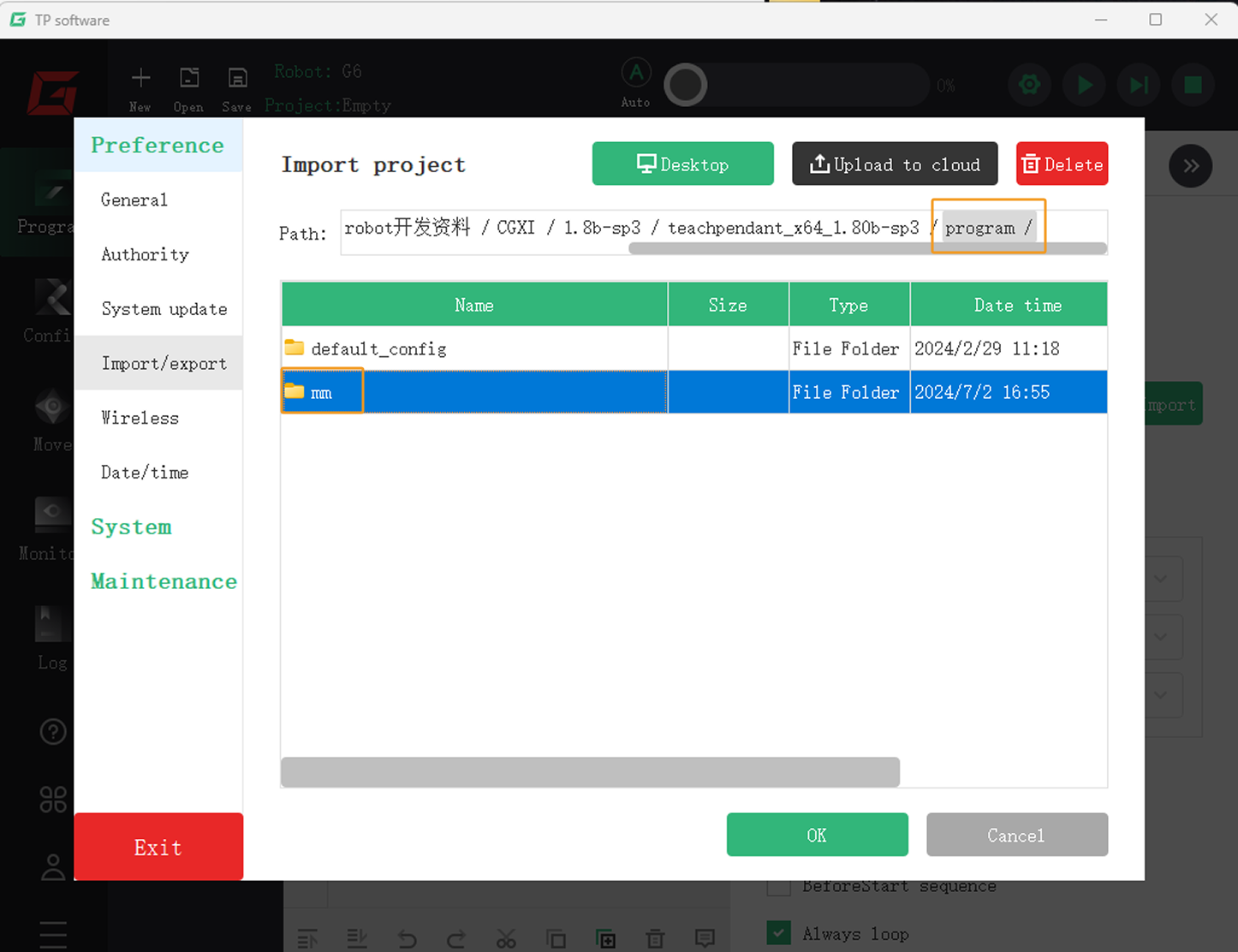
-
If the files are imported successfully, a message Import project success will pop up. Tap OK, and then tap Exit.
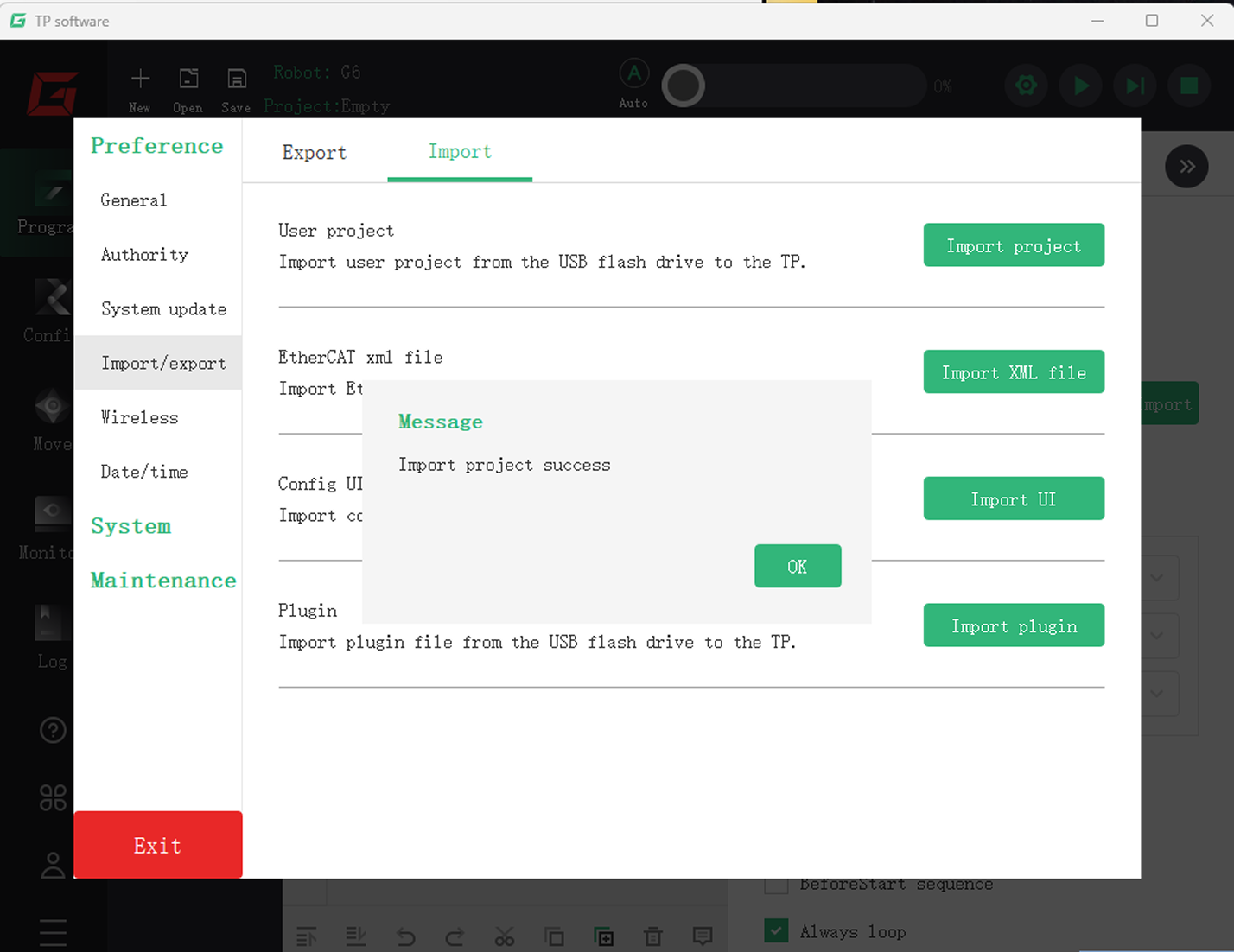
-
Return to the teach pendant main interface, tap Open, and double tap the
mmfolder to view the imported files.Make sure to select All Files as the file type in the lower-right corner. 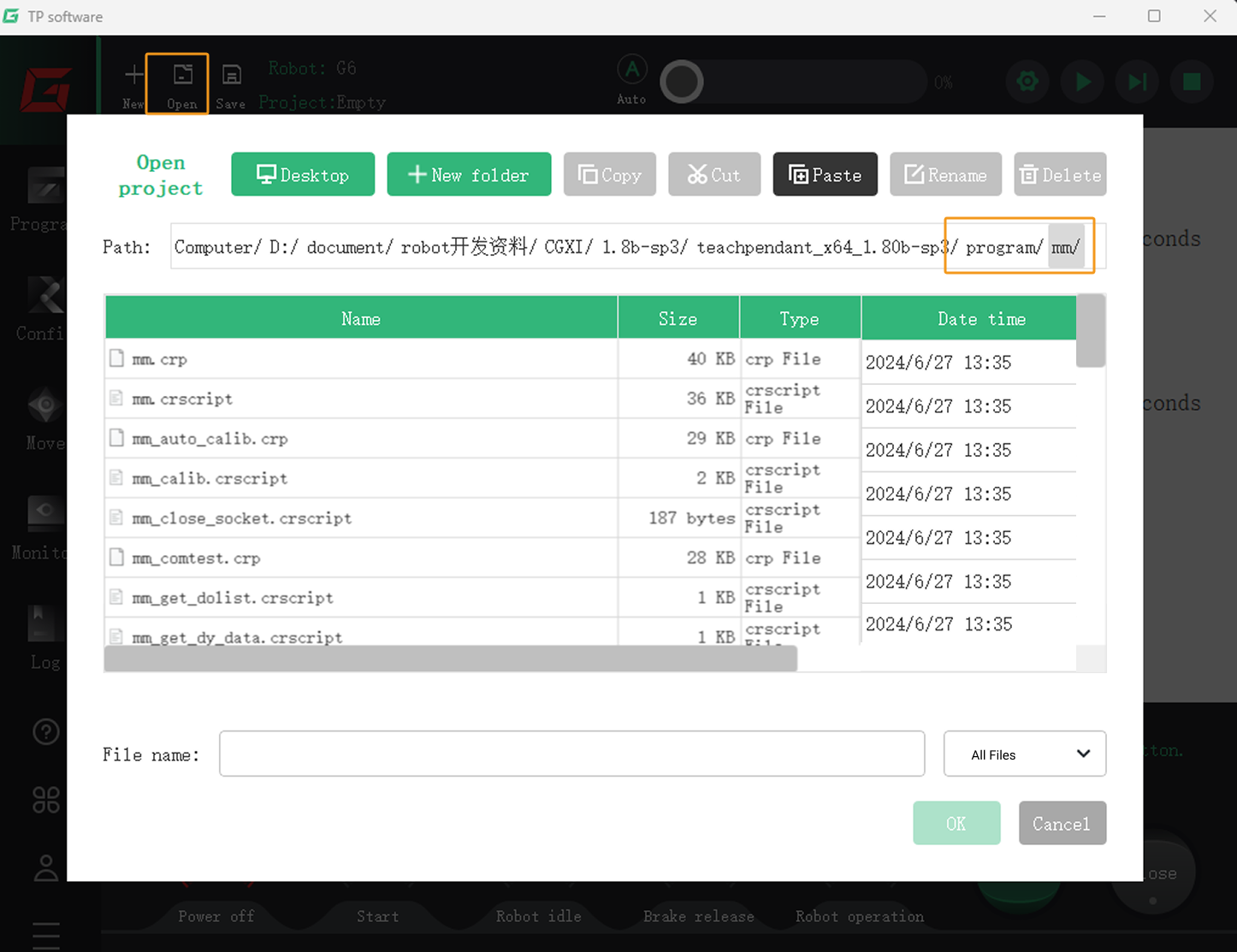
Test Standard Interface Communication
Select and Modify the Program Used for the Communication Test
-
On the teach pendant main interface, tap Open, double tap the
mmfolder to enter it, select themm.crpfile, and then tap OK.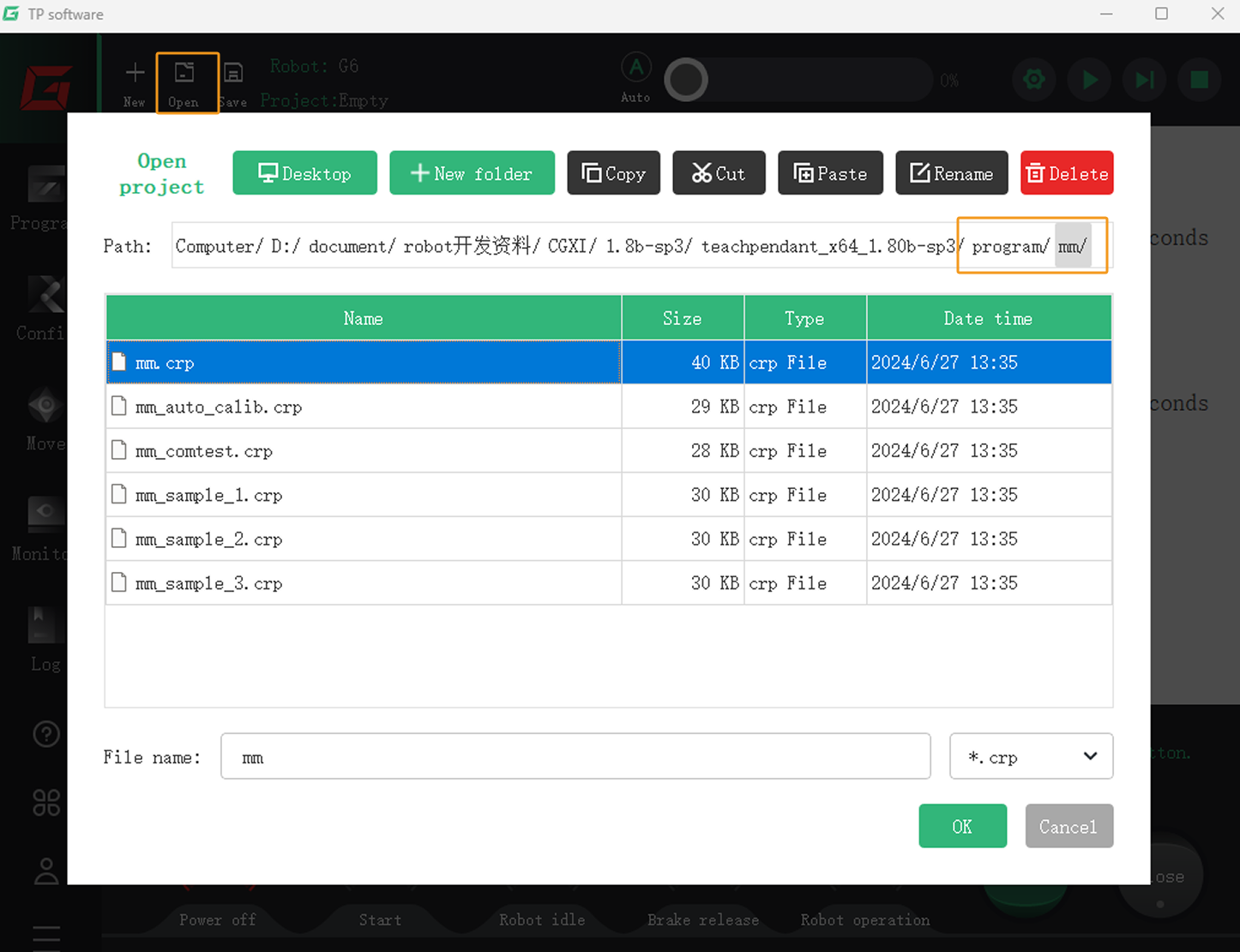
-
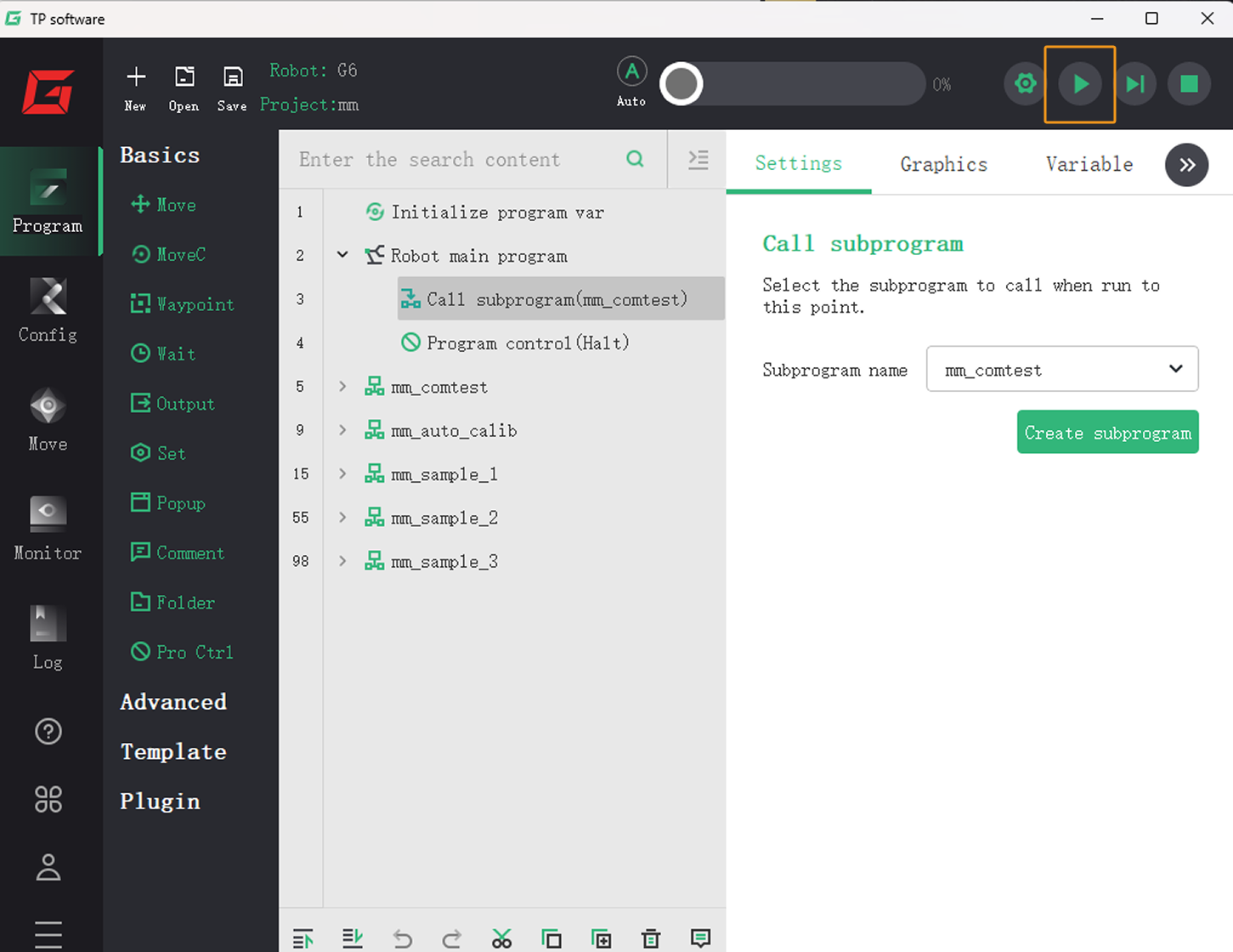
Return to the teach pendant main interface and tap Program on the left side. In the Robot main program, set the Call subprogram name to mm_comtest.
The mm_comtest program is used to test the communication between the robot and the vision system. If you need to run another program, change the subprogram name accordingly. 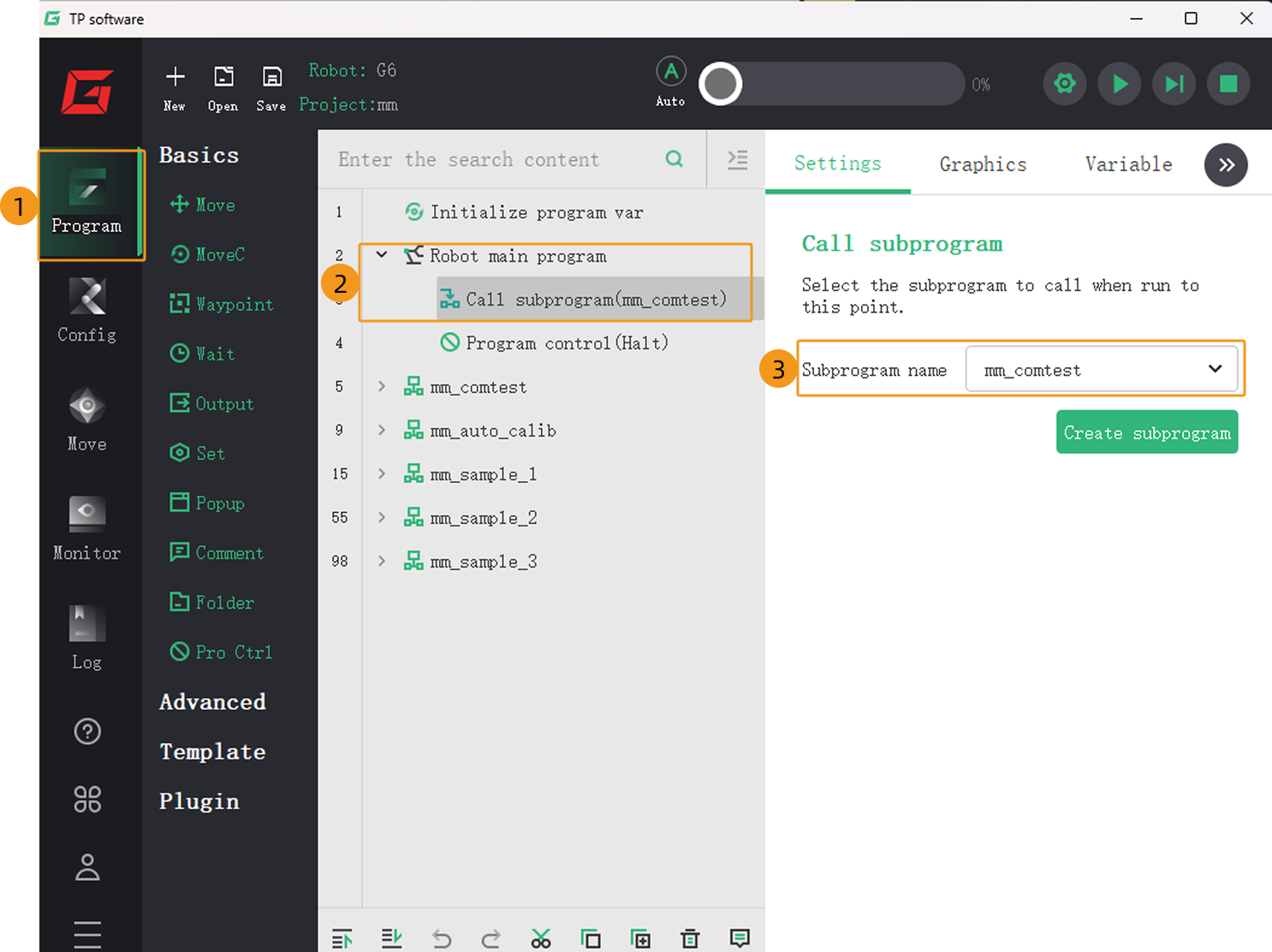
-
On the following interface, open the mm_comtest subprogram and select the first script file (mm_open_socket.crscript).
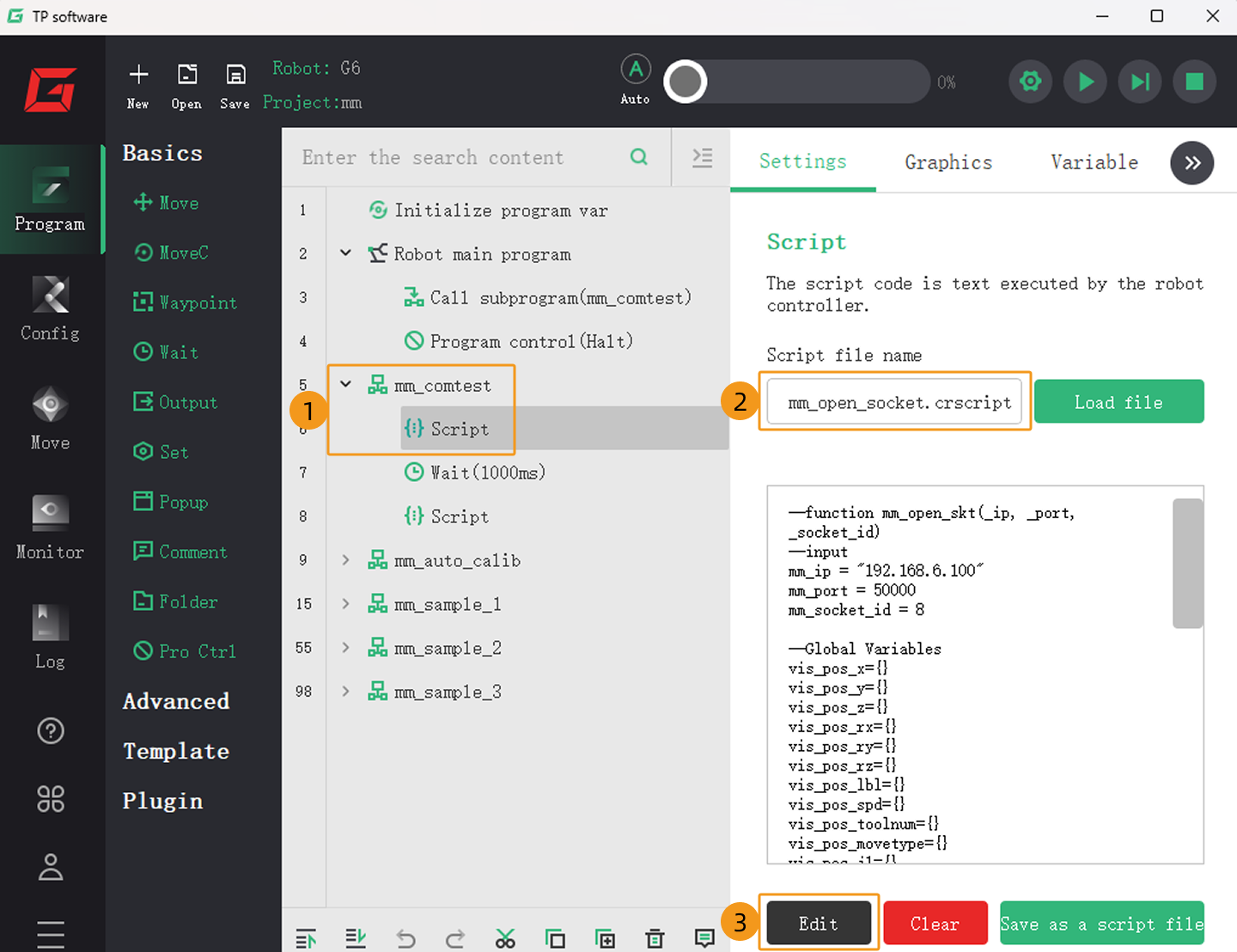
-
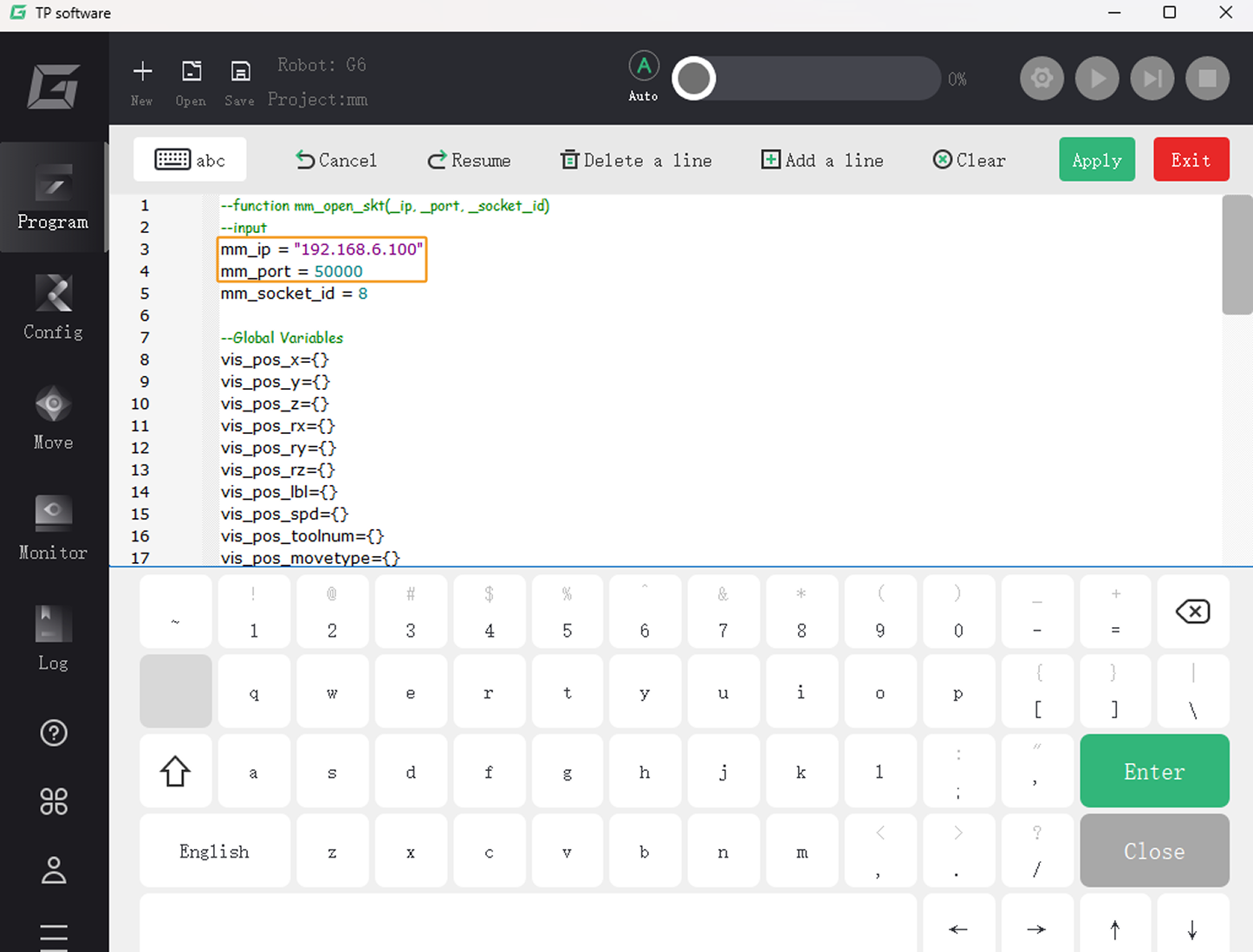
Tap Edit, change the value of the mm_ip variable to the IPC’s IP address, and change the value of the mm_port variable to the host port configured in Mech-Vision. Then tap Apply.