Filter, View, and Export Historical Data
This document describes how to filter, view, and export historical data.
Filter and View Historical Data
-
In the upper functional area, select .
Both the Configuration and Production interfaces provide an entry to Historical Data. All accounts have the permission to view historical data.
-
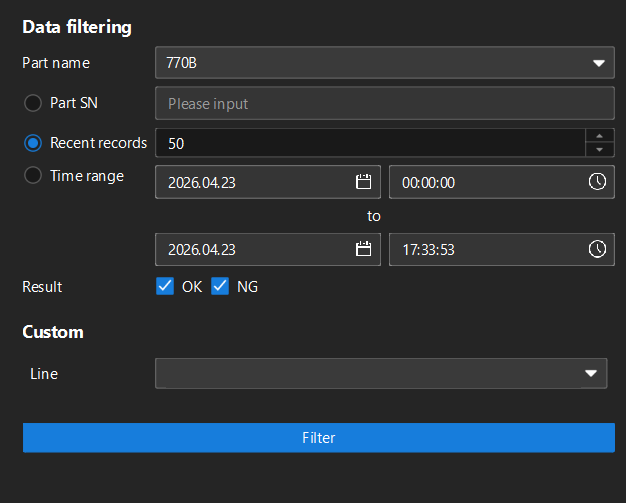
On the Historical data page, select the Data filtering tab. In the Data filtering area on the left, set the following filtering conditions according to your needs, and then click Filter.
-
Part name: Select the part to view from the drop-down list.
-
Part SN: Input the part SN for filtering.
-
Recent records: Select Recent records to filter by the number of recent measurement records;
-
Time range: Select a Time range to set the start and end dates and times to filter data within the specified time range.
-
Result: Select OK and/or NG to filter the data corresponding to the measurement result.
-
Custom: Filter the data according to the custom criteria configured in the SN filtering rules. Before using this function, you need to configure the SN filtering rules. For details, refer to Configure Part SN Filtering Rules.
On the summary bar at the top of the page, statistics of the filtering results will be displayed, including the total number of parts, number and proportion of OK parts, number and proportion of NG parts, and measurement time range.
-
-
After filtering, the Datasheet area on the right will display measurement records that meet the requirements, including measurement date, measurement time, task ID, and part SN. By default, all measurement records will be selected. To select specific records, follow these steps:
-
Click the checkbox on the left of Quick Select to clear all measurement records.
-
Manually select the measurement records you need.
-
Hold the Ctrl key and click to select measurement records one by one.
-
Hold the Shift key and click two measurement records to select both and all the records in between in batches.
-
-
-
After selecting the measurement records, you can switch the data display methods using the tabs at the top of the page:
Before switching to other tabs to view the analysis results, you must complete data filtering in the Data filtering tab and select measurement records. If the data is not filtered, other tabs cannot display the content. -
Click the Pareto chart tab to view the Pareto analysis of each feature. For details, please refer to View Pareto Chart.
-
Click the SPC overview tab to view the SPC statistics of each feature. For details, please refer to SPC Overview.
-
Click the SPC analysis tab to view the detailed SPC analysis data. For details, please refer to SPC Analysis.
-
Click the Trends tab to view the trend of the measurement data for each feature over the number of measurements. For details, please refer to View Trend Charts.
-
Click the Raw Data tab to view each item of measurement data collected by all measurement tasks for each feature. For details, refer to View Raw Data.
-
Generate and Export Reports Based on Historical Data
-
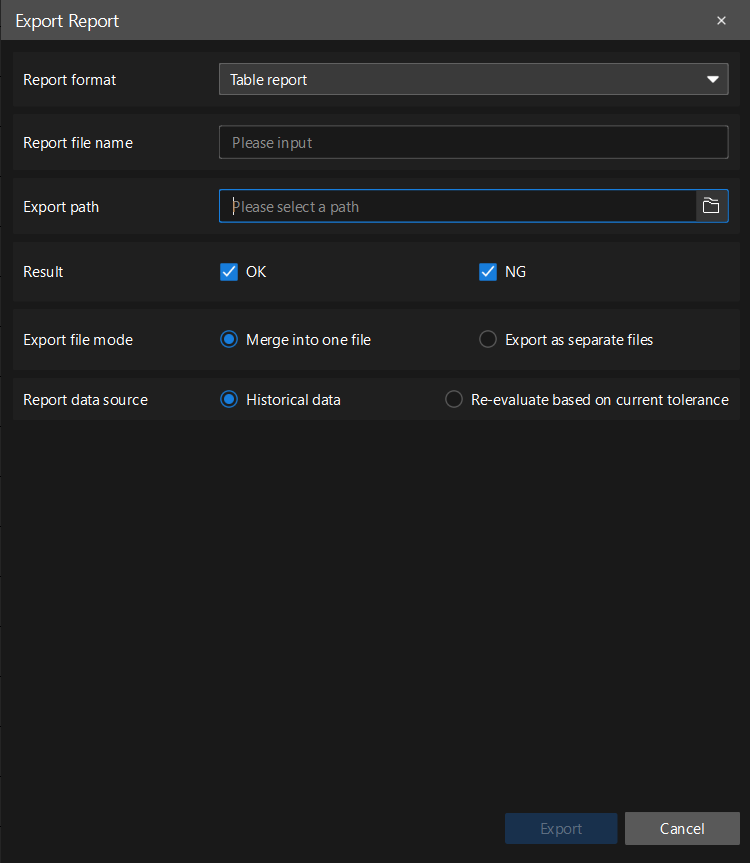
In the Data filtering tab, select the data and measurement records, and then click the Export Report button in the upper right corner of the data table. The Export Report dialog box will appear.
-
Set the following parameters according to your needs:
Parameter Description Report format
Select the exported report format from the drop-down list.
Report file name
Enter the name of the exported report file.
Export path
Set the path for exporting the report. Click the folder icon to the right of the path to browse and select a path to save.
Result
Select OK and/or NG to filter the measurement results to be exported.
Report data source
Select the data source used in the report. You can select Historical data or Re-evaluate based on current tolerance.
-
Click Export, and the report will be saved to the specified path.
The Export report in Historical Data will export the measurement data for all measurement tasks within the selected time period for the chosen part. This differs from the Export report feature in the Config interface or the Production interface, which only exports the measurement data of the current measurement task of the part.