Configure Annotation Cards and Views
This section introduces how to configure and manage annotation cards for features.
|
Configure an Annotation Card
After a feature is created, the software automatically creates an annotation card for the feature in the 3D view. This section describes how to configure the annotation card for the feature.
| An annotation card displays data such as nominal values, measured values, and deviations for each control item of the feature (e.g., X, Y, and Z for a circle feature) in a table. |
You can open the annotation card configuration dialog in one of the following two ways:
-
In the 3D view, locate and double-click the annotation card of the current feature.
-
In the resource tree on the left, right-click the feature and select Annotation Card Configuration.
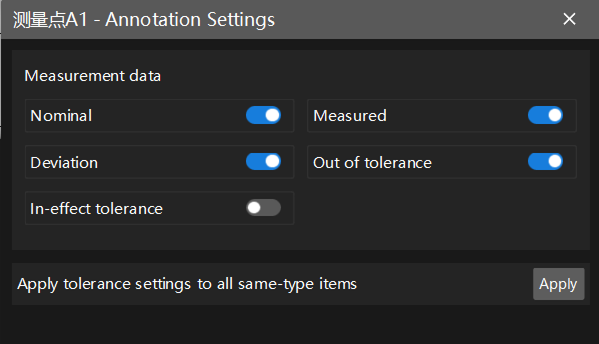
In the pop-up dialog box, select the measurement data to be displayed on the annotation card, and determine whether to apply the current settings to all same-type features, and then click Apply.
Manage Annotation Cards
-
Edit the annotation card attachment point
Click the feature in the resource tree on the left. In the Basic Information section of the parameter panel on the right, click the Edit annotation card attachment point button
 . In the Custom Attachment Point Settings dialog box, enable Custom attachment point and set the coordinates (X, Y, and Z) of the attachment point.
 -
Hide annotation cards
-
In the resource tree on the left, click the hide icon next to the feature to hide the annotation card.
-
In the resource tree on the left, right-click the feature and select Hide.
-
Hold the left mouse button and drag in the 3D view to rotate the part view. When the features of the annotation cards are rotated to the back, the annotation cards will be automatically hidden.
-
-
Show annotation cards
-
In the resource tree on the left, click the show icon next to the feature to show the annotation card.
-
In the resource tree on the left, right-click the feature and select Show.
-
Press and hold the left mouse button, then move the mouse to rotate the part view until the feature of the current annotation card is rotated to the front. The annotation card will then be automatically displayed.
-