View Trend Charts
This section introduces how to view and use the trend chart analysis feature.
|
Before viewing the trend chart, please complete the following actions:
-
In the upper functional area, select .
-
In the Data filtering tab, complete data filtering and select measurement records. For details, refer to Filter, View, and Export Historical Data.
-
Click the Trends tab at the top of the page.
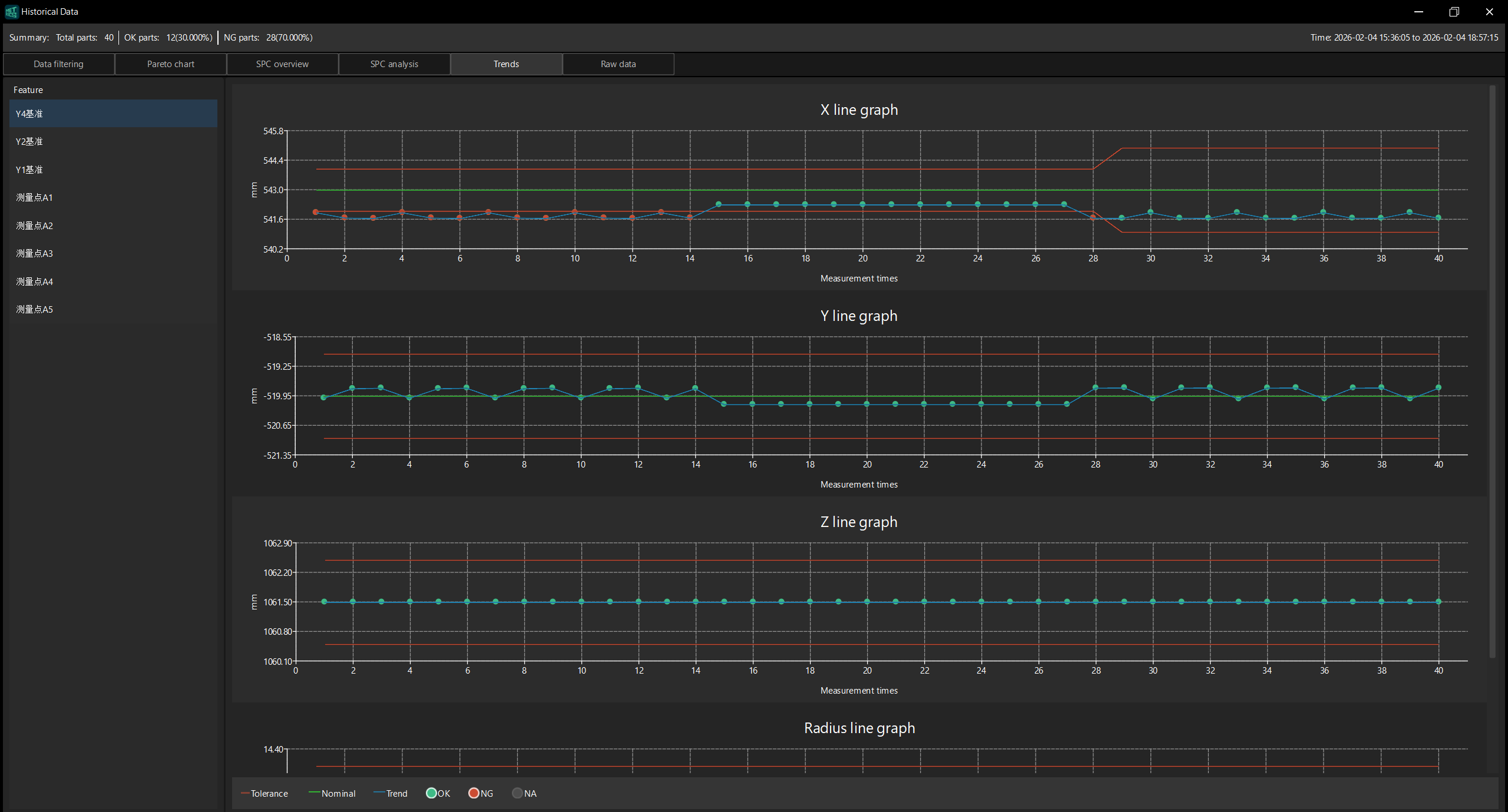
Feature List
The left panel on the page displays a list of features, which lists all the features of the current part, such as Y4 reference, Y2 reference, Y1 reference, and measurement points A1 to A5.
Click a feature, and the right panel displays the trend line graphs of each control item (such as X, Y, Z, Radius).
Line Graph Contents
Each control item is displayed in an individual line graph. The horizontal axis is measurement times, and the vertical axis is the measured value. The figure contains the following elements:
-
Tolerance (red line): Upper and lower tolerance limits. If the measured value exceeds this range, it is unqualified.
-
Nominal (green line): the nominal value of the control item.
-
Trend (blue line): Connect the measured values for each measurement to show the trend of data changes.
Data points mark measurement results in different colors:
-
OK (green dot): The measurement result is qualified.
-
NG (red dot): The measurement result is unqualified.
-
NA (gray dot): No measurement result.
|
Hover the cursor over a data point in the line graph to view the specific data of that point, such as measurement task, measurement time, nominal value, and measured value. |