Other Project Management Actions
This section introduces other project management actions, such as opening a project, closing a project, and backing up a project.
Open a Project
After downloading and installing the software, you will enter the Welcome interface when you open the software. You can use the following method to open a project:
-
In the Quick Access area of the Welcome interface, click Open Project. Then, browse and select the project folder in the pop-up dialog box, and click OK to open the project.
-
If you have opened a project before, click the project name in the Recent section of the Welcome interface to quickly open the project.
After the project is loaded, the software will display the configuration and data of the project.
|
To autoload the last opened project when the software starts, select in the menu bar. Once this option is enabled, the previously opened project will be automatically loaded every time the software is started. |
Close a Project
To close the currently opened project, follow these steps:
-
In the menu bar, select .
-
If there are unsaved changes in the current project, a pop-up message will appear to confirm whether to save the changes. Select Save or Not Save as needed.
Backup Projects
The Backup Project feature backs up data from the current project to a specified location for data protection and migration. You can customize parameters such as the backup file name, storage path, time period, and backup content.
Follow these steps to back up the project:
-
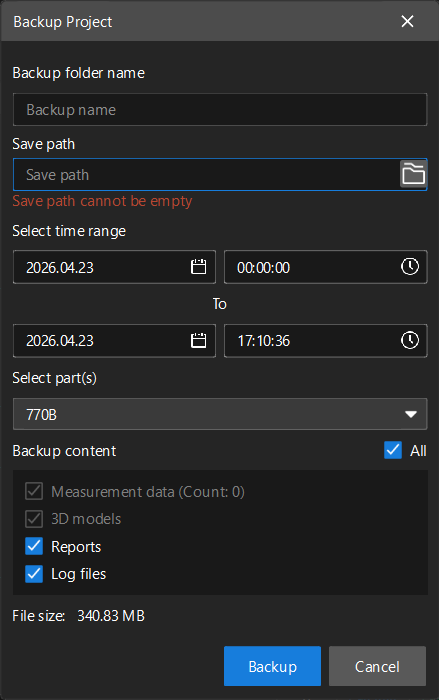
In the menu bar, select . The Backup Project dialog box will appear.
-
Set the following parameters according to your needs:
Parameter Description Backup folder name
Set the name of the backup folder. You can modify it according to actual needs.
Save path
Set the location for saving the backup files. Click the folder icon to the right of the path to browse and select a path to save.
Select time range
Set the time range of the data to be backed up. Filter the data to be backed up by start and end dates and times.
Select part(s)
Select the parts to be backed up. If the project contains multiple parts, select the part to be backed up from the drop-down list.
Backup content
Select the type of content to be backed up. You can select the following options, or select All to select all content at once:
-
Measurement data: Back up the data generated during measurement, and the number of entries in the current time period is displayed in parentheses.
-
3D models: Back up the 3D model files imported into the project.
-
Reports: Back up the generated report files.
-
Log files: Back up the software logs.
The current backup file size will be displayed at the bottom of the dialog box.
-
-
After confirming the settings, click Backup to start the backup.