Export Report
This section introduces how to export the measurement report. The Export report feature is used to output measurement results in a standard format for data archiving, result analysis, and external delivery.
The Export report feature can be called at different entry points:
-
In the Configuration interface (configuration administrator), you can click Export Report in the upper-right corner of the 3D view area to export.

-
In the Production interface (operator), you can click Export Report in the upper-right corner of the 3D view area to export.

| Although the entry points are different, the export configuration items used in the two methods are identical. |
This section covers the following topics:
Export a Single Report
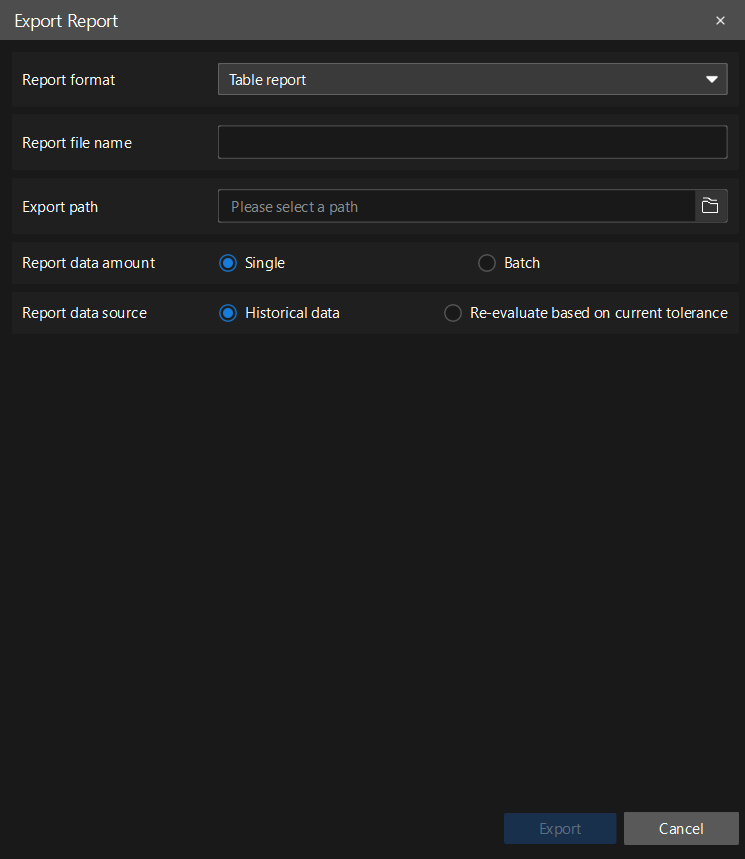
If you choose to export a single report, please complete the following configurations in the Export Report dialog box:
-
Report format: Select the export file format (such as PDF or Table report).
-
Report file name: Enter the name of the exported report file.
-
Export path: Select the file storage location.
-
Report data source: Select the source of the measurement data to be exported.
After clicking Export, the system will automatically open File Explorer, and the generated report file will be displayed in the specified export path for viewing.
Export Batch Reports
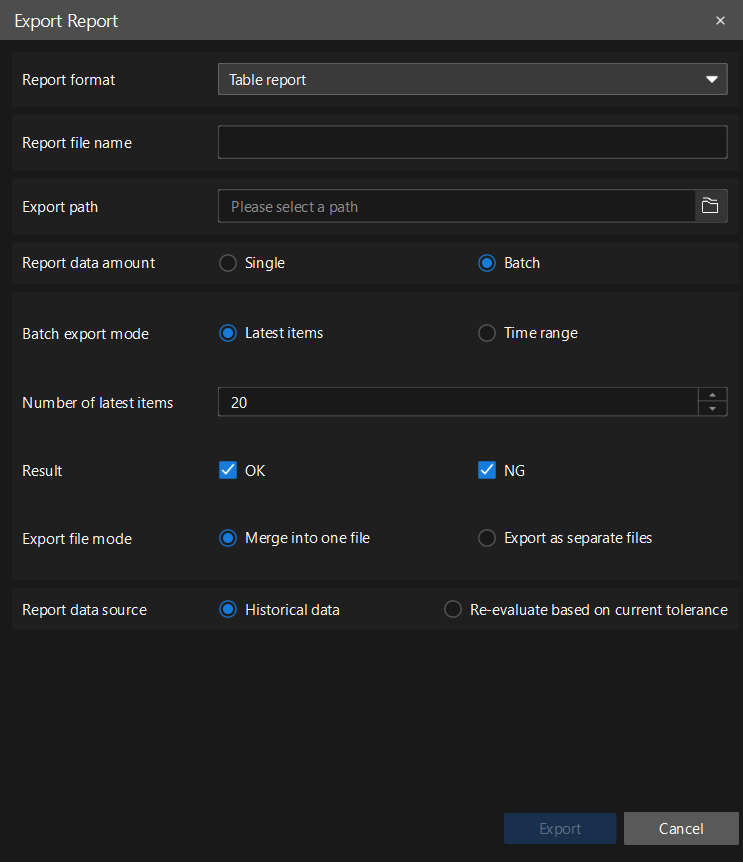
If you choose to export a batch report, please complete the following configurations in the Export Report dialog box:
-
Report format: Select the export file format (such as PDF or Table report).
-
Report file name: Set the name of the exported report file.
-
Export path: Select the directory to save the report file.
-
Batch export mode: Select the batch export method.
-
Latest items: Export from the most recent measurement data.
-
Time range: Export within the specified start and end time range.
-
-
Result: Select the type of measurement result (OK, NG, or All) to be exported.
-
Export file mode: Select how to output the exported files.
-
Merge into one file: Merge all exported data into a single file.
-
Export as separate files: Export each report as a separate file.
Export file mode is only available for table reports. PDF reports do not support this option.
-
-
Report data source: Select the source of the measurement data to be exported.
After clicking Export, the system will automatically open File Explorer, and the generated report file will be displayed in the specified export path for viewing.
Through the above steps, you can export the report.