Create and Manage Table Reports
This section introduces how to create and manage table reports, helping you customize the table presentation and export of measurement data according to actual requirements.
Table Report Instructions
Table reports are used to display the data in the inline measurement process in structured tables. You can select the measurement parameters and statistics to be displayed according to the actual requirement, and quickly compare and analyze the inspection results of different parts or batches. Table reports can be exported in Excel format to facilitate data archiving, sharing, and subsequent processing.
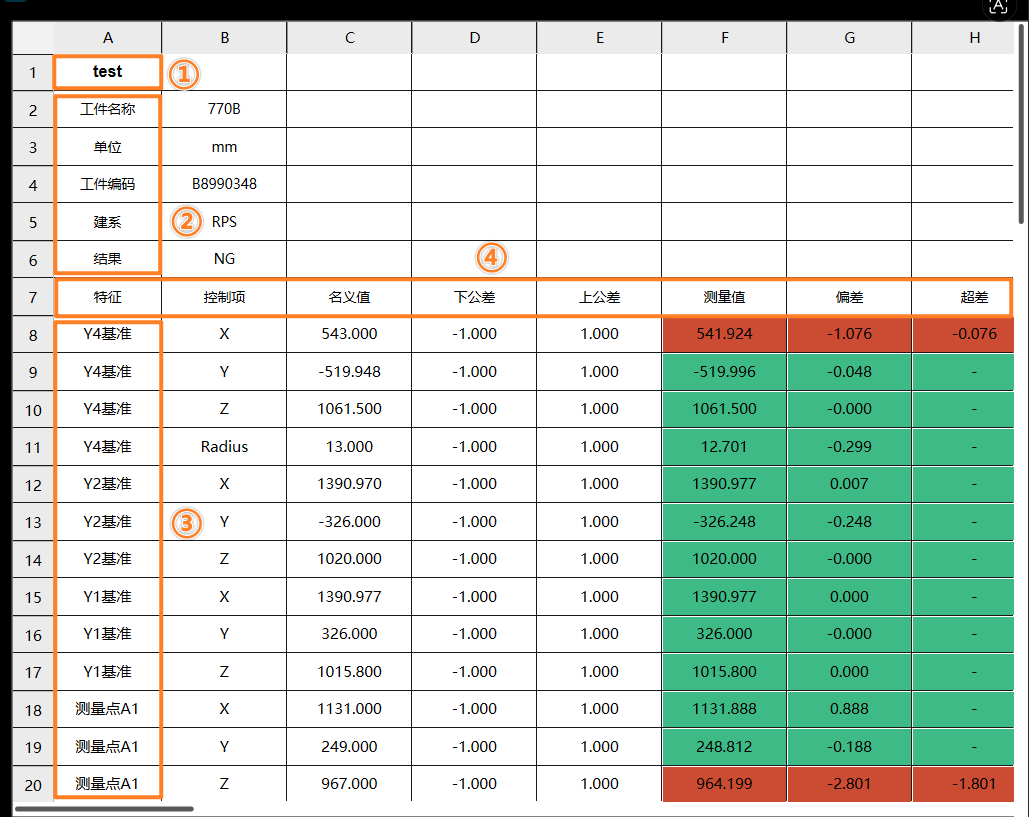
The table report contains the following parts.
| No. | Content | Description |
|---|---|---|
① |
Main title |
Displays the title of the current table report. |
② |
Subtitle |
Complement the main title, such as part information, operator, measurement results, etc. |
③ |
Row |
Horizontal part of the table. Each row represents a measurement record of a part feature. |
④ |
Column |
Vertical part of a table. Each column corresponds to a data field or attribute that is used to classify and display different types of measurement information. |
Create Table Report
Follow these steps to create a table report:
Enter the Table Report Editor
-
In the functional area of the software configuration interface, select the Report tab, and then click the Table Report button.

-
The Table Report Editor interface will appear.
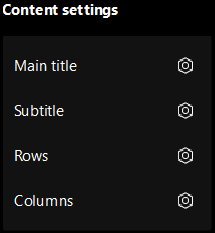
The Table Report Editor will create a new table report. You can customize it, such as the main title, subtitle, row display, and column display.
Set Main Title
-
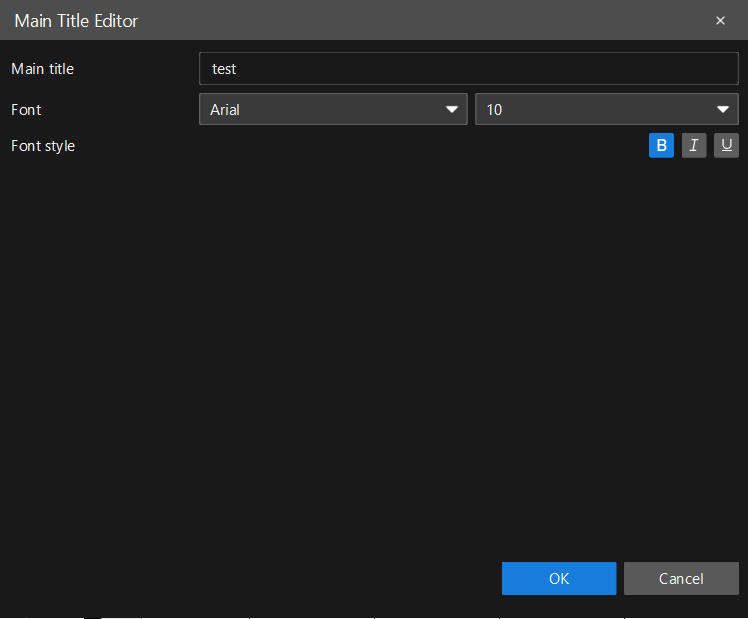
In the Table Report Editor's Content settings area, click the Settings button after Main title. The Main Title Editor dialog box will open.
-
Set the parameters Main title, Font, Font size, and Font style according to your needs, and then click OK.
Set Subtitle
-
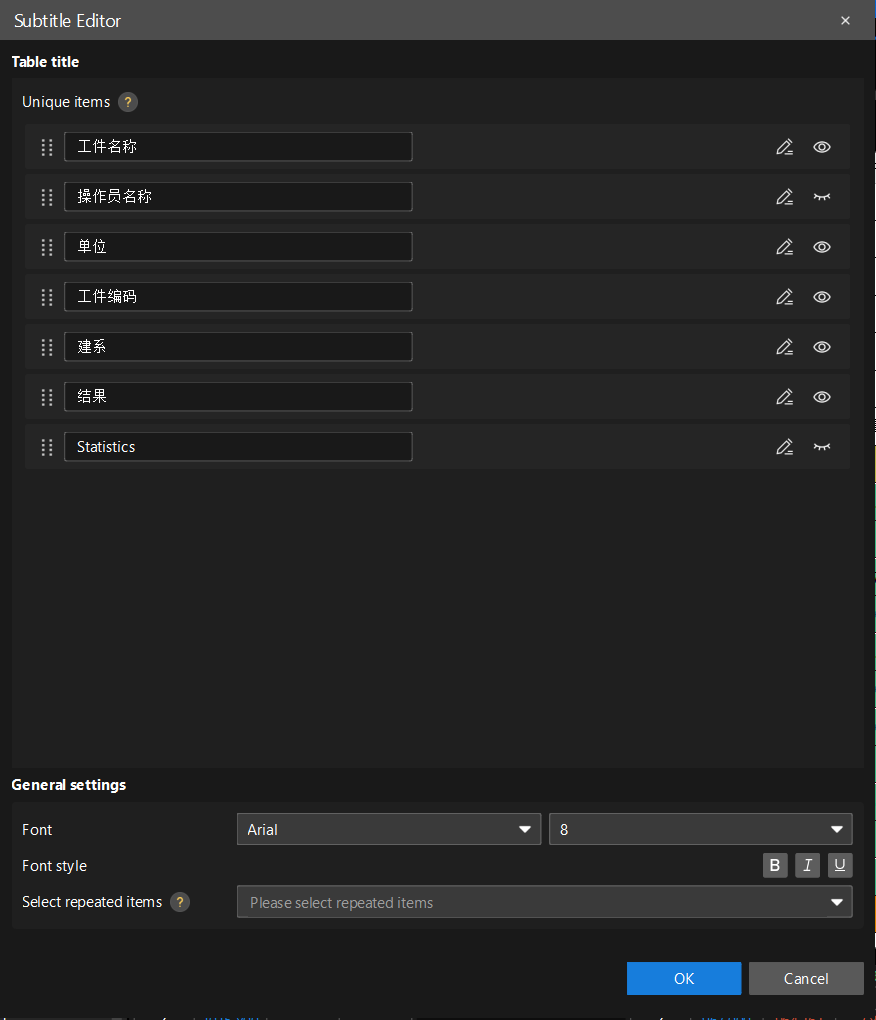
In the Table Report Editor's Content settings area, click the Settings button after Subtitle. The Subtitle Editor dialog box will open.
-
In the General settings area, set the parameters Font, Font size, Font style, and Select repeated items according to needs.
Select repeated items only takes effect when multiple part measurement data are exported in batches. Select items that need to be displayed repeatedly in the report for each part measurement. -
In the Unique items and Repeated items area, edit the unique and repeated items of the heading.
-
Click the
 Edit icon to modify the title.
 -
Click the
 Show/Hide icon to control whether the subtitle will be displayed in the table report.
 -
Drag the configuration entries to adjust the display order of the subtitles.
The Repeated items area will only be displayed after the General settings area has set the Select repeated items parameter.
-
-
Click the OK button to save the settings.
Set Row Display
-
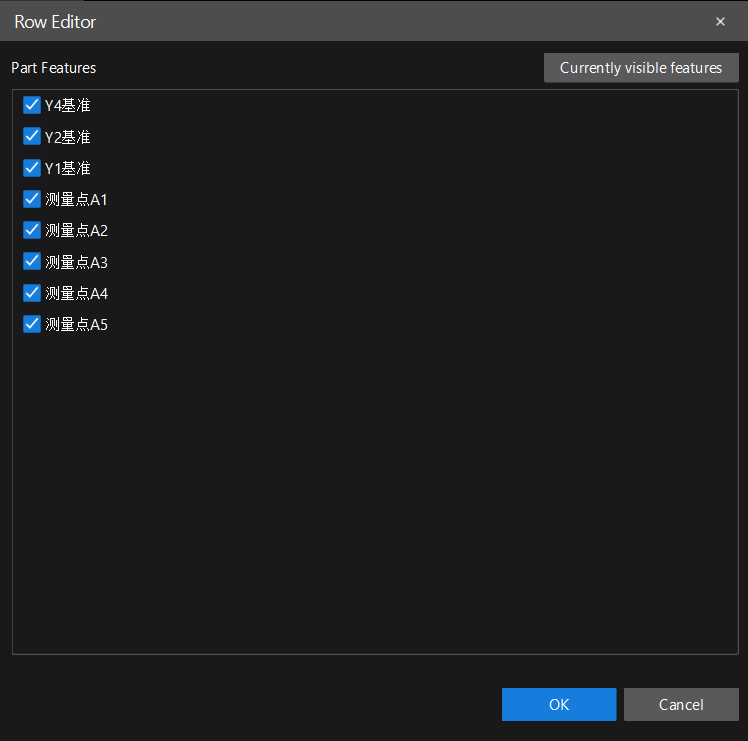
In the Table Report Editor interface, click the settings button after Rows. The Row Editor dialog box will be opened.
-
In the Part Features area, select the features to be displayed in the table report. If you only need to display features visible in the 3D view, click the Currently visible features button.
-
Click the OK button to save the settings.
Set Column Display
-
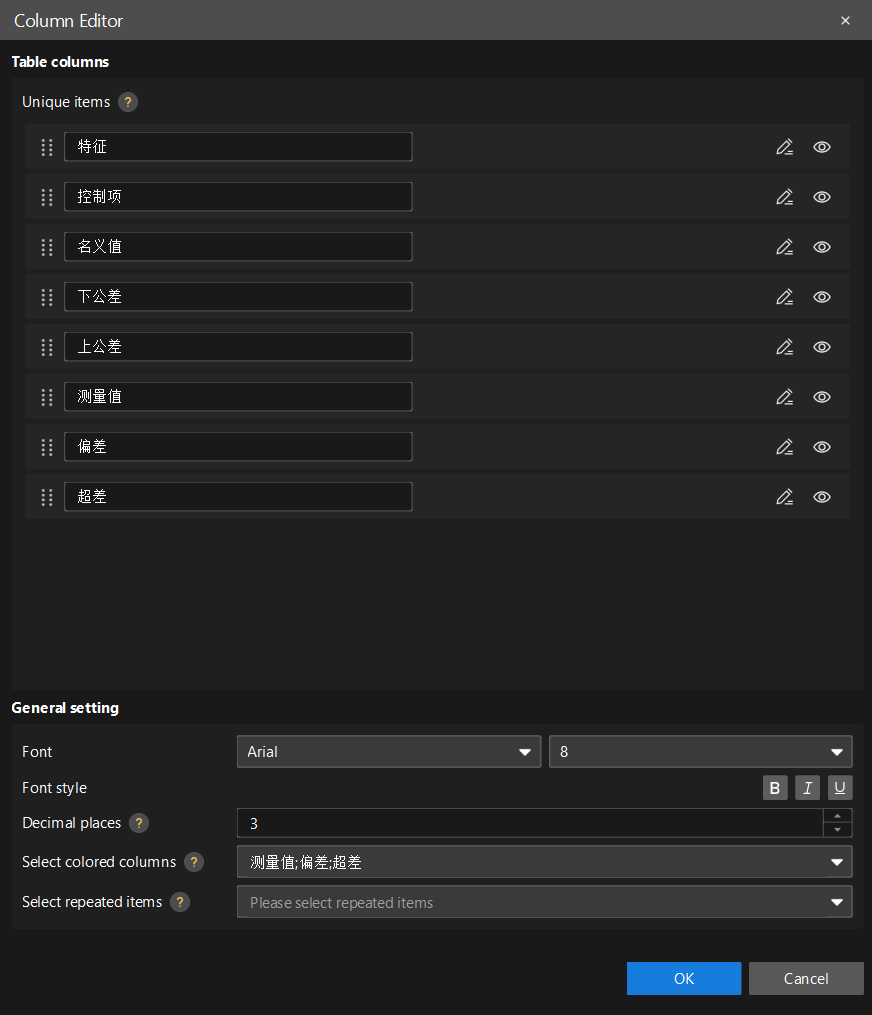
In the Table Report Editor's Content settings area, click the Settings button after Columns. The Column Editor dialog box will be opened.
-
In the General settings area, set parameters according to needs.
-
Font, Font size, and Font style: Control the font, font size, and font style of the displayed content separately.
-
Decimal places: Controls the number of decimal places displayed in numeric columns.
-
Select colored columns: Control the highlighted columns to highlight a specific column of data.
-
Select repeated items: The repeated and unique items that control the display of the columns.
-
| Select repeated items only takes effect when multiple part measurement data are exported in batches. Select items that need to be displayed repeatedly in the report for each part measurement. |
-
In the Unique items and Repeated items areas, edit the columns for repeated and unique items.
-
Click the
Edit icon to modify the column name. -
Click the
Show/Hide icon to control whether the column is displayed in the table report. -
Drag the configuration entries to adjust the display order of columns.
The Repeated items area will only be displayed after the General settings area has set the Select repeated items parameter.
-
-
Click the OK button to save the settings.
Manage Table Report
In the resource tree of the software configuration interface, the report area displays all the created table reports.
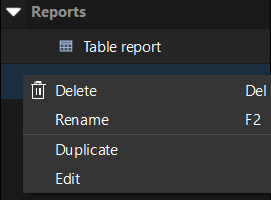
You can select a report and perform the following operations:
-
Delete: Delete the current report.
-
Rename: Change the name of the report.
-
Duplicate: Copy the current report to generate a new copy.
-
Edit: Enter the Table Report Editor interface to modify the report format settings.
You can also click the Open Editor button in the Basic Information area of the report’s Parameters panel to enter the Table Report Editor interface and modify the format settings.