Manage Project Permissions
This section introduces how to create and manage project access accounts and switch between different accounts.
After you configure and deploy the project, you can create multiple types of accounts for permission management, preventing regular accounts from arbitrarily modifying the configured and deployed project. Currently, Mech-Metrics allows you to create three types of accounts: administrator, operator and observer.
-
Administrator account: Has full permissions, including the ability to edit compensation and deviation values.
-
Operator account: Cannot edit compensation or deviation values; all other permissions are the same as the administrator.
-
Observer account: Has view-only access and can only view the production interface. Does not have access to the configuration interface.
This document explains how to create and manage different types of accounts, as well as how to switch between them.
Create an Administrator Account
-
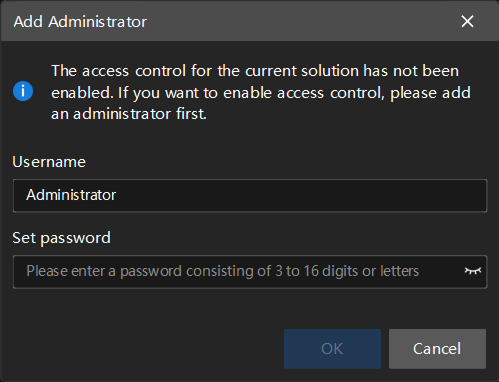
In the top menu bar, select . The Add Administrator dialog box will pop up.
-
In the pop-up dialog box, enter the Username and Set password for the new administrator account, and then click OK. The Project Access Control page will be displayed.
-
On the Administrator tab of the page, you can view the created administrator account.
-
To add more administrator accounts, click Add account in the upper-right corner of the Administrator tab, enter the Username and Set password for the new administrator account, and then click OK.
-
To edit an existing administrator account, go to the Administrator tab, locate the desired account, and then click the
 button in the Operation column of that account.
 -
You can delete administrator accounts using one of the following methods:
-
Delete a single administrator account: Locate the desired administrator account under the Administrator tab and click the
 button in the Operation column. If the delete button is not available, it indicates that only one administrator account exists, which is the default administrator account and cannot be deleted.
 -
Delete all accounts: Click Advanced settings at the bottom-left corner of the Project Access Control page. On the Advanced settings page, click Delete all accounts.
-
-
Create an Operator Account
-
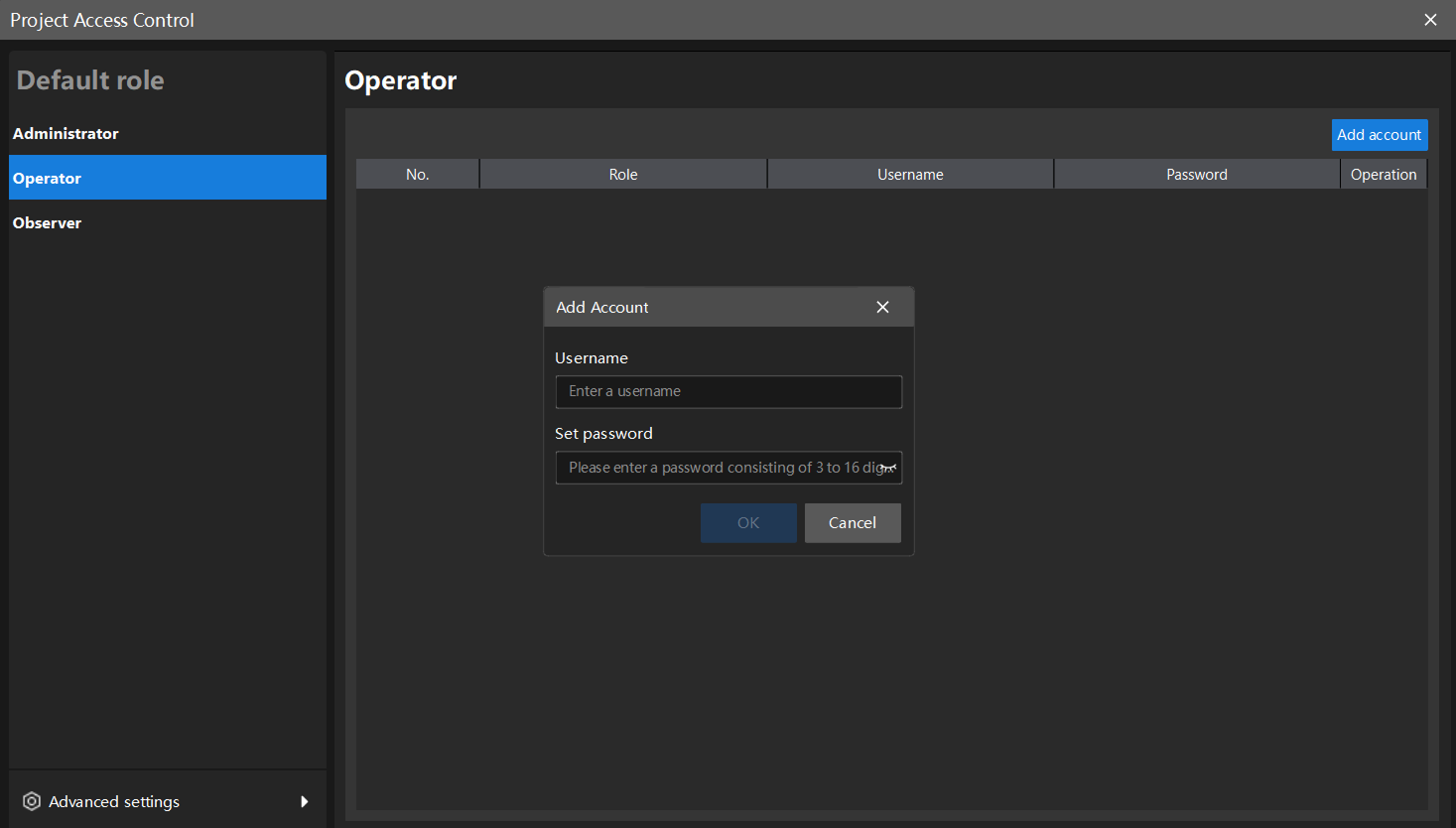
On the Project Access Control page, click the Operator tab. On the Operator tab, click Add account in the upper-right corner.
-
In the pop-up dialog box, enter the Username and Set password for the operator account, and then click OK.
-
On the Operator tab, you can view the created operator account.
-
To add more operator accounts, repeat the above steps.
-
To edit an existing operator account, locate the account on the Operator tab and click the
button in the Operation column of that account. -
To delete an operator account, choose one of the following methods:
-
Delete a single operator account: Locate the operator account and click the
button in the Operation column of that account. -
Delete all accounts: Click Advanced settings at the bottom-left corner of the Project Access Control page. On the Advanced settings page, click Delete all accounts.
-
-
Create an Observer Account
-
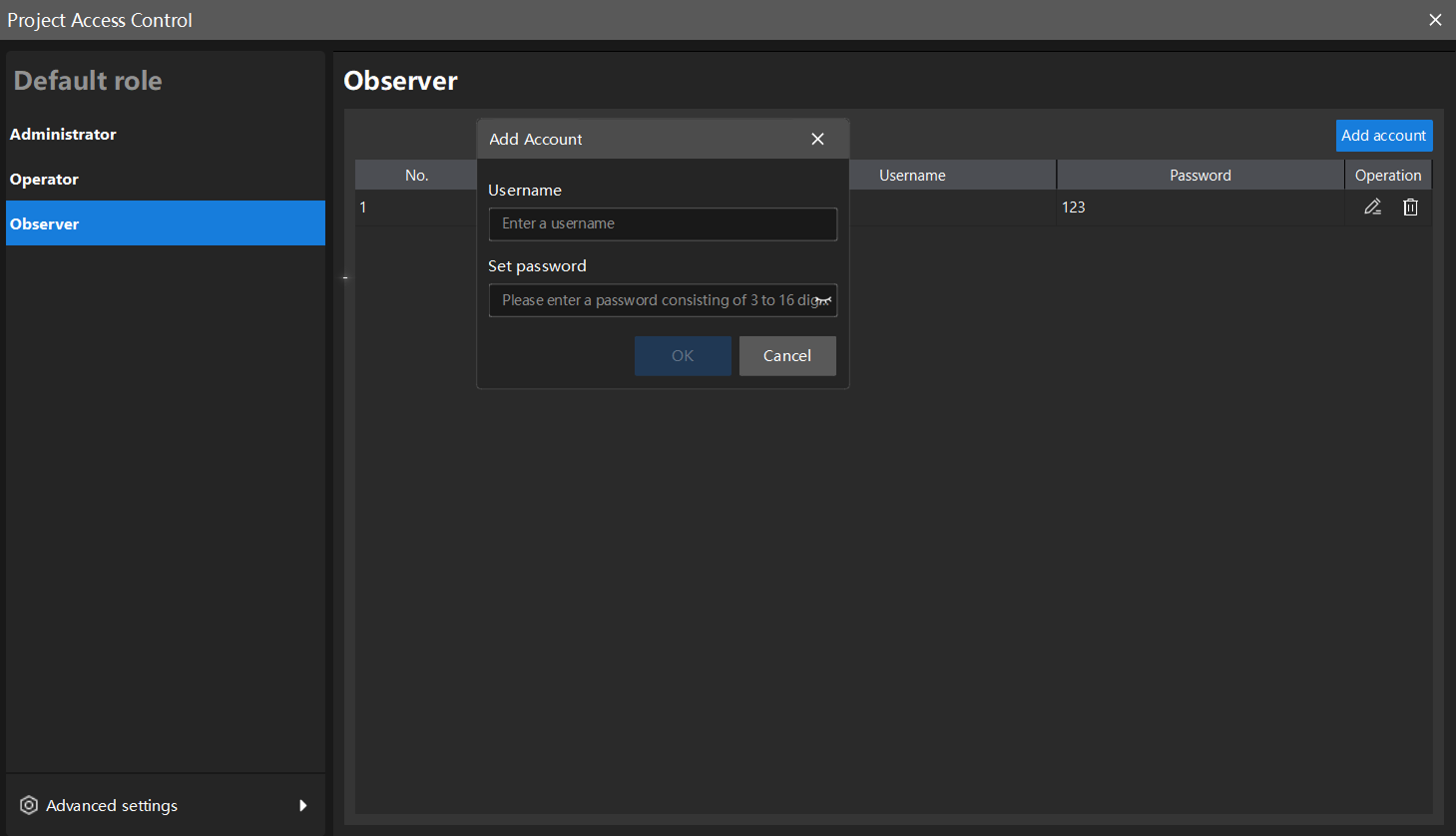
On the Project Access Control page, click the Observer tab. On the Observer tab, click Add account in the upper-right corner.
-
In the pop-up dialog box, enter the Username and Set password for the new observer account, and then click OK.
-
On the Observer tab, you can view the created observer account.
The method for managing observer accounts is similar to that for managing operator accounts and will not be repeated here.
Switch Accounts
-
After you create the accounts, close the Project Access Control page. The user will default to using the first created Administrator account and will enter the software’s Configuration interface.
-
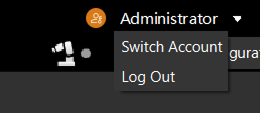
To switch to another account, click the currently used account in the top-right corner of the software and select Switch Account or Log Out.
-
In the pop-up Log In dialog box, select the account to switch to, enter the password, and then click OK.
-
After the switch, the account being used will change to the new account.
If you forget your password, follow these steps:
-
In the Log In dialog box, click Forget Password.
-
In the pop-up dialog box, enter the verification code (which can be obtained by contacting Technical Support) and click Validate.
-
After successful verification, reset your password.
-