Import a CAD Reference Object for the Part
This section introduces how to import a CAD model for a part as a reference object.
After creating a part, please import a CAD model for the part. Supported model file formats include STEP, STP, and STL.
|
CAD model of a part A CAD model of a part refers to a digital 3D model created using CAD software to represent the shape, dimensions, and other characteristics of a part. The imported CAD model of the part represents all such parts. |
Importing the CAD
Follow the steps below to import the model:
-
In the Configuration interface of the software, select the tab of the part for which you want to import the CAD model.
-
Under the CAD tab in the functional area, click Import CAD File.
-
In the Select CAD File dialog box, find the CAD file to import and then click Open.
-
In the Import Option dialog box, select the additional content to import and then click OK.
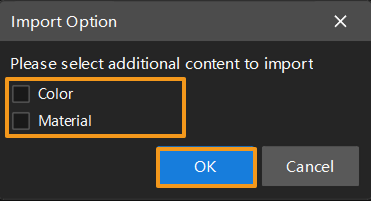
-
The Importing… progress bar will appear. Please wait for the import to complete.
The import process typically takes a few seconds to several minutes, depending on the size of the CAD model and the additional content selected for import. The larger the CAD model and the more additional content selected, the slower the import process will be. Please be patient.
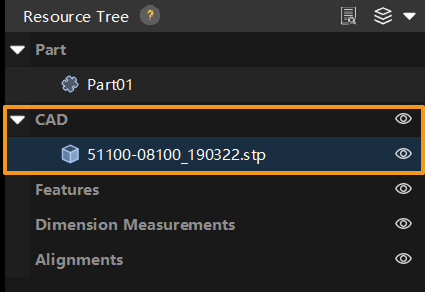
After the import, the imported CAD model will appear under the CAD node in the resource tree of the part.
Editing the CAD
In the resource tree, click the CAD node to view and edit the following CAD settings in the parameter panel on the right:
-
Basic Info
-
Name: The name of the CAD model.
-
CAD file: The currently imported CAD file. Click Replace file to replace the CAD file.
-
-
Origin settings
-
Click Select features, and select features (you can search for features in the Search features box) in the pop-up dialog box as the reference for setting the CAD origin.
-
Translation: Sets the translation of the CAD model along the X, Y, and Z directions, in mm.
-
Rotation: Sets the rotation of the CAD model, in degrees (°).
-
Click Reset to restore the origin settings to the default values.
-