Configure SN Filtering Rules
This section describes how to configure a filtering rule for part SNs. The SN is the serial number of the part. It usually contains information such as the production date and production line of the part. By configuring SN filtering rules, specific information in the SN can be set as a custom filter condition in historical data.
Follow these steps to configure the SN filtering rules:
-
In the upper functional area of the Configuration interface of the software, select .
-
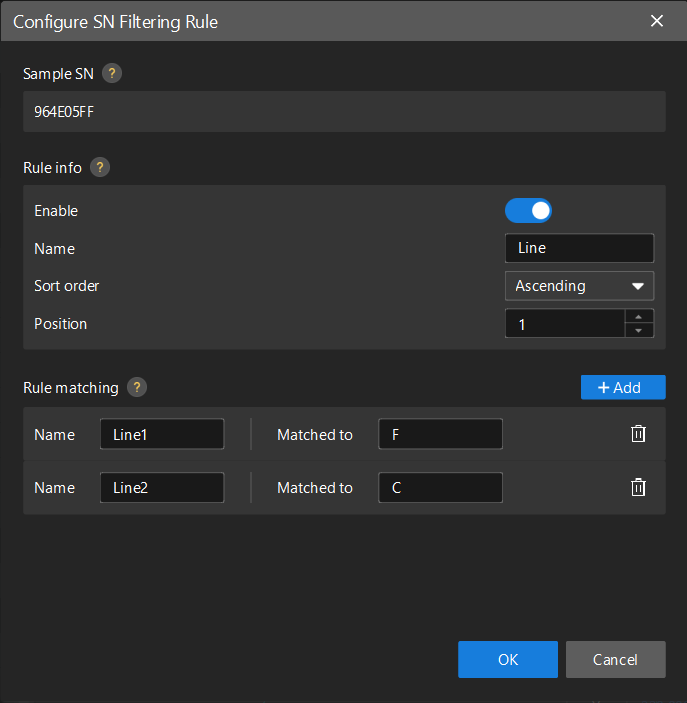
In the Configure SN Filtering Rule dialog box, set the Rule info and Rule matching parameters.
-
Sample SN: A reference SN used to assist users in understanding and configuring rules.
-
Rule info: Name is used to specify the name of the custom filter; Sort order and Position are used to specify which character in the SN to match. After the rule is enabled, the custom filtering criteria will be displayed in the Historical Data interface.
-
Rule matching: When the characters at the specified position of the SN match the matching characters, they will be filtered as the option values corresponding to the Name. The characters in the Matched to text box can only be numbers and letters.
Take the SN
964E05FFas an example. If the last digit represents the production line (Line), ifFstands for Line 1, andCstands for Line 2, please configure as follows:-
In the Rule info area, set Name to
Line, set Sort order to Ascending, set Position to1, and turn on Enable. -
In the upper-right corner of the Rule matching section, click + Add, set Name to
Line 1, and set Matched to toF. Click + Add again, set Name toLine 2, and set Matched to toC. -
To delete a matching rule, click the delete button to the right of the rule.
-
-
After configuration, click OK.
-
In the upper functional area, select . In the Custom section of the Historical Data interface,
Linehas become a filter condition. By default, Line 1 and Line 2 are selected. Please modify these parameters according to the actual situation.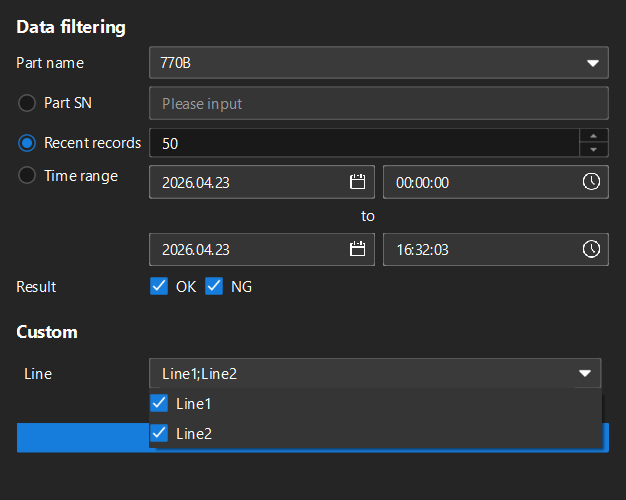
For more information about filtering historical data, see Filter, View, and Export Historical Data.