Profile Mode
This topic introduces how to adjust the parameters in the profile mode, in order to obtain the satisfactory profile.
|
Before reading this topic, please read Adjust Parameters. |
Determine Data Quality
Determine the quality of the profile data according to the following criteria. If the data quality is not good, adjust the parameters according to the next section.
-
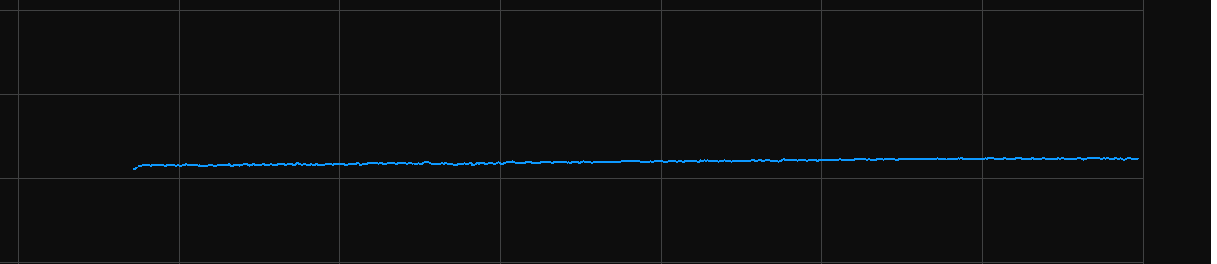
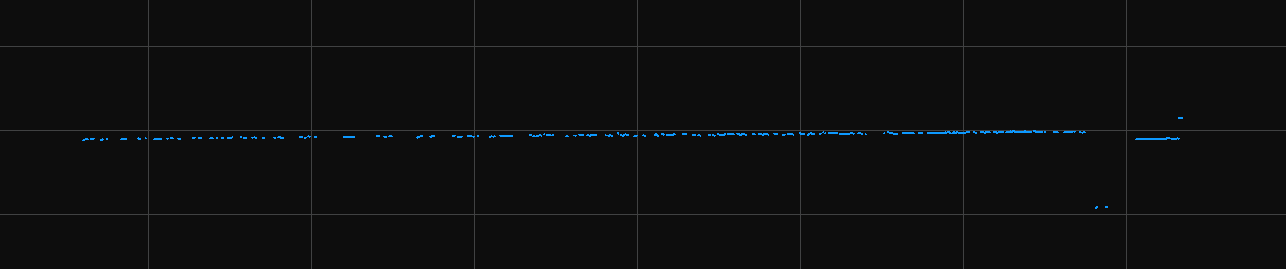
The profile should be mostly complete without gaps.
Complete profile
Incomplete profile
-
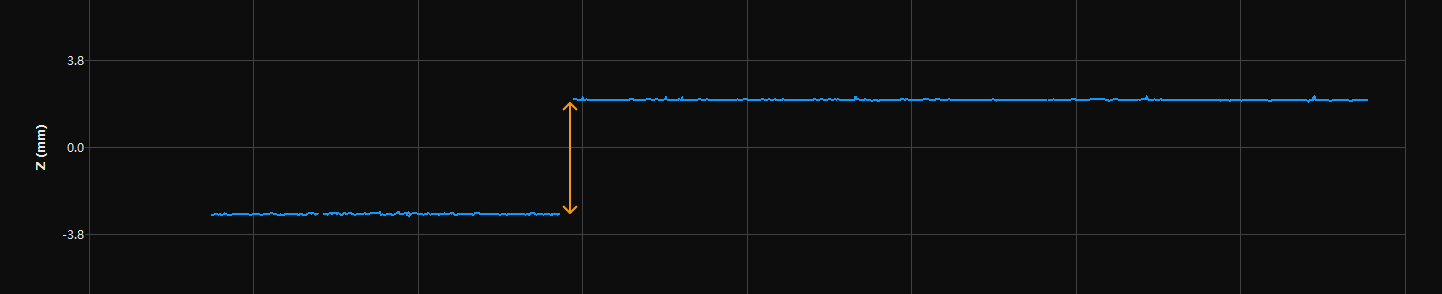
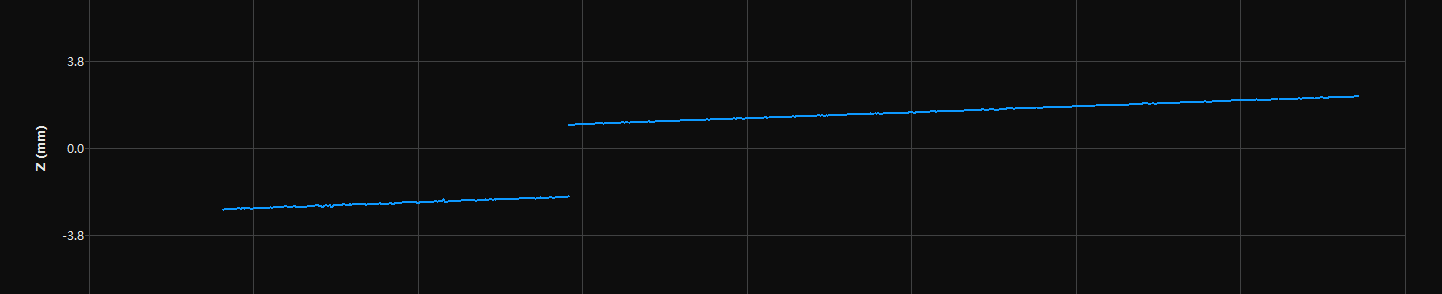
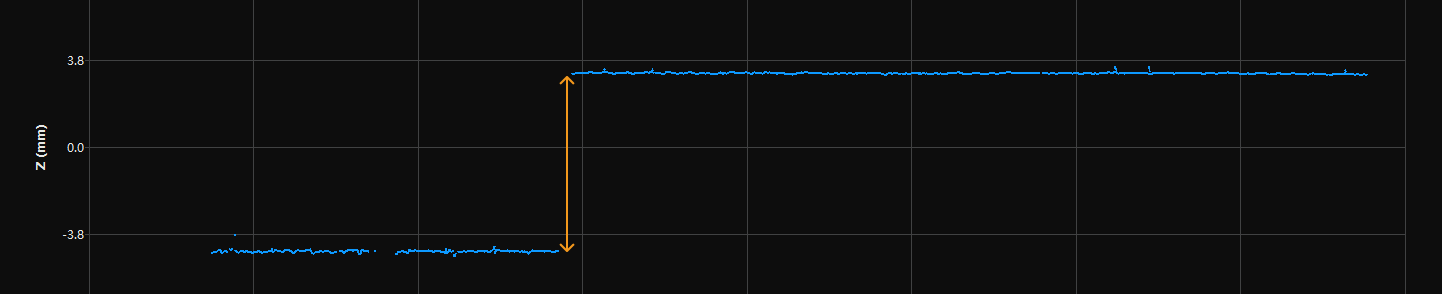
The tilt of the profile and the height difference between two locations in the profile should match those of the actual object.
Satisfactory profile
Tilt of the profile not matching that of the actual object
Height difference of two locations in the profile not matching that of the actual object
Adjust Parameters in Profile Mode
Please follow the procedure below to adjust the parameters in the profile mode. After adjusting parameters, acquire data again to check if the data quality changes.
-
(Optional) If the tilt of the profile or the height difference between two locations in the profile does not match those of the actual object, perform Tilt Correction or Height Correction.
-
Adjust the parameters that affect profile processing:
-
Use Denoising Smoothing or Uniform Smoothing to reduce noise or smooth the profile.
-
Adjust the Max Gap Points parameter in the Gap Filling category to fill the gaps in the profile.
If the processing result still does not meet the requirements, you can change the Visibility to Expert and then adjust the following parameters:
-
Adjust the quality of the profile at object edges through Edge Preservation, Max Search Window, and Filling Method.
-
|
View Acquisition Information
The following information is displayed at the bottom of the data display area:
| Information | Description |
|---|---|
Max Capture Attempts |
The number of times data has been acquired. |
Number of Frames Lost |
The number of frames lost during acquisition. Usually, the trigger signal is sent too fast or repeatedly, and the device cannot respond to a new trigger signal while the previous frame is being processed. If the value continues to increase, please check the rate at which trigger signals are sent. |
Max Scan Rate |
The current max scan rate. |
Scan rate in real time |
The current actual scan rate. |