Dynamic ROI
Overview
Dynamic Region of interest is used to dynamically adjust the ROI position according to the morphological changes of the target object along the scan direction, ensuring that the ROI always covers the target area throughout the scanning process.
When the height of the object varies significantly at different positions along the scanning direction, a fixed ROI may fail to fully cover the target area or may contain too many invalid areas. In this case, you can use the dynamic ROI to ensure the target contour is fully covered while reducing invalid areas, thereby improving scanning efficiency.
Start the Feature
You can open the dynamic ROI configuration window by following these steps:
-
In scan mode, set the Mode of ROI in the parameter panel to Dynamic.
-
Click the button on the right of Edit ROI to open the dynamic ROI configuration window.

Usage Workflow
| Before configuring the dynamic ROI, please first acquire point cloud data that contains the complete target area, and then enter the dynamic ROI editing window. |
After entering the configuration window, the interface mainly includes the following areas:
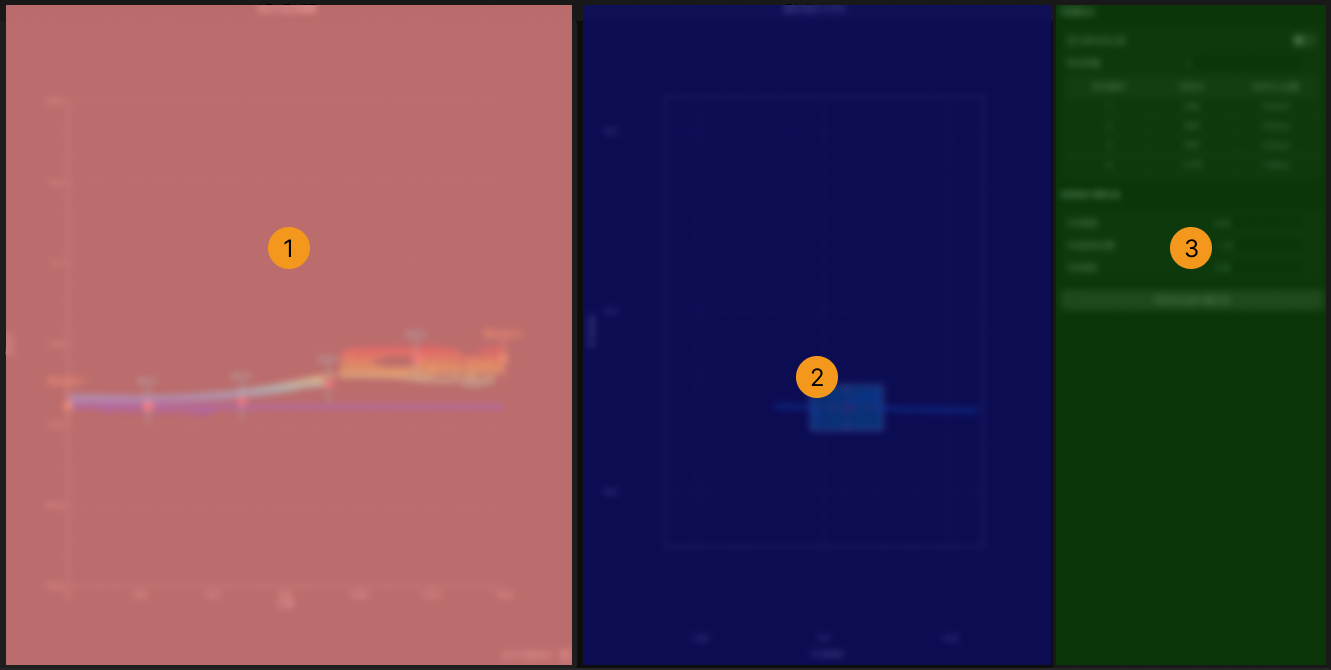
| No. | Feature Tabs | Description |
|---|---|---|
1 |
Point cloud Y-Z orthogonal view |
Used to view the morphological changes of the target object along the scanning direction, adjust the knee point positions in this view. |
2 |
X-Z ROI view at the knee point row |
Used to view the ROI range corresponding to the current knee point, and adjust the knee point positions in this view. |
3 |
Parameter panel |
Used to set the number of knee points, knee point positions, and ROI parameters, and to preview the dynamic ROI effect. |
Please follow the steps below to configure the dynamic ROI according to the morphological changes of the target object:
-
Set the number of knee points.
Set the number of inflection points in the Configure Knee Points area on the right. Knee points define how the ROI position changes at different scanning positions. Different numbers of knee points can be set according to the morphological changes of the target object.
-
Adjust the knee point position.
Select the target knee point in the point cloud Y-Z orthogonal view and drag the knee point to adjust its Row and Z-Axis center position.
Parameter Description Row
Adjust the position of the knee point in the scanning direction.
X-Axis center position
Adjust the height of the ROI center at this position.
-
Set the ROI range.
Set the following parameters in the Configure ROI area (applies to all knee points):
Parameter Description X-Axis Width
Adjust the width of the ROI in the X direction.
X-Axis start position
Adjust the start position of the ROI in the X direction.
Z-Axis height
Adjust the height of the ROI in the Z direction.
After adjusting the parameters, the left and middle view are updated synchronously to observe the effect of ROI changes.
-
Preview the Dynamic ROI effect.
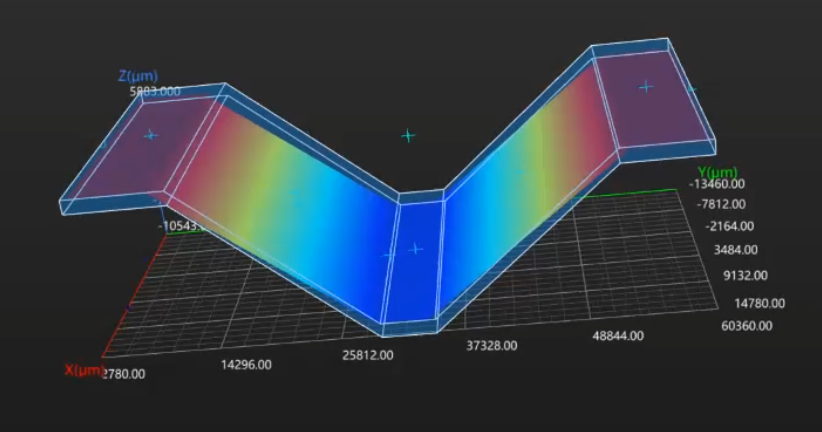
Click Preview Dynamic ROI to generate the 3D point cloud bounding box corresponding to the dynamic ROI, and check whether the bounding box completely covers the target area.
If the coverage does not meet the requirements, click Exit preview and continue to adjust the inflection point or ROI parameters before previewing again.
-
Apply the settings.
After confirming that the results meet requirements, click Apply to save the configuration.