Adjust Parameters
The intensity image, depth map, and point cloud obtained from the laser profiler are made of multiple profiles. Therefore, the quality of the profiles determines the quality of the intensity image, depth map, and point cloud. Therefore, when adjusting the parameters, you need to adjust the parameters that affect the quality of the profile first, and then adjust the parameters that only affect the quality of the intensity image, depth map, and point cloud.
| Read Scanning Mechanism of Laser Profiler to learn about the laser profiler’s working principles. |
The parameters in Mech-Eye Viewer are divided into three parts:
-
Parameters in the preview mode: affect the quality of the raw image and the subsequent profile extraction effect.
-
Parameters in the profile mode: affect the quality of the profile.
-
Parameters in the scan mode: only affect the quality of the intensity image, depth map, and point cloud.
This topic introduces the actions related to parameters, including the general workflow of adjusting parameters, managing parameter groups, changing parameter visibility, and checking parameter descriptions.
General Workflow of Adjusting Parameters
When adjusting the parameters, you usually need to acquire the data again to check the result of parameter adjustment.
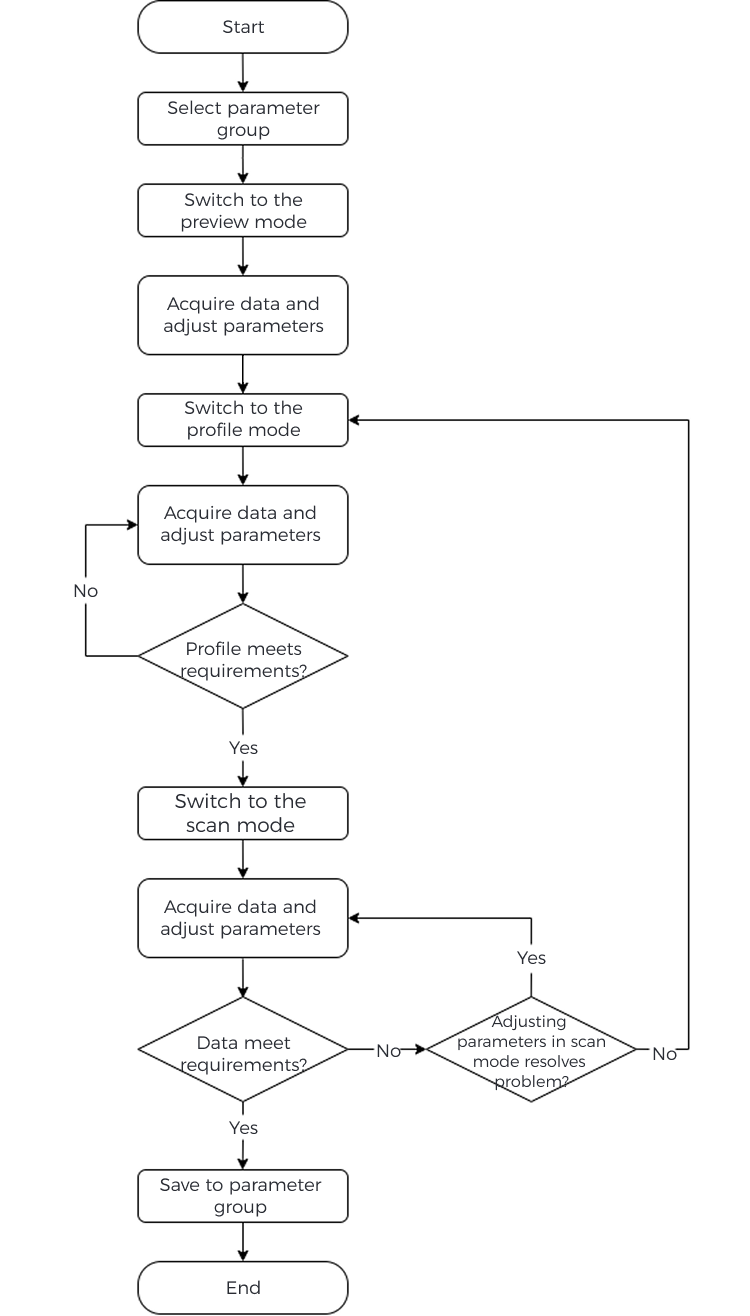
The general workflow for adjusting parameters is as follows:
-
At the top of the Parameters tab on the right, select the parameter group to use.
-
Click Preview Mode in the upper right of the interface to switch to the preview mode.
-
Acquire data, Determine Data Quality.
-
Click Profile Mode in the upper right of the interface to switch to the profile mode.
-
Acquire data, Determine Data Quality.
-
Click Scan Mode in the upper right of the interface to switch to the scan mode.
-
According to Combination of Triggering Methods Used, Configure Corresponding Parameters.
-
Acquire data, Determine Data Quality.
-
Once the data quality meets the requirements, click Save at the top of the Parameters tab.
|
Manage Parameter Groups
Parameter groups are used to save parameter values for different applications, projects, workpieces, and so on. When the application, project, workpiece, etc., changes, switching the parameter group in use can quickly apply the corresponding parameter values.
In the Mech-Eye Viewer, the LNX-7000 series supports 10 custom parameter groups. The parameter values in all custom parameter groups can be adjusted and saved according to actual needs. You can save parameter values to a parameter group, load a parameter group, rename a parameter group, lock or unlock a parameter group, set a parameter group as a startup parameter group, and import and export parameter groups.
Save Parameters to Parameter Group
Follow these steps to save parameters to a parameter group:
-
Click the drop-down menu in the Parameter Group section, and select the parameter group used for saving parameter values.
-
In the Parameter Group section, click the Save button or use the shortcut Ctrl + S to save the adjusted parameter values to the currently selected parameter group.
An asterisk (*) next to a parameter name indicates that the value of this parameter has not been saved to the parameter group. When the laser profiler is disconnected from power, the unsaved changes are discarded.
Load Parameter Group
To import parameter values from other parameter groups into the current custom parameter group, follow these steps:
-
Click the Load drop-down menu and select the source parameter group to be loaded.
-
Select Confirm in the pop-up window. The parameter value in the current parameter group will be replaced with the parameter value in the source parameter group.
| The selectable source parameter groups include 12 predefined parameter groups (preconfigured for different materials and surface features) and 9 custom parameter groups. |
Rename Parameter Group
Follow these steps to rename a parameter group:
-
In the Parameter Group section, click
 to open the Manage Parameter Group window.
 -
Click
 on the right side of the parameter group to be renamed, enter the new name in the text box, and click the area outside the text box. The new name is confirmed and saved.
The parameter group name cannot be longer than 99 characters. -
After the change, the new name will be displayed in the drop-down menu of the Parameter Group section.
Lock or unlock a parameter group
The parameter group is unlocked by default. After locking a parameter group, you can avoid modifying the parameter value in the current parameter group.
-
Click the drop-down menu in the Parameter Group section, and select the parameter group to be reset.
-
Click the
 icon to lock the parameter group.
 -
Click the
 icon to unlock it.
Set as Startup Parameter Group
To set a parameter group as a startup parameter group, follow these steps:
-
In the Parameter Group section, click
to open the Manage Parameter Group window. -
Select the parameter group that needs to be set as the start parameter group, and click the Set as Startup button in the upper right of the window.
| After the camera is powered on again, the parameter values in the Startup Parameter Group will be automatically loaded. |
Import parameter groups
You can import parameter values from a json file and replace the parameter values in the current parameter group. Follow these steps to import parameter groups:
-
In the Parameter Group section, click Import, find the json file that stores all the parameter group information, and click Open.
-
If the parameter groups are successfully imported, the Successfully imported parameter groups window will pop-up. Click Confirm in the window to close this window.
Export Parameter Groups
You can export the current parameter group to a json file. Follow these steps to export parameter groups:
-
In the Parameter Group section, click Export, select the file path, and then click Save.
-
If the parameter groups are successfully exported, the Successfully exported parameter groups window will pop-up. Click Confirm in the window to close this window.
Change Visibility
The visibility of parameters in Mech-Eye Viewer includes three levels: Beginner, Expert, and Guru. Select from the drop-down menu of Visibility to change the visibility.
-
The Beginner level includes the most frequently used basic parameters.
-
The Expert level includes all parameters in the Beginner level and provides more parameters.
-
The Guru level includes all parameters in the Expert level and provides more parameters.
Usually, adjusting parameters in the Beginner level is enough to meet your needs. If the data quality is still not satisfactory, you can adjust the parameters in the Expert level. In rare cases, the parameters in the Guru level need to be adjusted to meet special needs.
| The Guru level is available in the Developer account. Please contact Technical Support for assistance in using the parameters of this mode. |
Check Parameter Description
After you select a parameter in the parameter list, the bottom of the Parameters tab displays more information about this parameter, include parameter explanation, API parameter name, value range, default value, visibility and data type. When you adjust parameters, you can use the information here as a reference.
-
If the Parameter Description section blocks the parameter list, click × at the upper right of this section to close it.
-
To display the Parameter Description section again, check the Parameter Description option in the View menu.