Data Replay Tool
This tool is used to acquire depth data and save it to the replay format. It can adjust profile extraction parameters offline and improve point cloud quality.
|
Applicable models: LNX-7000 series (integrated laser profiler). |
Start the Feature
You can click Tools > Data Replay Tool in the menu bar to open the tool.
After entering the tool, select the usage method in the pop-up window, and then click OK:
-
Create reply data: Acquire depth data of the current device and adjust parameters offline.
-
Import offline data: Open a locally saved replay data file and adjust parameters offline.
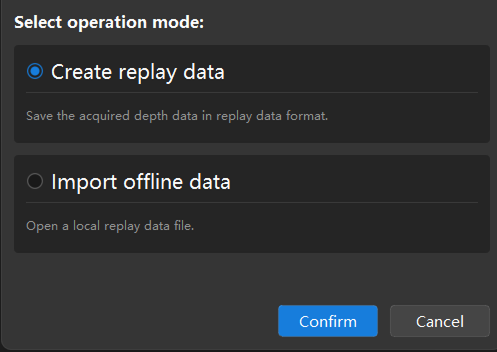
Create Replay Data
After entering the Create replay data mode, follow these steps to create new playback data.
① Set acquisition range
-
Set the Starting Line and End Line in the Line range on the right and specify the range to be acquired (Max: 850 lines). You can also drag the top or bottom edge of the range in the image display area to adjust the line range.
-
Set the acquisition start position according to needs.
The acquisition start position must not exceed the top edge of the acquisition range. If a start position has been set, please move the laser line to the top edge of the acquisition range before starting acquiring.

② Acquire data
Click Start Acquisition to acquire depth data within the set range. After acquisition, click Next to enter the parameter tuning interface.
③ Parameter tuning
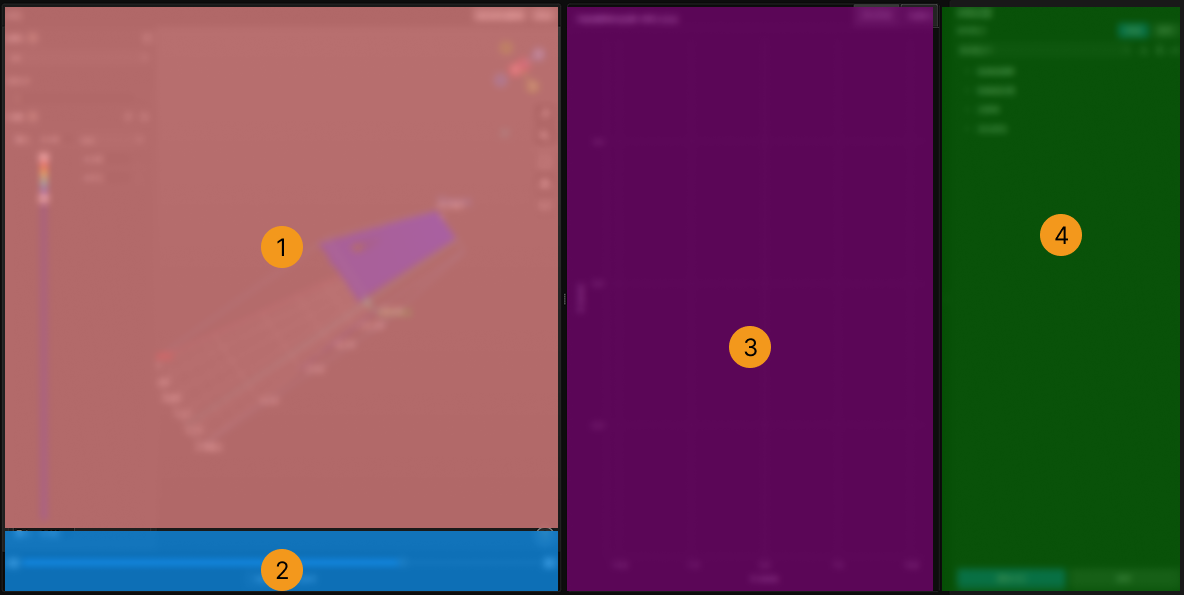
The functional areas in the above interface are described in the following table.
| No. | Module Area | Description |
|---|---|---|
1 |
Point cloud |
Displays the complete point cloud within the acquisition range to observe the abnormal point cloud position. |
2 |
Row scroll bar |
Drag to switch the currently viewed row number, and the area ③ updates accordingly. |
3 |
Image display area |
Displays the raw laser line image or profile of the selected row for locating issues and observing the single-row tuning effect. |
4 |
Parameter settings bar |
Adjust parameters related to profile extraction, processing, and point cloud. |
To adjust the parameters, follow these steps:
-
Observe the position of the abnormal point cloud in the point cloud image (①), and drag the row scroll bar (②) to switch to the target row. The image display area (③) is updated accordingly, and displays the raw laser line image and profile of the laser line for that row.
-
Adjust the following parameter groups in the Parameter settings bar (④). After adjusting the parameters, observe the real-time updated in extraction effect in the image display area (③) and evaluate the single-row tuning result:
-
If the result of a single line is satisfactory, click Update Point Cloud to regenerate the point cloud and verify the overall optimization effect in Point Cloud Image (①).
-
If you need to further improve the point cloud display, adjust the following parameters and click Update Point Cloud again to view the result:
|
Click Set as baseline above the point cloud view to save the current point cloud as a baseline; after adjusting and updating the point cloud, click Compare to compare the point cloud results before and after tuning. If no baseline is set, the tool compares against the initial point cloud when the tool was opened by default. |
The parameters set during tuning can be saved as a Parameter Recipe. A parameter recipe stores a set of tuned parameter configurations for subsequent reuse and management.
|
Parameter recipes support create, save, rename, delete, import, and export operations. |
④ Apply tuning results
After the parameter tuning is complete, you can perform the following operations on the tuning results:
-
Click the Save button above the Parameter Recipe drop-down list to save the tuned parameter configuration to the current parameter recipe.
-
Select the parameter recipe to apply from the parameter recipe drop-down list, and click Apply to apply it to the specified parameter group in Mech-Eye Viewer.
Import Offline Data
① Import replay data file
After entering the Import Offline Data mode, click the folder icon on the right Replay Data File, and select the locally saved .fp replay data file. After the data is loaded, the parameter tuning interface opens automatically.
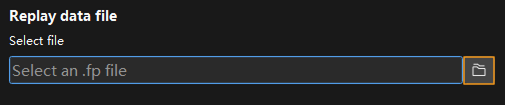
② Parameter tuning
After importing the replay data file, please follow the steps in Parameter tuning to tune the parameters.
③ Apply and Export Parameter Recipe
After adjusting the parameters offline, you can apply the optimized parameter recipe to a specific parameter group in the Mech-Eye Viewer or export it as a local file:
-
Click Apply to apply the current parameter recipe to a specified parameter group in the Mech-Eye Viewer.
-
Click Export to save the current parameter recipe as a local JSON File.
|
If you want to switch the data file, you can re-select it in the Replay Data File panel on the right. |