Mech-Eye Viewer Does Not Respond Properly When Opened
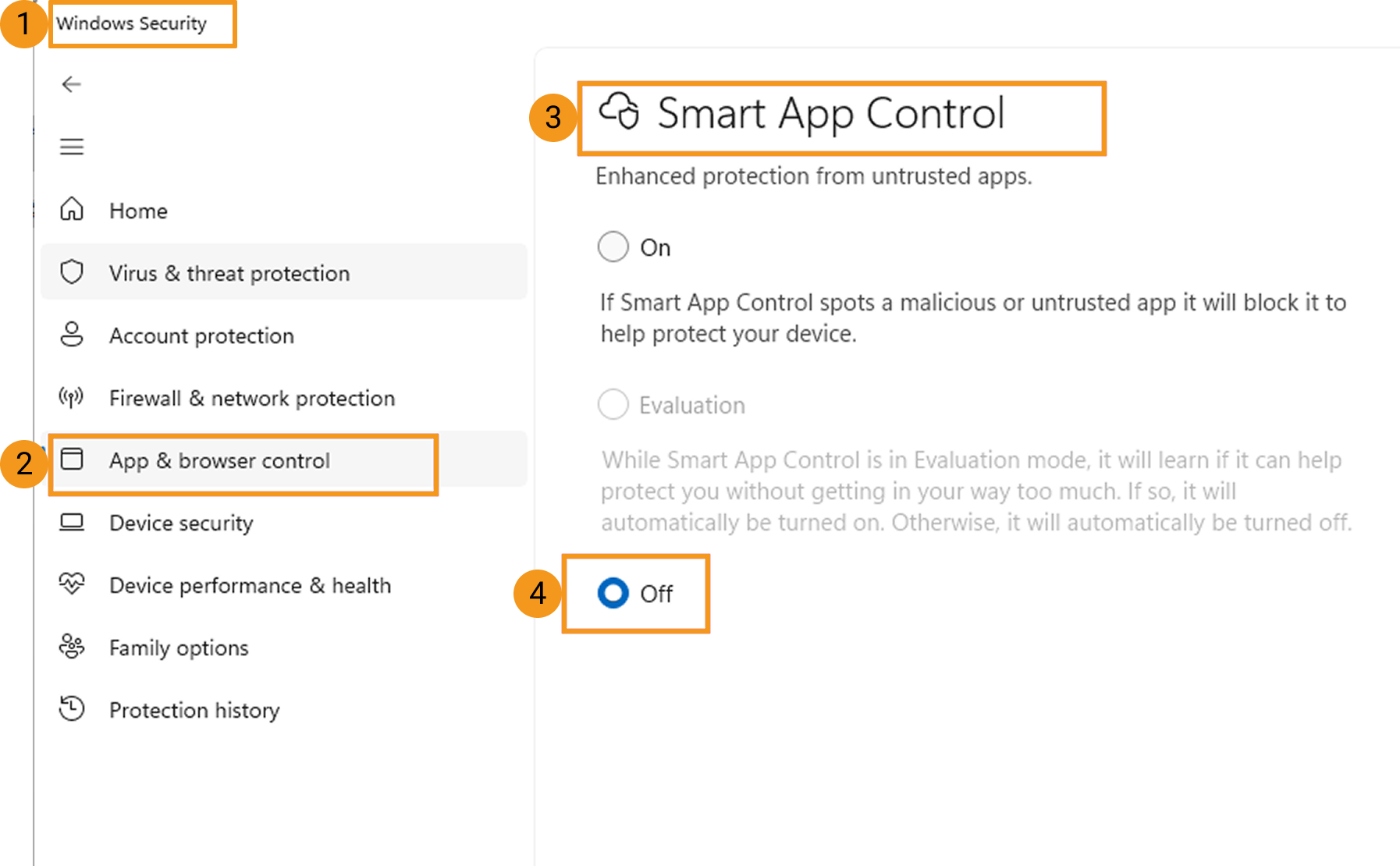
Windows Security prevents Mech-Eye Viewer from opening
Symptoms
When using Windows 11, the following issues may occur:
-
Double-clicking the Mech-Eye Viewer icon does not open Mech-Eye Viewer. Windows Security displays the message: This app has been partially blocked.
-
Mech-Eye Viewer cannot be installed using the installer.
Failure to Use Mech-Eye Viewer due to Problematic Graphics Setting
Symptoms
After double-clicking the Mech-Eye Viewer icon to open Mech-Eye Viewer, the software could not be used normally. Possible scenarios include:
-
After opening Mech-Eye Viewer, the software crashes or displays a blank screen.
-
After opening Mech-Eye Viewer, some features are unavailable.
Possible Causes
-
Incorrect setting for the graphics card driver.
-
Configurations not up to standard when the IPC has two graphics cards.
Solutions
First, ensure that the graphics card driver is installed normally. Ways to check the graphics card driver are as follows:
-
Right-click This PC on the desktop of the IPC and select Manage to enter the computer management page.
-
Select to check the installed graphics card driver.
-
If there is only NVIDIA GeForce xxxx under the Display adapters, that means the graphics card driver is installed successfully.
-
IPC with a discrete graphics card: If there is Microsoft Basic Display Adapter under the Display adapters, that means the graphics card driver has not been installed and needs to be installed again. The driver can be updated automatically on Windows or through a third-party driver.
-
IPC without a discrete graphics card: You need to download the driver corresponding to the CPU.
-
After confirming that the graphics card driver is installed normally, enable 'OpenGL rendering GPU' and 'Prefer maximum performance' mode. The setup steps are as follows:
-
Click
 in the tray of the IPC to open the NVIDIA panel.
 -
Select Manage 3D Settings in the 3D settings section on the left.
-
Switch to the Program Settings tab on the right.
-
In the drop-down 1. Select a program to customize menu, find and select Mech-Eye Viewer. Follow these steps:
-
Click the Add button to open the Add page.
-
Click the View button at the bottom right on the page and select the installation path of Mech-Eye Viewer.
-
Select Mech-Eye Viewer.exe, and click the Add Selected Program button. The customized program adding will be completed successfully.
-
-
Set related parameters in 2. Specify the settings for this program.
-
Set OpenGL rendering GPU to Use global setting (Auto select).
-
Set Power management mode to Prefer maximum performance.
-
-
When the parameter setup is completed, click the Apply button to save the changes.
Mech-Eye Viewer Froze
Possible Causes
-
The camera Ethernet cable is not correctly connected or mounted, or the cable needs to be replaced.
-
The network is unstable.
Solutions
Please follow these steps to troubleshoot the issue:
-
Refer to Camera Hardware User Manual and Guidelines for Mounting Camera Cables and check if the camera Ethernet cable is correctly connected and mounted, without issues such as not fully tightened connector nut or tangling with other cables.
-
If the camera Ethernet cable is not correctly connected and mounted, please correct the connection and mounting, and then connect to the camera in Mech-Eye SDK or the GenICam client again to check if the symptom is still present.
-
If not present, the troubleshooting is completed.
-
If still present, proceed to step 2.
-
-
If the camera Ethernet cable is correctly connected and mounted, proceed to step 2.
-
-
Use Command Prompt to check the stability of the camera network connection:
-
Open Command Prompt and execute the following command. Replace XXX.XXX.XX.XX with the IP address of the camera.
ping XXX.XXX.XX.XX -t -
Check the printed message in Command Prompt:
-
If Request timed out appeared within a few seconds, the network connection is unstable. Please replace the camera Ethernet cable, or check if the other devices in the network, such as the network switch, are operating properly. Then, connect to the Mech-Eye SDK in camera or the GenICam client again to check if the symptom is still present.
-
If not present, the troubleshooting is completed.
-
If still present, please contact Technical Support.
-
-
If Command Prompt only displays content similar to the following, the network connection is stable. Please contact Technical Support.
Reply from XXX.XXX.XX.XX: bytes=32 time<1ms TTL=64
Reply from XXX.XXX.XX.XX: bytes=32 time<1ms TTL=64
Reply from XXX.XXX.XX.XX: bytes=32 time<1ms TTL=64
-
-