Create a New Project, Open a Project, and Use Projects
This topic describes how to create a new project, open an existing project, and use the example projects in Mech-DLK.
Create a New Project
You can use the following method to create a new project:
-
Click New Project.
-
On the start page of Mech-DLK, click the New Project button.
-
Select in the menu bar of the main interface.
-
-
In the displayed New Project window, enter the project name and select a directory to save the project.
-
After creating a new project, a project folder will be automatically generated in the specified path, with the same name as the project.
-
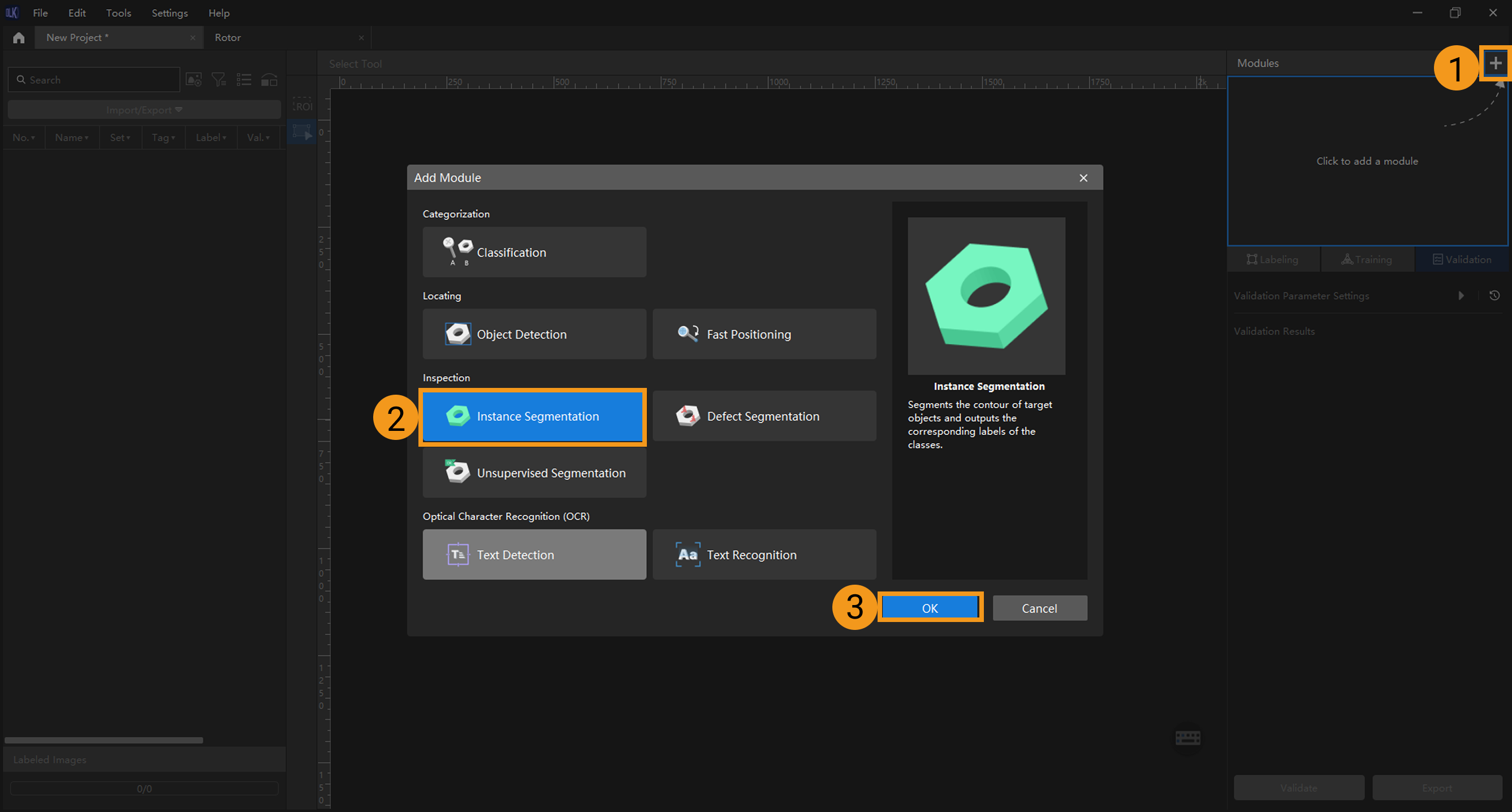
The first module of each project is the Input module. The Input module is primarily used to import images required for training subsequent modules and supports image preprocessing and simple image tagging. Other functionalities can be achieved by building the Tree-Structured Algorithm Modules.
-
-
Click OK.
Open an Existing Project
You can use the following method to open a project:
Method 1:
-
Click Open Project.
-
On the start page of Mech-DLK, click the Open Project button.
-
Select in the menu bar of the main interface.
-
-
In the pop-up Select Mech-DLK Project File window, select the project folder you wish to open.
Method 2:
Double-click the project file (.dlk) in the project folder.
Method 3:
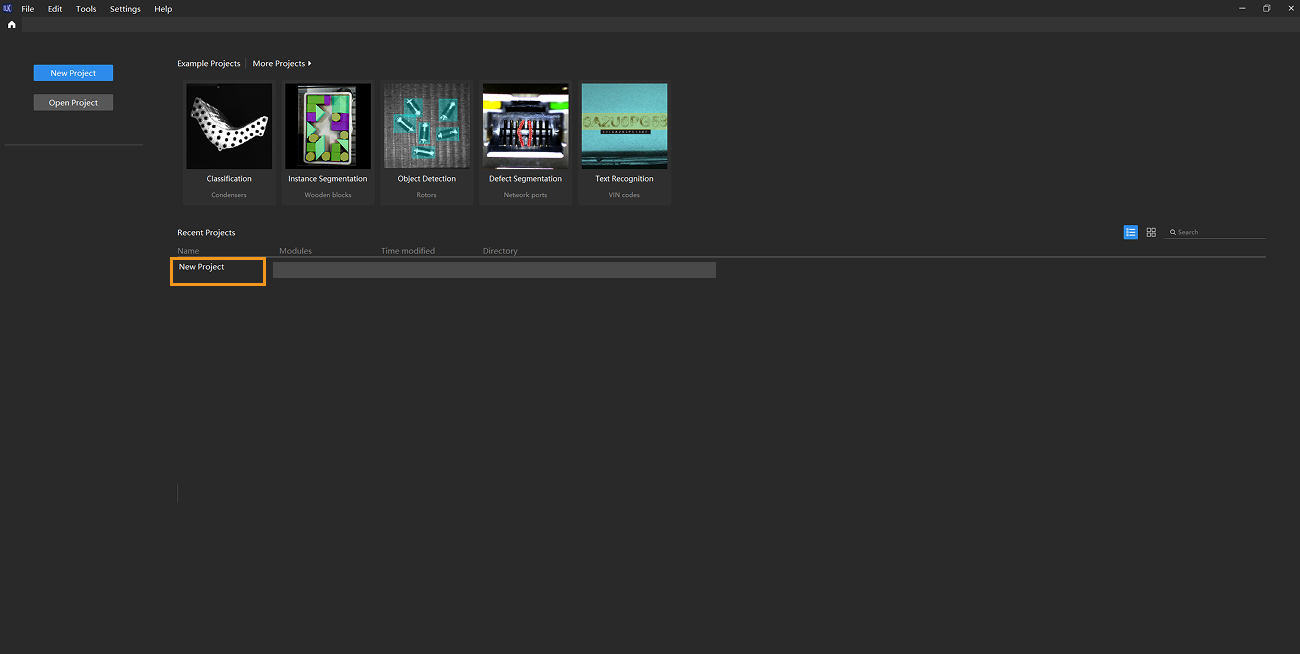
On the Mech-DLK start page, double-click a project under Recent Projects to open it.
|
If you open a project created in an earlier version with Mech-DLK 3.0.0 or later, the system will automatically add an Input module before the original first module and import the images into that module. If the original project contains modules with configured filter rules, the related filter rule settings will be cleared. |
Use Example Projects
Mech-DLK provides example projects covering various algorithm modules and usage scenarios to help you get started with the software. These include Classification, Instance Segmentation, Object Detection, Defect Segmentation, and Text Recognition modules. You can double-click a project to open it.
You can download and use more example projects in the following method:
-
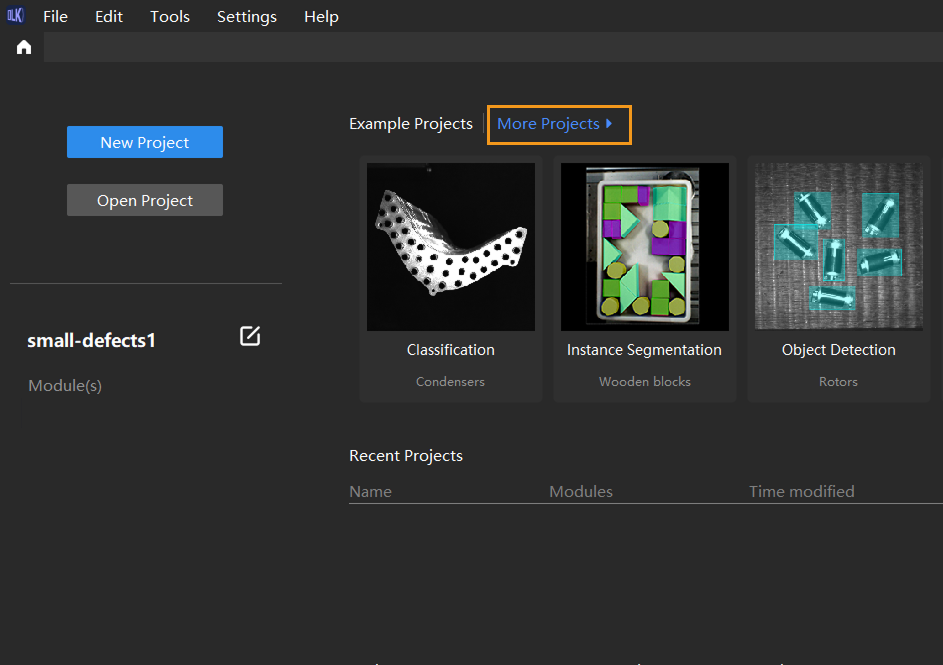
On the start page, click More Projects to download the project that you need.
-
Decompress the downloaded project package.
-
Click Open Project and select the decompressed folder to open the project.