Manage Model Versions
This topic describes how to back up, manage, and revert model versions in Mech-DLK.
Open the Model Versions Window
The Model Versions window can be opened in the following ways:
-
On the lower part of the Labeling, Training, or Validation tab, click Model Versions.
-
In the Modules area or the Details window, right-click the module and select Model Versions.
Back Up Model Versions
Mech-DLK supports the following two methods for backing up model versions:
-
Automatic backup of model versions: After training or validation, if model data is generated or updated, the software automatically backs up the model version for subsequent reversion.
-
Manual backup of model versions: If you need to preserve the current model performance, you can click Back up current model in the Model Versions window to manually back up the current model version.
| Up to 3 backup versions are kept. If you need to keep an important version, you can lock it. When a new backup is added, the earliest unlocked version is automatically removed. Locked versions are not automatically removed. Up to 2 versions can be locked. |
Manage Model Versions
In the Model Versions window, you can view the version name, training status, validation status, and backup time of each backup version.
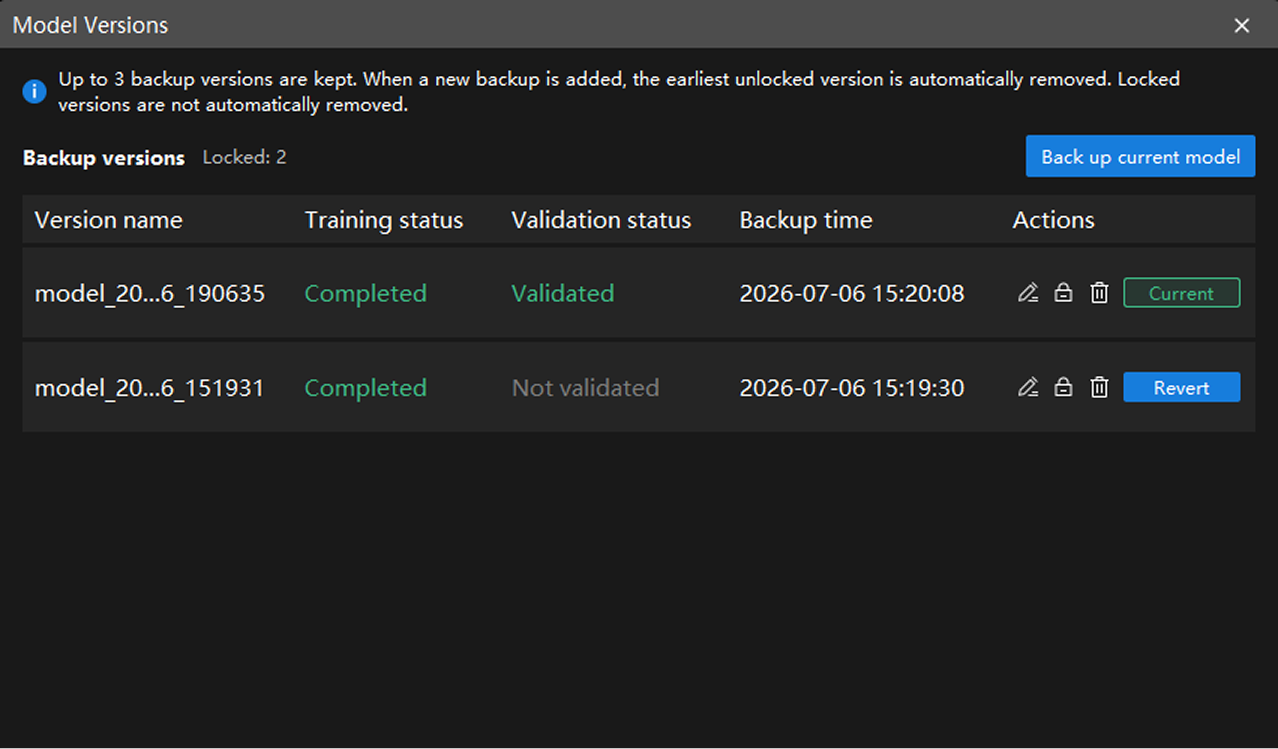
In the Actions column, you can perform the following actions on model versions:
-
To modify the version name, click the edit icon
 or double-click the version name.
 -
To prevent a version from being automatically removed, click the lock icon
 .
. -
To unlock a version, click the unlock icon
 .
. -
To delete a version, click the delete icon
 .
.
|
Revert Model Versions
If the training or validation results of the current model version are unsatisfactory, you can click Revert in the row of the target version to restore its model data.
|