Notify
Usage Scenario
This Step is usually used in scenarios where an external device is required for the communication.
Parameter Description
Communication Setting
- Interface Communication Receiver
-
Description: This parameter specifies the Interface communication mode.
Value list: Standard Interface, Adapter
When using the Adapter communication mode, if the project contains multiple Notify Steps, all Adapter Names set in these Notify Steps should be consistent.
- Message
-
Description: The customized message. The Adapter executes different logic according to the content of the message. For example, you can set the message to finish if the branch operation ends.
- Action When Failed
-
Description: This parameter specifies the action of the software when the notification message is not sent successfully.
Value list: Warning, Retry, Halt
- Need Robot Stop
-
Description: If this parameter is selected, the robot will pause when the project executes to this Step. If this parameter is not selected, the robot will keep moving while the Step sends the message.
- Timeout
-
Description: If the message fails to be sent after the timeout period, the robot will perform the Action When Failed.
Application Examples
Send a Planning Failure Message to the Adapter
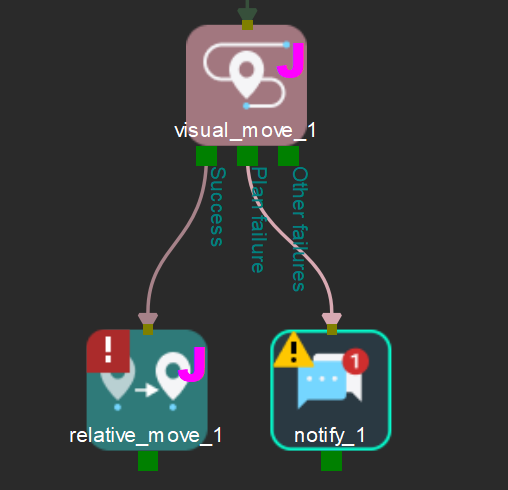
When the Vision Move Step fails to generate a valid path planning, the Notify Step can send a failure message to the Adapter.
As shown in the figure below, connect the Notify Step after the Vision Move Step. Then, set the Interface Communication Receiver to Adapter and the Message to finish. In this configuration, the Notify Step will send the message to the Adapter whenever path planning fails, and the failure message is finish.
Coordinate with the Robot to Achieve the “Capture-and-Move” Strategy
In EIH scenarios using the Standard Interface communication mode, the Notify Step should be added to the workflow to coordinate with the robot for the “Capture-and-Move” strategy.
-
In Mech-Vision, click . Then, enable the option Return “1102: Successfully triggered” after capture.
-
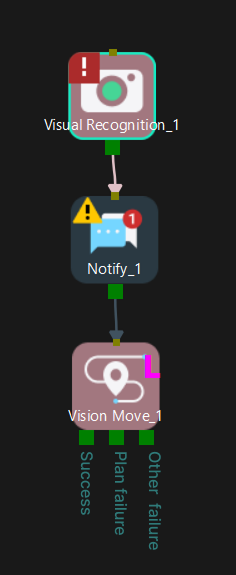
In Mech-Viz, add the Notify Step and connect it after the Visual Recognition Step, as shown in the figure below. Once the Notify Step sends the Exposure_Complete signal to the robot, the robot can move immediately without waiting for the Mech-Vision project to finish running.
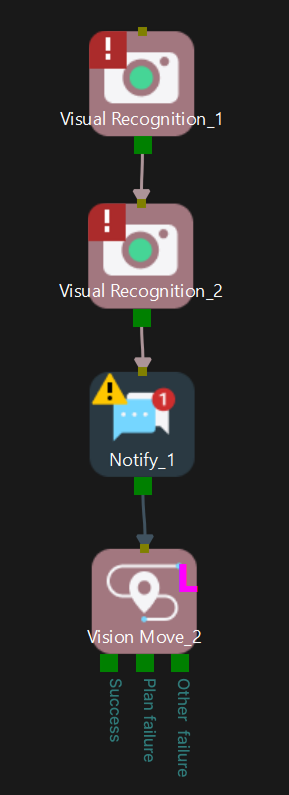
If multiple cameras are involved, the Notify Step should be connected after each corresponding Visual Recognition Step.