Advanced Tuning Level Parameter Description
This section introduces the configurable parameters available under the advanced tuning level for the "3D Matching" Step, as well as the description of the functions and tuning recommendations of each parameter.
Input and Output Settings
- Output Type
-
Description: This parameter is used to set the information type output by the Step. You can choose to output information about the pick point or the object center point.
Value list: Pick point, Object center point
-
Pick point: Output the pick point and pick point information of the target object.
-
Object center point: Output the object center point.
Default value: Pick point
-
- Input Type
-
Description: This parameter is used to set whether to input the point cloud model.
Value list: Default, External model
-
Default: Use the point cloud model made in the target object editor for matching.
-
External model: Once this option is selected, additional input ports will be added to the Step for inputting the point cloud model and object center point of the target object. If you want to select this option, please select the “No point cloud model required” workflow in the target object editor. For applicable scenarios of this option, refer to Recognize Target Objects with External Point Cloud Models.
Default value: Default
-
Matching Mode
| Matching Mode can only be set when the point cloud model of the selected target object contains both surface and edge point clouds. If the point cloud model contains only one type of point cloud, the corresponding matching mode will be automatically applied in this Step, and manual switching is not allowed. For example, when the point cloud model only contains edge point clouds, the edge matching mode will be used by default, and the parameters related to Matching Mode will be hidden. |
- Auto-Set Matching Mode
-
Description: Once this option is enabled, the Coarse Matching Mode and Fine Matching Mode will be automatically set.
Default value: True
- Coarse/Fine matching mode
-
Description: The two parameters are used to set the matching mode. You only need to set them when Auto-set matching mode is not enabled.
Value list: Surface matching, Edge matching
-
Surface matching: Use the object’s surface point cloud model for point cloud model matching.
-
Edge matching: Use the object’s edge point cloud model for point cloud model matching.
Default value: Surface matching
Tuning recommendation: To improve matching accuracy, set the Coarse Matching Mode to Edge matching and the Fine Matching Mode to Surface matching.
Additionally, this parameter can be adjusted based on the target object features and the quality of the acquired point cloud.
-
When the surface of the object has obvious recognizable features (such as crankshafts, rotors, etc.), it is recommended to use surface matching, and you should create a point cloud model that represents the surface features of the object.
-
When the object is relatively flat and shows clear and regular edge features under the camera (such as panels, track shoes, robot links, and brake discs), it is recommended to use edge matching, and you should create a point cloud model that represents the edge features of the object. Meanwhile, if the object point cloud quality is average, it is recommended to use surface matching.
-
Coarse Matching Settings
- Performance mode
-
Description: This parameter is used to set the trade-off between accuracy and speed of matching. The higher the accuracy, the longer the time consumed.
Value list: High Speed, Standard, High Accuracy, Custom
Default value: Standard
- Expected Point Count of Model
-
Description: This parameter is used to specify the expected number of points in the point cloud model. Set this parameter when Performance mode is Custom.
Default value: 300
Instruction: Generally, this parameter should be set when a surface point cloud model is used for matching. Decreasing this value is conducive to improving the matching speed, but it also reduces the matching accuracy.
Fine Matching Settings
- Performance mode
-
Description: This parameter is used to set the trade-off between accuracy and speed of matching. The higher the accuracy, the longer the time consumed.
Value list: High speed, Standard, High accuracy, Extra high accuracy, Custom
Default value: Standard
Tuning recommendation: For scenarios requiring high picking accuracy, it is recommended to set the Performance Mode to Custom and then set the Sampling Interval manually.
- Sampling Interval
-
Description: The larger the parameter value, the fewer points in the sampled point cloud and the sparser the point cloud. Therefore, the matching is less accurate. The smaller the parameter value, the longer the running time.
Default value: 5.000 mm
- Max number of iterations
-
Description: The larger the value, the higher the matching accuracy, and the slower the processing speed.
Default value: 40
- Standard deviation update step number
-
Description: The parameter is used to fine-tune the standard deviation.
Default value: 3
- Deviation Correction Capacity
-
Description: This parameter is used to set the intensity of the deviation correction to the matching result from Coarse Matching. The greater the deviation correction capacity is, the more likely the coarsely matched poses can be corrected to the accurately matched poses. Note that an excessive deviation correction capability may lead to a loss of matching accuracy.
Value list: Small, Medium, Large
Default value: Small
Tuning recommendation: If the pose obtained after coarse matching deviates significantly from the actual object pose, set the Deviation Correction Capacity to Large.
Extra Fine Matching
| Extra Fine Matching can only be performed when the point cloud model of the selected target object contains both surface and edge point clouds. |
- Enable Extra Fine Matching
-
Description: Once enabled, a different mode will be used for fine matching. For example, if the current fine matching mode is surface matching, enabling this feature will perform fine matching again using the edge point cloud model. Once enabled, the final matching accuracy may be improved, but the running time will be slightly increased.
Default setting: Disabled
Tuning recommendation: Please decide whether to enable this feature based on the actual situation. If you enable it, ensure the surface/edge point cloud model used for extra fine matching is accurate and reasonable.
Pose Filtering
- Use distance-based NMS
-
Description: After this option is enabled, candidate poses whose distances to the selected poses are less than one-tenth of the object diameter will be filtered out.
Default value: True
- Auto-set max model rotation angle
-
Description: Once this parameter is enabled, the Max model rotation angle will be automatically set. This feature is mainly used for filtering the poses that are wrongly matched with the front or back sides of the target object.
Default value: True
- Max model rotation angle
-
Description: When the point cloud model matches with the scene point cloud, the poses will be filtered by the point cloud model’s rotation angle about its X-axis or Y-axis. When the model’s rotation angle exceeds the Max model rotation angle, the pose will be filtered out.
Default value: 135.00°
Adjust or Filter Poses from Coarse Matching
- Select Strategy
-
Description: When Adjust X-axis orientation is selected, the Z-axes of the poses obtained from coarse matching remain fixed, while the X-axes rotate to the specified direction. When Filter potentially false matches is selected, poses that could cause matching failures—calculated in the target object editor—are used to refine the matching process, filtering out unreliable poses from coarse matching.
Value list: None, Adjust X-axis orientation, Filter potentially false matches
Option Description Tuning Examples N/A
Disable the "Adjust or Filter Poses from Coarse Matching" feature.
Adjust X-axis orientation
Adjust X-axis orientation: Fix the Z-axis of the pose obtained from coarse matching and rotate the X-axis to the specified direction. This parameter is usually used for picking target objects with circular symmetry (such as rings, brake discs, etc.) or in picking scenarios where the incoming orientations of objects are generally consistent, so that the X-axes of the target object poses point in the same direction.
Note that when the incoming poses of the target objects vary greatly, applying strict correction to the coarse matching result while leaving the fine matching result uncorrected may lead to no matching result or incorrect matching results.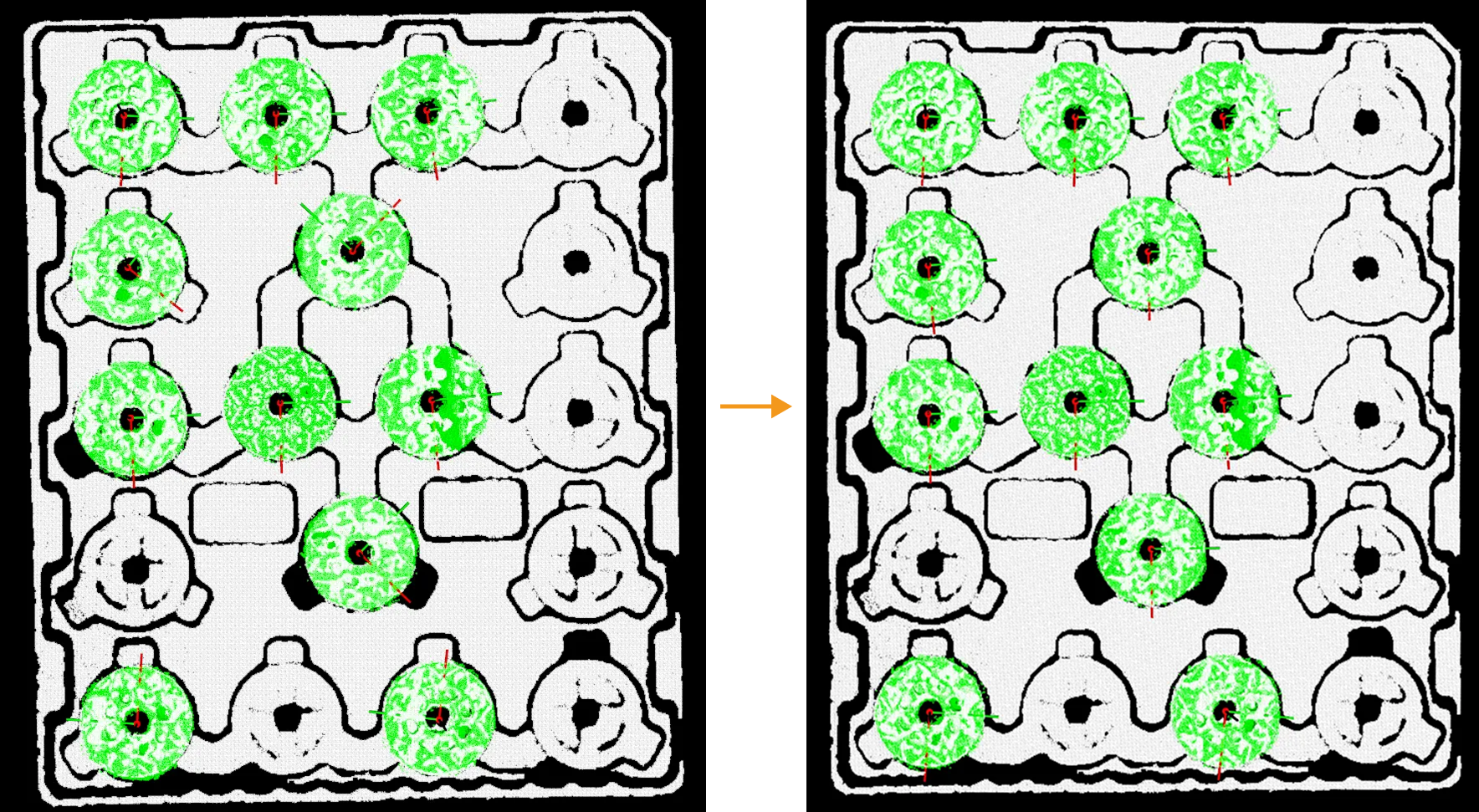
Filter potentially false matches
Uses results calculated in the target object editor to assist matching, helping to filter the coarsely matched poses. This parameter is typically used for symmetric or nearly symmetric target objects (e.g., track links) to filter out potentially incorrect poses from multiple candidate poses. This filtering operation is based on the symmetry of the target object under rotation about the Z-axis.
-
For rectangular target objects with 180-degree rotational symmetry, to ensure that the X-axis orientations of the matched poses match those of the point cloud model, you can select “Filter potentially false matches”. The adjustment result is shown in the figure below.
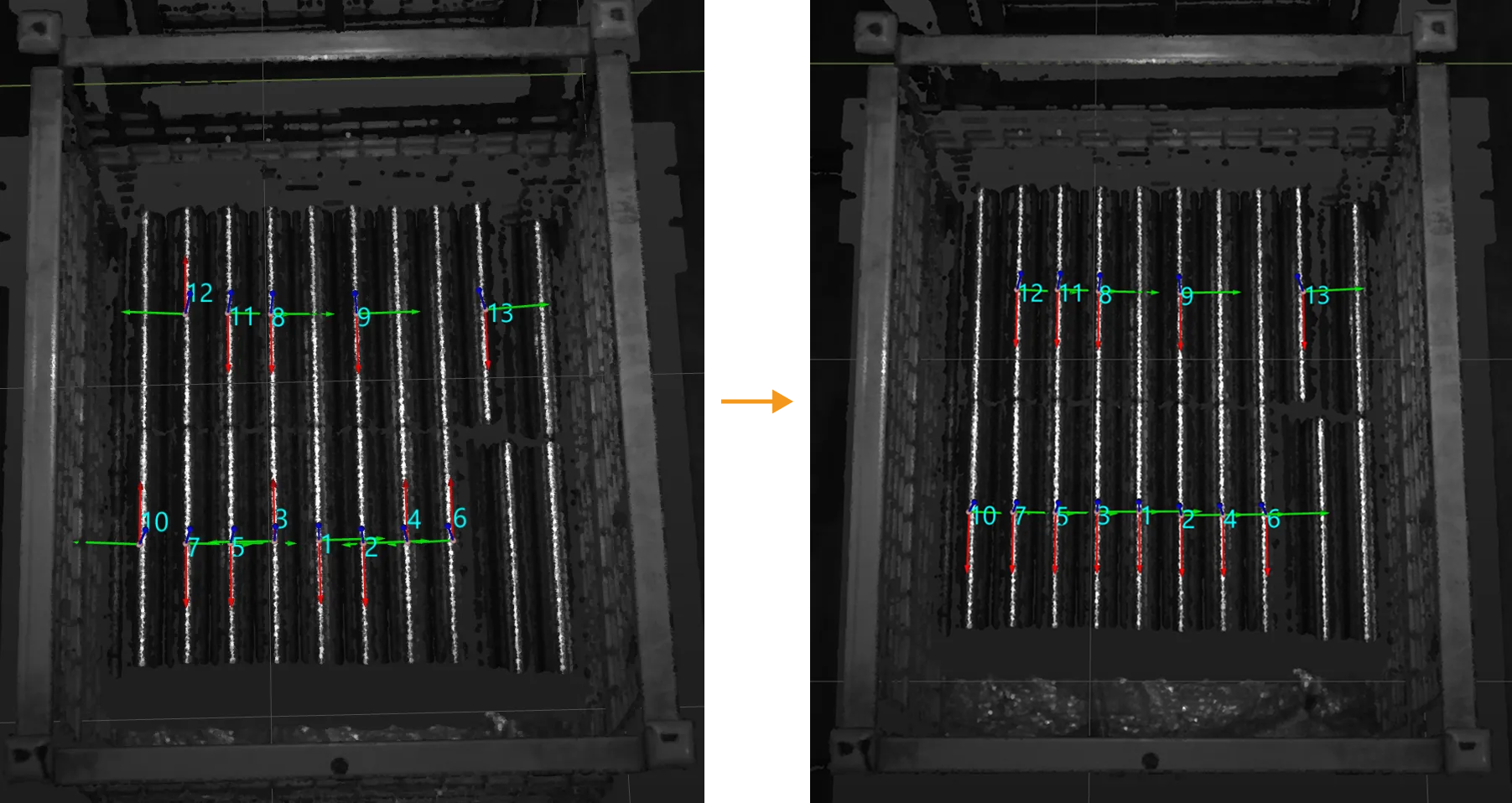
-
If a target object is approximately 180° symmetrical, but the two ends of the target object have different structures, the target object is considered not symmetrical. Such target objects are prone to incorrect recognition. To improve the recognition accuracy, it is recommended to select “Filter potentially false matches” for this type of target objects. The adjustment result is shown in the figure below.
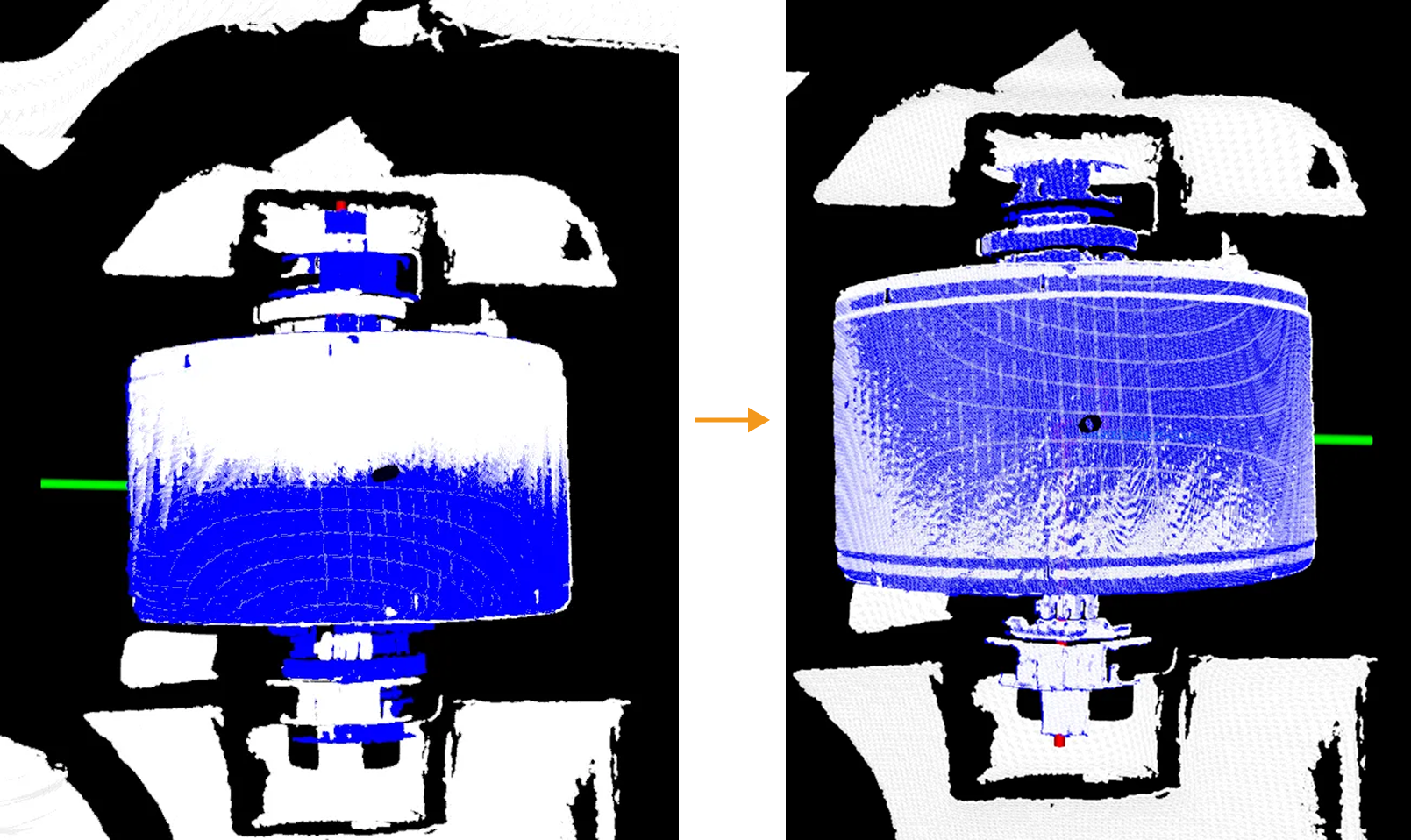
Default value: None
Instruction: If you need to use the Filter potentially false matches parameter, please enable the Configure point cloud model under Point cloud model settings in the target object editor. Then, select Calculate poses to filter matching result or Configure symmetry manually and configure the relevant settings as needed.
If you set the rotational symmetry of the target object manually in the Target Object Editor, the rotational symmetry settings will take effect not only during Coarse Matching and Fine Matching, but also during Extra Fine Matching. -
Augment Long Thin Objects
- Enable Augmentation for Long Thin Objects
-
Description: When matching long and thin target objects (such as shafts and square tubes) with aspect ratios greater than 3:1, the target object and point cloud are prone to misalignment along the long axis of the object, with the ends unable to align accurately. Enabling this feature can improve the matching accuracy of long and thin target objects.
Default value: True
Confidence Settings
This parameter group is used to evaluate and filter matching results during 3D Matching to ensure matching accuracy and stability. For example, setting this parameter group properly can ensure that the target objects on the top layer that are normally placed can be accurately recognized.
First, this Step evaluates the matching results according to the set Result Validation Degree and calculates the confidence of the matching results. Then the confidence is compared with Confidence threshold to filter out qualified matches.
| Confidence of the matching result = the coincidence ratio between the point cloud model and the scene point cloud to be matched. |
- Confidence Strategy
-
Description: This parameter is used to select the method to set the joint scoring strategy.
Value list: Manual, Auto
-
Auto: Set joint scoring strategy automatically.
-
Manual: Set the joint scoring strategy manually.
Default value: Auto
-
- Joint Scoring Strategy
-
Description: This parameter is used to select the scoring strategy used for verification. When Consider both surface and edge is selected, the parameters for surface matching and edge matching under Confidence Settings need to be set separately for better filtering of matching results.
Value list: Consider both surface and edge, Consider surface only
Default value: Consider surface only
Tuning recommendation: When the Joint Scoring Strategy is set to Consider both surface and edge, it is recommended to set a higher value for the Surface Matching Confidence Threshold and a lower value for the Edge Matching Confidence Threshold. When the Joint Scoring Strategy is set to Consider surface only, only the surface matching score will be used for matching result verification.
- Result Verification Degree
-
Description: This parameter is used to set the degree of strictness applied when evaluating the matching results.
Value list: Low, Standard, High, Ultra-high, Custom
Default value: Standard
Tuning recommendation: In general, “Standard” is recommended. When it is difficult to distinguish the point cloud model from the scene point cloud, a higher result verification degree can be selected.
- Search Radius
-
Description: This parameter is used to determine the degree of overlap between the point cloud model and the scene point cloud. The smaller the search radius, the lower the matching result confidence; the larger the search radius, the higher the matching result confidence. You need to set this parameter when Result Verification Degree is set to Custom.
Default value: 10.000 mm
Tuning recommendation: If the matching result validation score is low, you can appropriately increase this parameter; if the matching result validation score is high, you can appropriately decrease this parameter.
- Sampling Interval
-
Description: This parameter is used for the downsampling of the model and scene point cloud (only for evaluating the matching results). The larger the value, the fewer points in the sampled point cloud. You need to set this parameter when Result Verification Degree is set to Custom.
Default value: 5.000 mm
- Confidence threshold
-
Description: If the confidence of the matching result is above the threshold, the matching result is valid. The higher the confidence value is, the more accurate the matching result is.
Default value: 0.3000
Tuning recommendation: It is recommended to set this parameter to the default value and check the running result first. If false recognition occurs, it is recommended to increase this parameter; if a false negative occurs, it is recommended to decrease this parameter.
- Consider normal deviation in surface matching
-
Description: When verifying the surface matching results, consider the angle deviations between the normals of the points in the scene point cloud and their counterparts in the point cloud model. Once this parameter is enabled, the number of output matching results may be fewer, but the accuracy of the matching results will be enhanced.
Default setting: Unselected
Model Processing
- Consider Holes in Surface Matching
-
Description: During surface matching, if the outer contours of the point cloud model and the point cloud of the target object match, but either the point cloud of the target object or the point cloud model has holes, it can lead to mismatches (such as mismatches between rings and disks). Once this option is enabled, if the surface point cloud model and the target object cannot match in the holes, the corresponding surface matching confidence decreases. If the surface point cloud model has been edited and no longer accurately reflects the shape of the actual object, for example, if complex patterns in the center of the point cloud model have been deleted, it is recommended to disable this feature.
Default value: True
Remove Coinciding Poses
- Remove Poses of Coinciding Objects
-
Description: This parameter is used to determine whether to enable the feature of removing coinciding objects.
Default value: True
For thin-walled target objects (such as bins and turnover boxes), if this function does not work well, you can use the Remove Coinciding Objects Step instead to remove poses of coinciding objects. - Coincidence Ratio Threshold
-
Description: If the coincidence ratio of the masks, obtained by orthographically projecting the two object point clouds, exceeds this value, the pose with lower confidence will be removed. Set this parameter when Remove Poses of Coinciding Objects is enabled.
Default value: 30%
Remove Overlapped Poses
- Remove Poses of Overlapped Objects
-
Description: This parameter is used to determine whether to enable the feature of removing overlapped objects.
Default value: True
For thin-walled target objects (such as bins and turnover boxes), if this function does not work well, you can use the Remove Overlapped Objects Lite Step to remove poses of overlapped objects instead. - Overlap Ratio Threshold
-
Description: The threshold of the overlap ratio between the object and other objects. If the overlap ratio is above this value, the object will be considered overlapped. Set this parameter when Remove Poses of Overlapped Objects is enabled.
Overlap Ratio = Projected Area of the Point Cloud Overlapping the Object / Projected Area of the Object Point Cloud Model Default value: 30%
Output
- Max outputs
-
Description: This parameter specifies the maximum number of output target objects for successful matches. The larger the value, the longer the Step execution time.
Default value: 10
Tuning recommendation: It is recommended to set this parameter appropriately and avoid setting it too high. The changes to this parameter will only take effect after re-running the Step, and the number of outputs will be limited based on the new matching result.
| The actual number of output results from 3D matching may not necessarily match the set Max Outputs. If the Max Outputs is set to 5, but there are 3 recognition results in total, the final number of output recognition results is 3. |
Visualization
- Visualization Content
-
Description: After “Debug Output” is enabled, the selected option will be generated and displayed in the Debug Output window.
Value list: Coarse matching, Fine matching, Adjust X-axis orientation, Confidence, Remove overlapped poses, Output result
Default value: Output result
Instruction: Please enable Debug Output to display poses in the Debug Output window.
- Display Poses
-
Description: Once enabled, the pose will be displayed in the Debug Output window.
Default setting: Enabled